
Item identification – how to check an item, its price and stock with one scan
TL;DR
Tap Identify Item in the main menu, scan or type an identifier, and get a card with the name, code, barcode, prices, image, ERP data for a branch and what was counted in every branch. Included in every license and uses no credits.
Who this is for and when
Item identification is for every user in the company: a shop worker who needs a price for a label, a warehouse worker checking whether an item exists in the catalog before receiving it, and a manager who wants to see how much of an item was counted in each branch. The card opens from the main menu, without opening a count.
Before you start
- A loaded catalog. Identification searches only your company's catalog.
- The camera enabled in the counter settings (Scan with Camera), or a paired Bluetooth scanner. See Barcode scanner.
- To see the cost price, the user needs View Cost Prices Permission; to see ERP stock data, Show inventory data from ERP system (if available). Both are set in Users.
Step by step
Step 1: Open the search
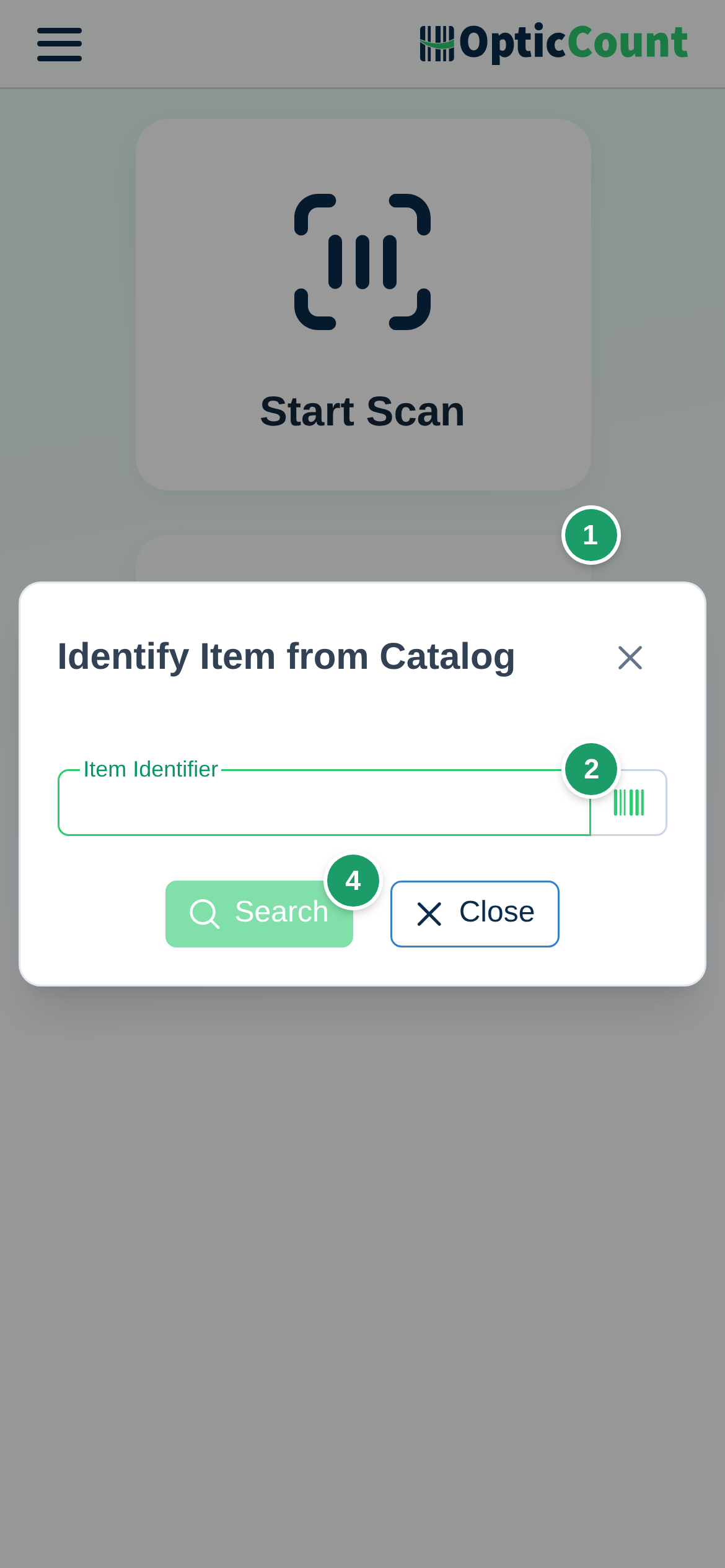
- In the main menu tap Identify Item. The Identify Item from Catalog dialog opens.
- Scan the barcode with the camera or the scanner, or type an item code, barcode or name in the Item Identifier field. Suggestions appear as you type.
- Pick a suggestion or tap Search.
Step 2: Read the item card
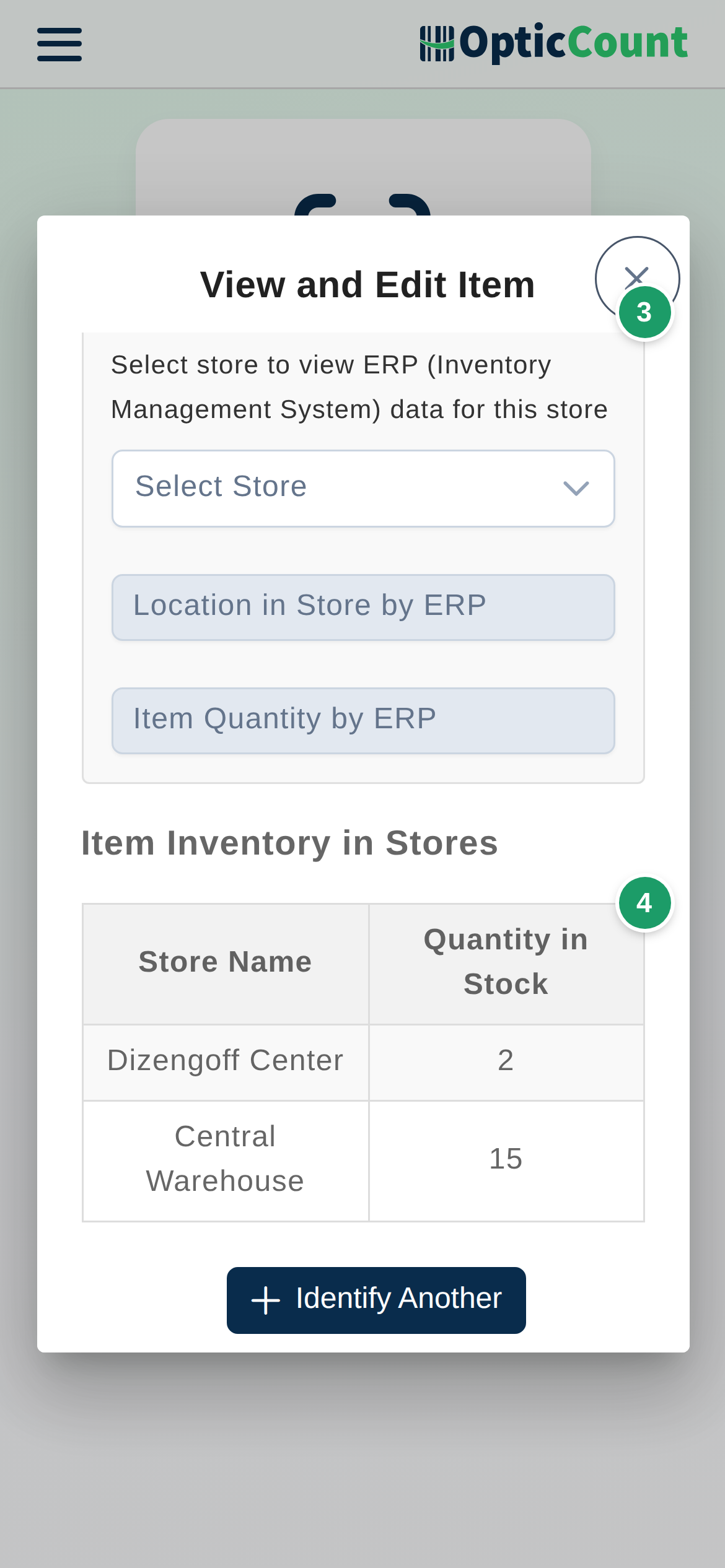
The View and Edit Item card shows:
| Area | What is shown |
|---|---|
| Title | The item name, or Item without name |
| Identification | Item Code, Barcode, category, provider, sort code, color, size, model and unit of measure when they exist in the catalog |
| Prices | Selling Price; Cost Price only with View Cost Prices Permission |
| Image | The item image from the catalog; tapping it opens a larger preview |
| Package | Package Quantity for an item counted in both units and packages |
| ERP data | After choosing a branch in Select store to view ERP (Inventory Management System) data for this store: Location in Store by ERP and Item Quantity by ERP |
| Item Inventory in Stores | A table of Store Name and Quantity in Stock based on the counts made. An item never scanned shows This item has not been counted in any stores |
The Borrowers with This Item table does not appear here; it is shown only when you open an item from Borrowers.
Step 3: Edit or continue
- A user with Add and Edit Catalog Items Permission can correct fields directly on the card and tap Save and Close. The change applies to every count from now on.
- Close Without Saving closes without changes.
- Identify Another reopens the search field for the next item.
Camera or scanner
| Method | When it fits | What you need |
|---|---|---|
| Phone camera | Single checks on the shop floor | Scan with Camera on; allow camera access the first time |
| Bluetooth scanner | Many checks in a row, small or damaged barcodes | The scanner paired with the phone; the scan lands in the Item Identifier field like typed text |
| Typing | No barcode, or the barcode will not read | Item code, barcode or part of the name |
What happens next
- Identification does not create a scan and does not change quantities. To count the item, open Start Scan.
- Identification uses no credits, even when the bank is empty.
- A change saved on the card appears immediately in Catalog and on the item cards of the counter page.
Common problems
- If the dialog shows Item Not Found in Catalog with the message The item you searched for does not exist in the system → check the identifier and try again, or add the item in Catalog. New items cannot be added from the identification dialog.
- If a long barcode is not found but the ERP stores short barcodes → type the barcode as it is stored in the catalog. The Shortened Barcodes in Catalog setting works only on the count page, not in item identification. See Settings.
- If you see Camera error: → allow camera access in the browser, or turn off Scan with Camera and use a scanner.
- If Cost Price is not shown → the user lacks View Cost Prices Permission. A manager enables it in Users.
- If the ERP fields are empty → choose a branch on the card; the data is stored per branch. Without a selection you see Please select a store to assign location and/or quantity by ERP system.
- If the Item Inventory in Stores table is empty → the item was never scanned in any count. This is not the ERP quantity; the ERP quantity is in the Item Quantity by ERP field.
Related pages
- Main menu – the entry point for identification and counting
- Catalog – add and edit items and images
- Barcode scanner – pair a Bluetooth scanner
- Settings – shortened barcodes and barcode transformation rules
- Inventory counts – count the item after identifying it