
Orders screen
The Orders screen is the company's order board: what is waiting to be picked, who is picking what, and which orders are done. From here you create orders, assign collectors, sync orders from Bina, and turn on auto-assign.
Who sees it: Primary User · Co-Manager · Sub-Manager · Employee (own orders only)
Used in modules: picking returns
TL;DR
Managers see and manage every order. Employees see only orders assigned to them and tap a row to start picking. Picking itself happens on the counting page – see Order picking.
How to get here
- On the phone: ☰ menu → Management → Movements → Orders
- On a computer: side menu → Movements → Orders
An employee set up as a collector lands on this screen automatically when opening the management area.
Order picking is a paid module that requires a full integration with a supported ERP: Bina, Priority, SAP Business One or Hashavshevet. Orders come in from the ERP or are created by hand; in-app order sync is available today with Bina. If the module has not been purchased, the menu item is shown locked and opens an unlock dialog. Details on the License & purchases page.
What is on the screen
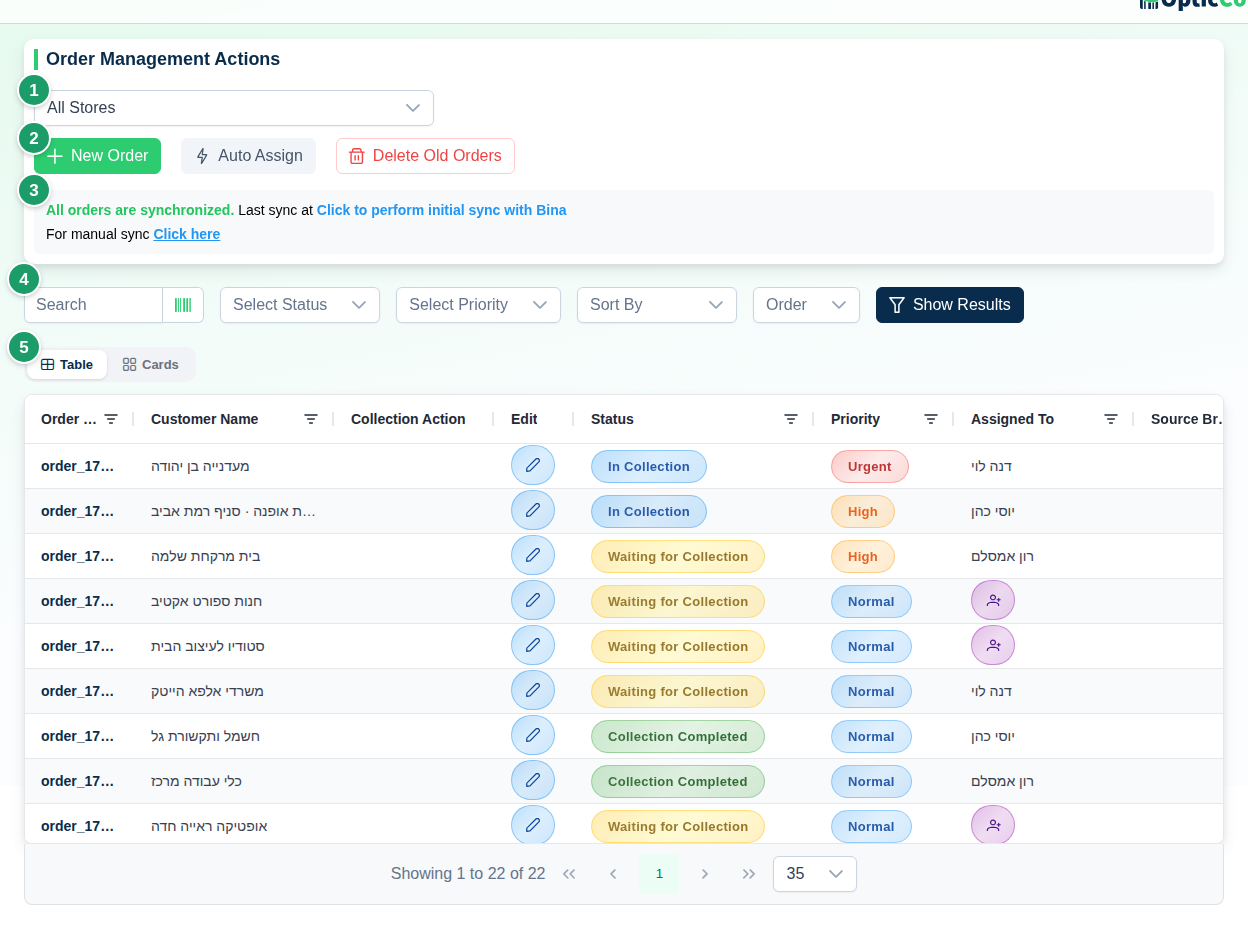
(1) Branch picker
Managers with more than one branch pick a branch or All Stores before the table loads. Employees and orders-only managers see only the branches assigned to them.
(2) Action bar
| Button | What it does | Who sees it |
|---|---|---|
| New Order | Starts a manual order in two steps | manager, orders manager |
| Auto Assign | Opens Auto Assign Settings | manager, orders manager |
| Delete Old Orders | Permanently deletes orders created before a date | primary user only |
(3) Sync status
Shown only when a Bina integration is active. The line reads All orders are synchronized. with the last sync time, followed by a Click here link for a manual sync. See Syncing orders from Bina.
(4) Search and filters
Search by Customer Name, Order Number or All; filter by status (several at once), priority and date range; sort by Created At, Order Number, Customer Name, Status, Priority or Due Date. Filters are remembered between visits. For employees the status filter always starts as Waiting for Collection + In Collection.
(5) Orders table
Clicking an Order Number opens the order details. An order in Draft status opens the counting page instead, so you can keep building it. For employees, tapping anywhere on a row starts or continues picking.
Table columns
| Column | Content |
|---|---|
| Order Number | The order number. Imported orders keep the number from the source system. |
| Customer Name | The customer as entered or imported. |
| Collection Action | Start Collection, Continue Collection or View Collection – only on orders assigned to you. |
| Edit | Opens the Edit Order dialog (managers only). |
| Status | See Statuses. |
| Priority | See Priorities. |
| Assigned To | The collector's name. An unassigned order shows an Assign Collector button instead. |
| Source Branch / Destination Branch | The branch to pick from, and where the order is headed (optional). |
| Created At | When the order was created or imported. |
Employees see a reduced table: order number, customer name, status, collection action and priority.
Statuses
| Status | Meaning |
|---|---|
| Draft | The order exists but its item list is not finished yet. |
| Waiting for Collection | A new order nobody has started picking. The default for new orders. |
| In Collection | A collector has started working on it. |
| Collection Completed | Picking is finished. |
| Shipped | The order has left for the customer. |
| Cancelled | The order was cancelled. |
Priorities
Low · Normal (default) · High · Urgent. Priority only affects the badge colour and sorting.
Actions
New Order
- Click New Order. The Create New Order dialog opens.
- Pick the Customer Name (required; search by name, phone or email, or + Add new customer), then fill in Priority, Source Branch (required), Destination Branch, Due Date and Notes.
- Click Continue to Add Items. A draft is created and the counting page opens in order-creation mode.
- Scan or type the items and quantities.
- Click Finish Creating Order. The order moves to Waiting for Collection. With an active Bina integration the order is also sent to Bina.
Edit Order
The Edit Order dialog has three parts:
- Assign Collector – shows the Current Collector and lets you pick Assign New Collector.
- Edit Order Items – the Edit Order Items button opens the counting page to add, remove or change quantities.
- Order Details – Customer Name, Customer Phone, Customer Email, Priority, Status, Due Date, Notes.
Click Save when done.
View Order
The View Order dialog shows the order number with status and priority badges, Customer Details, Order Details (Due Date, Assigned to, Creation Date), Notes, and an Order Items table with Requested Quantity, Collected Quantity and a per-line status (Completed / In Progress).
Assigning a collector
- In the table: click Assign Collector in the Assigned To column of an unassigned order. The edit dialog opens on the Assign New Collector field.
- Right after creation: the Start Order Collection dialog shows an order summary and lets you Assign Picker, then Assign Order.
Auto Assign
The Auto Assign button opens Auto Assign Settings:
| Setting | What it does | Default |
|---|---|---|
| Automatically assign new orders | Every new order (manual or imported) is assigned to a collector on creation | off |
| Collectors to include | Which employees take part. Empty = All workers (default) | all employees |
| Assignment Strategy | Equal distribution – round-robin between collectors; By current workload – the least-loaded collector gets the next order | equal distribution |
| Also apply to all existing unassigned orders right now | One-time backfill of open orders that have no collector | off |
| Also reassign already-assigned orders | Appears only with the backfill; replaces existing assignments too | off |
- Preview Backfill shows how many orders each collector would get, without saving.
- Save Settings saves without running anything. When the backfill box is ticked the button becomes Save & Apply and runs it immediately; the result reads N orders have been assigned.
Syncing orders from Bina
The first time you see Click to perform initial sync with Bina. When the sync finishes, a Bina sync completed dialog opens (or Bina sync completed — with warnings) with counters for Received, Imported, Updated, Unchanged and Skipped, an Orders per store breakdown, and lists of Skipped orders, Unrecognized branch names and Errors. An order whose Bina branch does not match a branch name in OpticCount is not imported.
Besides Click here, OpticCount pulls new and updated orders from Bina automatically every few minutes, as long as the integration is active. With Priority, SAP Business One and Hashavshevet the order connection is set up together with the OpticCount team. See Integrations.
Permissions and "only my orders"
| Role | What they see and can do |
|---|---|
| Primary User, Co-Manager, Sub Manager | All orders in all branches; create, edit, assign, auto-assign, sync. Deleting old orders – primary user only. |
| Employee with Full order management access (manager-level for orders only) | Same as a manager, but only in their assigned branches. Other management areas stay closed. |
| Employee without that permission | Only orders assigned to them, in Waiting for Collection or In Collection. No management buttons; tapping a row starts picking. |
The permission is set on the Users page.
Dangerous actions
Deleting old orders cannot be undone
Delete Old Orders permanently removes every order created before the date you choose, filtered by status (All Statuses or a single status). There is no recovery.
Related pages
- Order picking – pick an order on the counting page and finish it
- Returns – open a returns document against an original order
- Users – set up collectors and the order management permission
- Integrations – connect the ERP to sync orders
- Customers – manage the customers named on orders