
Item Catalog screen
The Catalog screen is where you load and maintain the company's item list: codes, barcodes, descriptions, prices, photos and the extra fields every module relies on.
Who sees it: Primary User · Co-Manager · Sub-Manager
Used by modules: Counting Picking Receiving Returns Loans Item identification Labels
TL;DR
The catalog is shared by all branches. Load it from an Excel/CSV file with column mapping, or import it from the ERP. Single items are added and edited in the item dialog or directly in the table.
How to get here
- On the phone: ☰ menu → Inventory → Catalog
- On the computer: side menu → Inventory → Catalog
What's on the screen
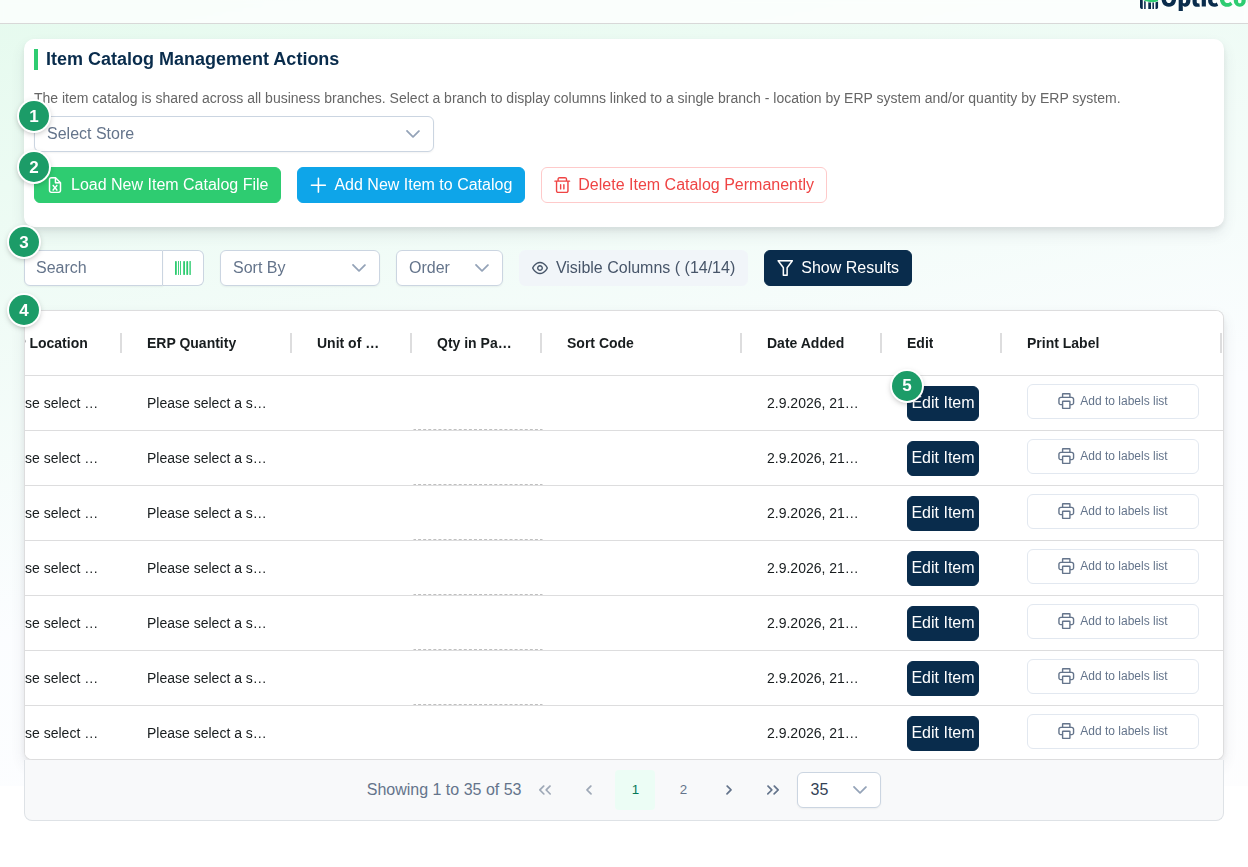
(1) Store select
The catalog is shared by every branch. Only two fields belong to a specific branch: ERP Location and ERP Quantity. The Select Store list decides which branch those two columns show; every other column is the same regardless.
(2) Action bar
| Button | What it does | When it shows |
|---|---|---|
| Load New Item Catalog File | Opens the file upload dialog (see Uploading a catalog file) | Always |
| Add New Item to Catalog | Opens an empty item dialog | Always |
| Delete Item Catalog Permanently | See Dangerous actions | When there are items |
| Reset ERP System Quantities in Branch | Clears ERP Quantity for every item in the selected branch | When a store is selected |
| Import catalog with «system name» | Pulls every item from the ERP: updates existing items and adds new ones | When an integration is set up in Integrations |
| Import Catalog | A menu to choose which system to import from | When several integrations are set up |
(3) Search, sort and columns
Search by free text, Sort By (ID, Sort Code, Item Code, Description, Barcode, Cost Price, Selling Price, Supplier, Category, Created At), Order and Visible Columns. Click Show Results to apply. While the search field has text, an ✕ button (Clear) appears next to it; it empties the field and puts the cursor back for the next search or scan.
(4) Items table
Most cells edit in place: click a cell, change the value and leave it – the item saves and Item updated successfully appears. Columns are listed under Fields and options.
(5) Row buttons
- Edit Item – opens the item dialog with every field, the photo and the per-branch data.
- Add to labels list – adds the item to the print list on the Barcode Labels screen.
Fields and options
Table columns:
| Column | What it shows | Editable in table |
|---|---|---|
| Item Code | The item's ID in the ERP | Yes |
| Barcode | The barcode that gets scanned | Yes |
| Description | The name counters see. An item without one shows as Unnamed Item | Yes |
| Supplier, Category | Classification fields | Yes |
| Cost Price, Selling Price | Prices for money calculations. Both show in the table; in the item dialog Cost Price is hidden without permission | Yes |
| Manually Added | Yes for an item created in the app rather than from a file or integration | No |
| ERP Location | The item's location in the selected branch | No |
| ERP Quantity | The balance in the selected branch, used for variance | No |
| Unit of Measure | Free text | No |
| Qty in Package | Units per package when the package carries the same barcode as the item | Yes |
| Sort Code | Group code from the ERP | No |
| Date Added | When the item was created | No |
Color, Size, Model, Minimum Stock and the photo are edited in the item dialog.
Uploading a catalog file
Load New Item Catalog File opens the Upload Item Catalog File dialog in three steps.
Step 1 – Instructions
The dialog lists the rules: xlsx or csv, column order doesn't matter, the catalog is shared across all stores, and an item that already exists is updated from the file rather than duplicated.
| Group | Columns | Notes |
|---|---|---|
| Required | Item Code or Barcode (one is enough), Item Description | |
| Item details | Cost Price, Selling Price, Supplier Name, Category, Sort Code, Color, Size, Model, Unit of Measure, Image (link) | Stored as-is |
| Stock & location | Quantity (the ERP balance), Location, Minimum stock, Package Quantity | Quantity and location belong to a branch – see step 3 |
| Parent barcode | Parent barcode, Conversion ratio, Parent barcode name | For a case with its own barcode. Conversion ratio is required together with parent barcode. See Packages and parent barcodes |
Click Continue to catalog file upload.
Step 2 – Choose the file
Drag a file onto the upload area or click Click to select file. Uploading from an iPhone (Safari) works as from a computer; if an upload fails, reload the page and pick the file again. The old xls format is not supported – the dialog links to a converter to xlsx. A business on One ERP selects I use ONE ERP spreadsheet and uploads two CSV files: items.csv and barcodes.csv.
Step 3 – Column mapping
- The system locates the header row in the file and shows a preview of the first rows.
- Click a column header and pick the matching system field, or Ignore this column. Green columns are already mapped; orange ones still need mapping.
- Optional: click Use previous mapping to reuse the mapping from your last upload.
- Optional: click Suggest mapping with AI. The AI maps only columns that are still unmapped and does not change a mapping you picked by hand. When it finishes you see AI mapped N columns. Click a header to change it., or AI found no confident matches. Click a column header to map it manually. Only the column headers and a general description of the shape of the values are sent to the AI, never the cell contents.
- If you mapped Location or Quantity, pick a branch under Select the branch to load the catalog – those values are stored for that branch only.
- When All required fields are mapped appears, click Confirm column mapping.
The file does not have to be perfect: the system finds the header row even when empty rows sit above it, trims stray spaces, and splits a barcode cell that holds several comma-separated barcodes into one row per barcode with the same item data.
Upload summary
When the upload ends, the Item Catalog File Upload Summary dialog opens with the number of rows in the file, the number of new items added and the number of existing items updated. When everything loaded, you see Entire item catalog file loaded and updated successfully. Otherwise, under Reason not all items were loaded to system: the reasons are listed:
| Reason | What to do |
|---|---|
| Rows that repeat an item code and barcode already in the file (only the first row was loaded) | Usually nothing. If the rows really differ, fix the code or barcode in the file and upload again. |
| Items that could not be saved | Check those rows in the file and upload again. |
| Number of items without item code and without barcode | Add an item code or a barcode to those rows and upload again. |
When every item loaded but some columns in the file were not used, the message says so. Click I understand to close the dialog.
The item dialog
Add New Item to Catalog and Edit Item open the same dialog: Add New Item to Catalog or View and Edit Item.
- Item fields: Item Description, Item Code, Barcode, Cost Price, Selling Price, Supplier, Category, Sort Code, Color, Size, Model, Unit of Measure, Package Quantity, Minimum Stock (alert).
- Photo: Add photo offers Use camera or dragging a file (JPEG, PNG, WebP, HEIC up to 10MB). Replace photo and Remove photo appear once a photo exists. Under Advanced: paste image URL you can paste an external Image URL. The photo shows in the item identification dialog and in the item details during counting.
- Per branch: Select store to view ERP (Inventory Management System) data for this store, then Location in Store by ERP and Item Quantity by ERP.
- Item Inventory in Stores – a table of the counted quantity of the item in each branch.
Buttons: Add Item to Catalog (for a new item), Save and Close (appears once a field changed) and Delete Item from Catalog, which asks for confirmation in the Delete Item from Catalog dialog. The ✕ icon in the header closes without saving. The Item Code and Barcode fields each have an ✕ button (Clear) that empties the field.
Item code and barcode rules on save:
- At least one of them is required. With neither, you see Enter an item code or a barcode.
- When you fill in only one, that value must not already exist in the company, neither as an item code nor as a barcode.
- When you fill in both, saving is blocked only if both the code and the barcode are already taken.
When saving is blocked, the dialog stays open with what you typed. The problem field gets a red outline with the message This item code already exists in the catalog or This barcode already exists in the catalog, and the message clears once you change the value.
Permissions: Save and Close requires the permission to add and edit items, Delete Item from Catalog requires the permission to delete items, and Cost Price is hidden in the dialog without the View Cost Prices Permission. Permissions are set on Users.
Items created while counting
Two settings in Customization settings let you work without a complete catalog:
- Item Catalog Creation and Count Mode – scanning a barcode that is not in the catalog opens a dialog to enter the item's details, and the item is added with Manually Added set and counted right away in the same scan. If that count fails you see The item was added to the catalog but was not counted. Scan it again. Disabled in loan and return mode.
- Link Barcodes to Catalog Without Barcodes Mode – a barcode not in the catalog is offered for linking to an existing item that has no barcode.
Dangerous actions
Irreversible
Delete Item Catalog Permanently deletes, in every store: every item, every count, every goods receipt with its lines, the item lines inside orders (the orders themselves are kept) and the supplier item mappings. The ERP sync is reset. Delete Item from Catalog also deletes every count of that item across all branches. Reset ERP System Quantities in Branch clears the branch's ERP balances.
Related pages
- Packages and parent barcodes – package quantity and parent barcodes while counting
- Barcode Labels – print labels for catalog items
- Integrations – import the catalog straight from the ERP
- Customization settings – creating items and linking barcodes while counting
- Item identification – look up an item and see its stock per branch