
Main Menu screen
The app's home page: start a count, identify an item, and open every module and management page from here.
Who sees it: manager · branch manager · warehouse worker
Used in modules: Counting Item identification Picking Receiving Loans Returns
How to get here
- On the phone: opens automatically after sign-in. From any other screen: tap the logo, or menu ☰ → Home.
- On desktop: opens automatically after sign-in. From any other screen: click the logo, or side menu → Home.
What's on the screen
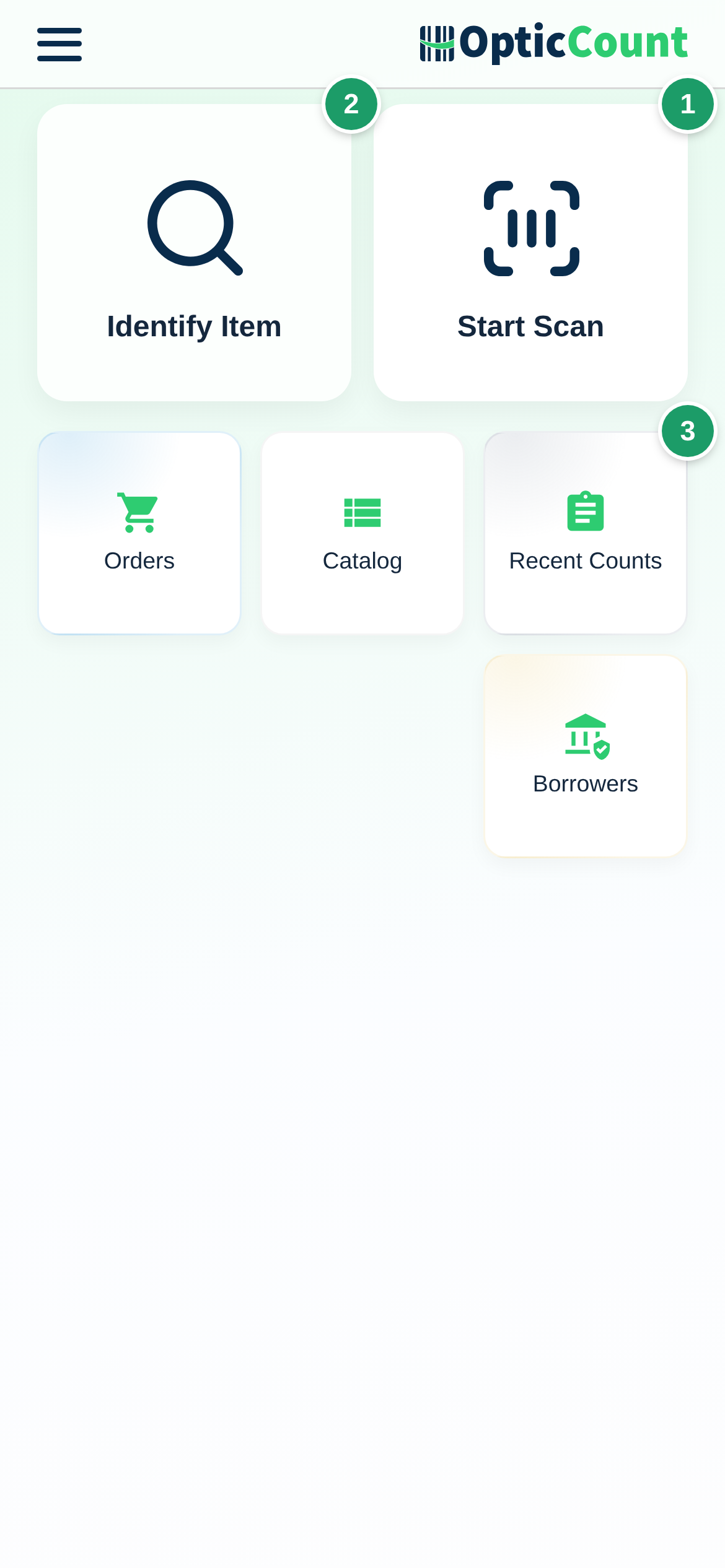
(1) Start Scan
Opens the Count page in inventory-count mode. If you have access to a single store, the page opens right away. With several stores, the Select Store for Count dialog opens first (see Choosing a store).
(2) Identify Item
Opens the Identify Item from Catalog dialog: type or scan an Item Identifier to see the item's details, stock and history. The full explanation is on the module page Item identification.
(3) My Shortcuts
A row of small cards under the two main cards. Each one is a management page you pinned from the side menu. To pin a page: open the side menu and tap the pin icon next to its name (or long-press the row). The Added to shortcuts message confirms. Home and the Count page cannot be pinned. A shortcut to a locked module shows a lock.
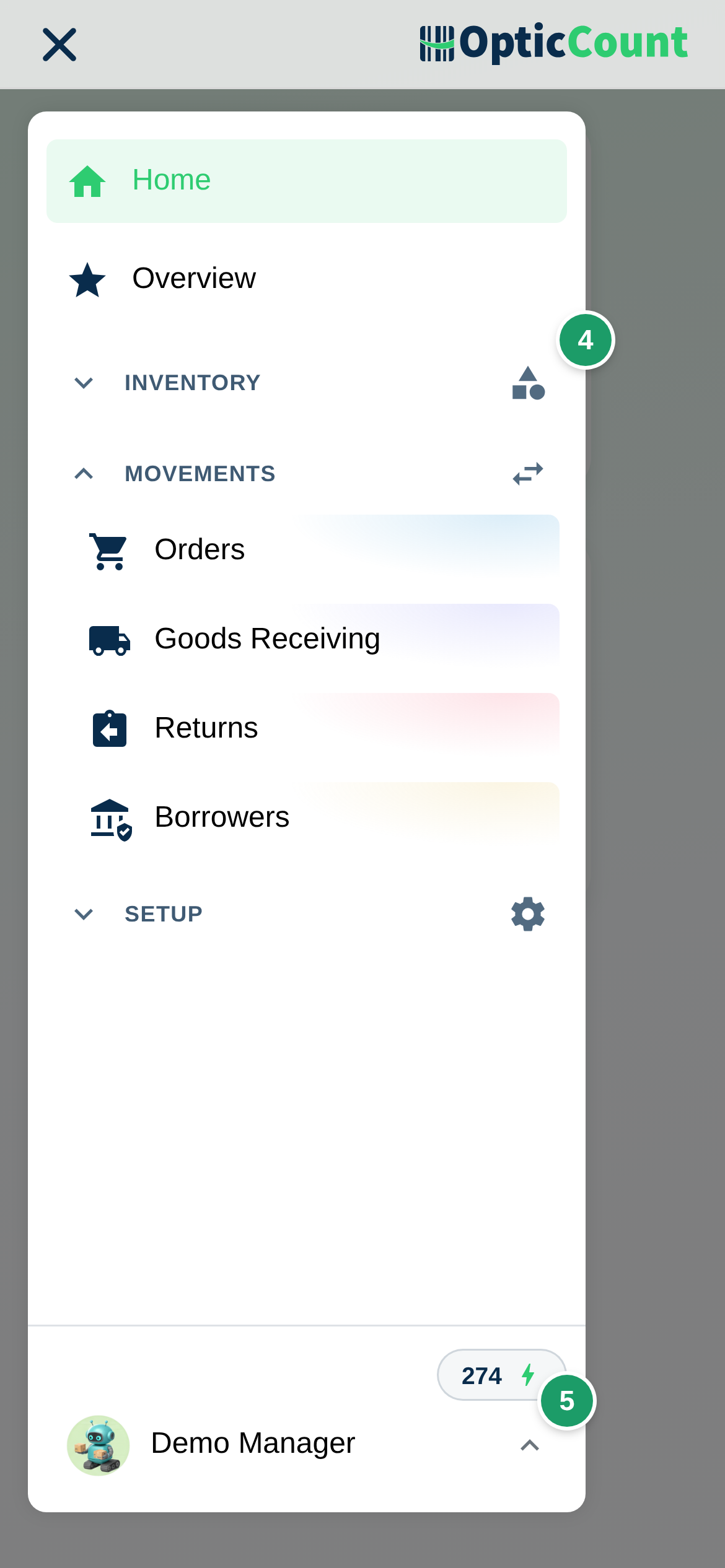
(4) Side menu
On the phone it opens from ☰; on desktop it is a fixed rail that expands on hover. Items are grouped into Inventory, Movements and Setup. Only Movements is open by default; the open/closed state is remembered on the device. The full list is in the Fields and options table.
(5) User profile
At the bottom of the side menu: the credit balance indicator (for companies on the credit bank), then your avatar and nickname. Tapping it opens a panel with Language (see Language support), Appearance, Display currency (₪ / $), Show Onboarding Guide (if you dismissed the getting-started checklist) and Logout.
Under Appearance choose Light, Dark or System (follows the phone's or computer's display setting). The default is Light, even when the phone is in dark mode. The choice is saved on the current device and browser, like the language, and applies to the whole app including the Count page and dialogs.
Choosing a store
The Select Store for Count dialog appears when you have access to more than one store.
- Open the Select Store list. Stores are sorted by their last count date; filter with Search Store.
- Tap Start Count. The button is enabled only after a store is selected.
Closing the dialog without a selection returns to the menu without opening a count.
Fields and options
Side-menu items and who sees them. Every management page opens in Management on its own tab.
| Item | Group | Manager | Branch manager | Warehouse worker |
|---|---|---|---|---|
| Home | – | ✔ | ✔ | ✔ |
| Inventory Count | – | ✔ | ✔ | ✔ |
| Overview | – | ✔ | ✔ | – |
| Recent Counts | Inventory | ✔ | ✔ | – |
| Catalog | Inventory | ✔ | ✔ | – |
| Locations | Inventory | ✔ | ✔ | – |
| Barcode Labels | Inventory | with the print-labels permission | with permission | with permission |
| Orders | Movements | ✔ | ✔ | ✔ |
| Goods Receiving | Movements | ✔ | ✔ | with a receiving permission |
| Returns | Movements | ✔ | ✔ | ✔ |
| Borrowers | Movements | ✔ | ✔ | ✔ |
| License & Purchases | Setup | ✔ | – | – |
| Branches | Setup | ✔ | – | – |
| Users | Setup | ✔ | – | – |
| Customer Management | Setup | ✔ | – | – |
| Supplier Management | Setup | ✔ | – | – |
| Integrations | Setup | ✔ | – | – |
| Company Details | Setup | ✔ | ✔ | – |
| Invite & earn | – (bottom of the menu) | ✔ | ✔ | – |
A warehouse worker also sees pages the manager unlocked with a dedicated permission: Barcode Labels with the print-labels permission, and Goods Receiving with Manage goods receiving (open, edit, send for verification) or Verify goods receipts only. Permissions are described on the Users page.
Invite & earn is not a page: tapping it opens the referral programme dialog Invite a business - you both gain, with your personal link, Copy link, Share on WhatsApp and how many businesses signed up and became customers. The item is shown to the primary user, co-managers and sub-managers. Details in Referral programme.
Locked modules
Orders, Goods Receiving, Returns and Borrowers are paid modules. When the company has not purchased one, its menu item shows a lock icon and the Premium module badge. Tapping it opens the Unlock the module dialog instead of the page, with View plans & unlock and Maybe later. A module that needs an inventory-system connection also carries Requires ERP integration. While the app checks which modules are open, a spinner shows in place of the lock. Purchasing is covered on License & Purchases.
Related pages
- Count page – scan, count and work in every mode
- Item identification – check an item, its stock and history without counting
- Modules at a glance – understand what each module does
- Language support – switch language and interface direction
- License & Purchases – unlock a locked module