
Company Details screen
The Company Details screen shows the account's identity and the app version, lets you edit billing details and the ERP system, shows how many credits each user consumed in a chosen period, and lets you invite other businesses through the referral programme.
Who sees it: primary user · co-manager · sub-manager
Used by modules: counting picking goods receipt returns loans
How to get here
- On the phone: ☰ menu → Setup → Company Details
- On the computer: side menu → Setup → Company Details
What is on the screen
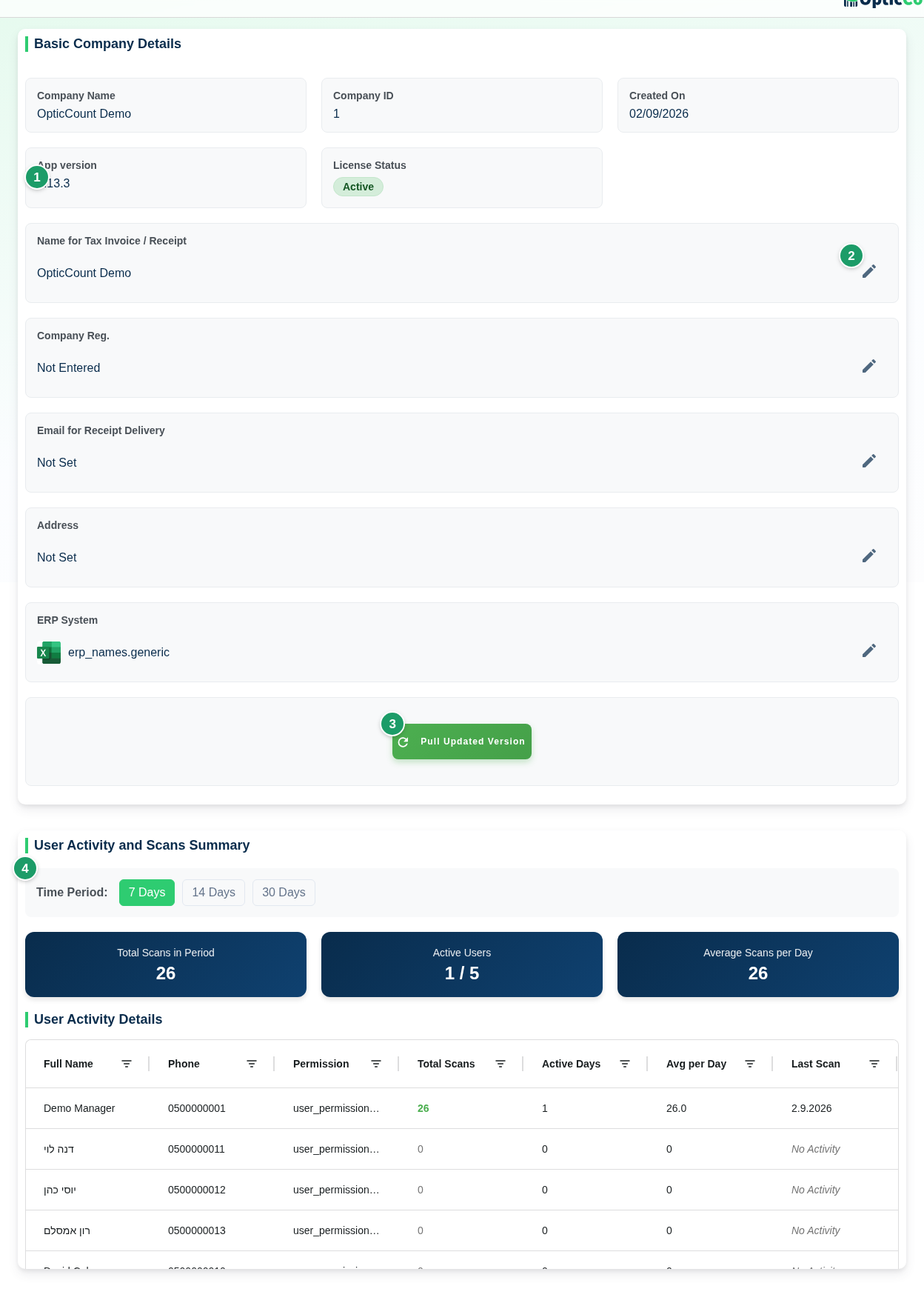
(1) Basic Company Details
| Field | What it shows |
|---|---|
| Company Name | The account name as registered |
| Company ID | Internal number. Quote it when contacting support |
| Created On | The date the account was opened |
| App version | The version of the app you are running. It is the version named in the changelog |
| License Status | Active, Expired (out of credits or past the end date) or Old License Active |
(2) Editable fields
Each field has a pencil. Click it, edit, then confirm with ✓ (or Enter) or cancel with ✕ (or Escape).
| Field | What it is for | When empty |
|---|---|---|
| Name for Tax Invoice / Receipt | The name printed on purchase invoices | The company name is shown |
| Company Reg. | Company or VAT registration number for the invoice | Not Entered |
| Email for Receipt Delivery | Invoices and receipts are sent here after a purchase | Not Set |
| Address | Invoice address | Not Set |
| ERP System | The system you work with. Sets the count summary file format in Recent Counts. No ERP clears it | Not Set |
Changes apply to documents issued from now on; invoices already issued do not change.
When the ERP system is locked
If a padlock with Company cannot change ERP system appears beside the name, the system was fixed by a purchased integration. Contact support to change it. A live ERP connection (API import/export) is set up in Integrations, not here.
(3) Pull Updated Version
Reloads the app and clears the version cached in the browser. Use it when support asks, or when App version is older than the one in the changelog.
Invite a business - you both gain card
Above the activity card sits the referral programme card, with the Open the programme button. When referral credits are waiting for you, the card shows You have earned N referral credits. After your first referral, the Signed up, Became customers and Credits earned counters appear, along with the Your referrals list. Details in Referral programme.
(4) Team Activity and Credit Usage
The Team Activity and Credit Usage card shows how many credits the team consumed in the period you choose, and who consumed them. Pick a period: 7 Days, 30 Days, 90 Days, Last Year or Last 3 Years, or your own dates in the Custom date range field.
| Part | What it shows |
|---|---|
| This period | Total Credits in Period, Active Users (how many consumed at least one credit, out of all users) and Average Credits per Day |
| Breakdown by Activity Type | A bar per activity type (counting, receiving, picking, documents and so on) with its number of credits |
| User Activity Details | One row per user, with the columns in the next table |
| Column | What it shows |
|---|---|
| Full Name, Phone, Permission | The user's identity and level |
| Total Credits | Credits the user consumed in the period |
| Main Activity | The activity type on which the user consumed the most credits, or No Activity |
| Active Days | On how many distinct days they worked |
| Avg per Day | Total credits divided by active days |
| Last Activity | Date of the last action, or No Activity |
With no consumption in the period you see No activity data available for this period. The figures follow credit consumption, that is the same rules as in License & Purchases: a run of scans of the same item counts once.
Referral programme
In the Invite & earn programme you send a personal link to another business. When that business signs up through the link and buys a licence, you both get credits: the business you invited gets 500 free credits, and you get 1,500 credits. The programme is available to the primary user, co-managers and sub-managers.
Where to find it: at the bottom of the side menu, Invite & earn – or Open the programme on the card on this screen. A window opens with Your personal link and the Copy link and Share on WhatsApp buttons.
The rules:
- A referral counts when the business signs up through your link and buys within 90 days of signing up. A business that arrives without the link can enter the code at sign-up, under I have a referral code. A code cannot be added after a purchase.
- The reward is approved after a holding period of 30 days from the purchase.
- Banked credits land in your account on your next licence purchase that includes at least one credit package (2,000 credits). The purchase page shows when they will land. See License & Purchases.
- Up to 10 rewarded referrals per year. You cannot use your own company's referral code.
In the Your referrals list, each business you invited has a status:
| Status | What it means |
|---|---|
| Signed up - awaiting purchase | The business signed up and has not bought yet |
| Purchased - reward on the way | The business bought, and the reward is in its holding period |
| Reward granted | The credits were approved and banked for you |
| Not approved | The referral did not meet the conditions |
| Cancelled | The referral was cancelled, and the credits banked from it were removed |
The full conditions are in the terms of use.
Related pages
- License & Purchases – the balance and the purchases whose invoices go to the email set here
- Users – the users listed in the activity details
- Integrations – a live ERP connection
- Quick start – sign up with a referral code
- Changelog – what changed in each version