Skip to content

๐ŸŽฏ Count Scope Management โ€‹

Count Scopes allow you to count based on a predefined item list โ€“ instead of counting the entire catalog at once. This enables sample counting, counting by category/supplier/zone, verifying that specific items were counted, and tracking progress in real time.

๐Ÿ’ก The idea in brief: Define a scope (= name + filter), the system calculates which items match the filter, and then during counting a progress card is displayed showing how many items have been counted and which are still missing.

๐Ÿ How to Manage Count Scopes โ€‹

Scope management (create, edit, delete) is done from the Branch Management page:

  1. Go to the Branch Management page (โ˜ฐ โ†’ Branch Management).
  2. Find the branch for which you want to define scopes.
  3. Click the ๐ŸŽฏ Count Goals button in the branch row (button with a list icon).
  4. A Count Scope Management window opens for that branch.

โš ๏ธ Scopes belong to a specific branch. Each branch is managed separately.

๐Ÿ—‚๏ธ Count Scope Management Window โ€‹

General View โ€“ List Display โ€‹

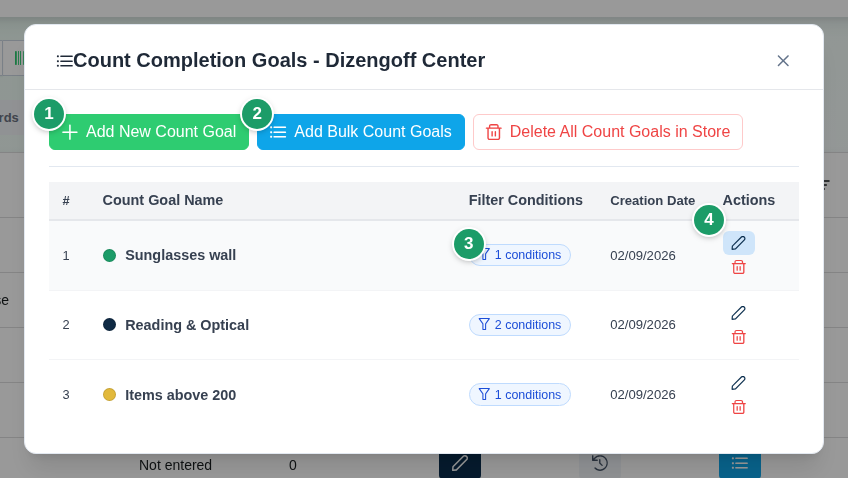
Opening the window shows a list of all existing scopes for the branch:

ColumnDescription
Scope NameThe name you chose
ColorA circle in the chosen color โ€“ for quick visual identification
Filter ConditionAutomatic summary of the filter (field + operator + value)
Creation DateWhen the scope was created
Actionsโœ๏ธ Edit, ๐Ÿ—‘๏ธ Delete

At the top of the window there are three buttons:

  • โž• Add New Scope โ€“ create a scope manually with a custom filter.
  • ๐Ÿ“‹ Bulk Create Scopes โ€“ automatically create multiple scopes based on unique values in a selected field.
  • ๐Ÿ—‘๏ธ Delete All Scopes โ€“ deletes all scopes for this branch (with confirmation).

โž• Creating a New Scope โ€‹

Clicking "Add New Scope" opens the scope definition screen with two parts:

1) Basic Details โ€‹

  • Scope Name (required, up to 100 characters) โ€“ a clear name for quick identification: "Refrigeration Products", "Supplier X", "Shelf A", "Q1 Sample Count".
  • Color โ€“ choose a HEX color from the color picker. The color appears on the progress card on the count page and helps distinguish between multiple active scopes.

2) Filter Conditions โ€‹

Here you define which items belong to this scope. The filter is built from condition groups:

Filter Structure โ€‹

Group 1:
  Condition 1: Field - Operator - Value
  AND
  Condition 2: Field - Operator - Value

[AND / OR]   โ† you decide between each two groups

Group 2:
  Condition 3: Field - Operator - Value
  • Conditions within a group โ€“ all connected by AND (all conditions must be met).
  • Between groups โ€“ you choose AND (both groups must be met) or OR (one group meeting is sufficient).
  • No conditions โ€“ an empty scope includes all items in the catalog.

Available Fields for Filter โ€‹

FieldTypeAvailable Operators
Item CodeTextequals / not equals / contains / does not contain / starts with / ends with / empty / not empty
Item DescriptionTextequals / not equals / contains / does not contain / starts with / ends with / empty / not empty
BarcodeTextequals / not equals / contains / does not contain / starts with / ends with / empty / not empty
SupplierTextequals / not equals / contains / does not contain / starts with / ends with / empty / not empty
CategoryTextequals / not equals / contains / does not contain / starts with / ends with / empty / not empty
Sort CodeTextequals / not equals / contains / does not contain / starts with / ends with / empty / not empty
ColorTextequals / not equals / contains / does not contain / starts with / ends with / empty / not empty
SizeTextequals / not equals / contains / does not contain / starts with / ends with / empty / not empty
ModelTextequals / not equals / contains / does not contain / starts with / ends with / empty / not empty
Unit of MeasureTextequals / not equals / contains / does not contain / starts with / ends with / empty / not empty
Purchase PriceNumberequals / not equals / greater than / less than / greater or equal / less or equal / empty / not empty
Sale PriceNumberequals / not equals / greater than / less than / greater or equal / less or equal / empty / not empty
Manually Added to CatalogBooleanequals / not equals (true/false)
ERP QuantityERP Quantitynot empty / empty / equals / not equals / greater than / less than / greater or equal / less or equal

๐Ÿ’ก Text type fields support partial search (contains/does not contain) โ€“ useful when suppliers/categories have long names.

๐Ÿ’ก "ERP Quantity" (quantity_by_erp) allows building scopes like "count only items that have ERP quantity greater than 0" โ€“ convenient for counting items the ERP knows.

Managing Groups and Conditions โ€‹

  • โž• Add Condition Group โ€“ adds a new group (with AND/OR selection between groups).
  • โž• Within a group โ€“ adds another condition to the same group (automatically AND).
  • ๐Ÿ—‘๏ธ next to each condition/group โ€“ removes it (cannot delete the last condition in a group, or the last group).

๐Ÿงช Testing the Filter Before Saving โ€‹

Click "Test Conditions" to see which items will enter the scope based on the current filter โ€“ before saving.

A paginated table opens with matching item details: item code, description, barcode, supplier, category, purchase price, sale price.

๐Ÿง  Rule of thumb: Always test before saving โ€“ a wrong filter will cause the progress card to show incorrect data.

๐Ÿ“‹ Bulk Create Scopes โ€‹

Instead of creating each scope manually, you can create scopes all at once by clicking "Bulk Create Scopes":

  1. Select a field from the list:
    • Supplier
    • Category
    • Sort Code
    • Color
    • Size
  2. Click "Create Scopes".
  3. The system scans all items in the branch, finds all unique values of the selected field, and creates a separate scope for each value.

Example: You selected "Supplier" and there are 8 different suppliers in the catalog โ†’ 8 scopes will be created (one for each supplier).

Result details: After success, a message is shown with the number of scopes created and skipped (scopes that already existed with an identical name will not be created again).

๐Ÿ’ก Typical use: A clothing store that wants to count by category (tops, pants, shoes, accessories) โ€“ Bulk Create on the "Category" field and within seconds there's a scope for each category.

๐Ÿ“Š Progress Card During Counting โ€‹

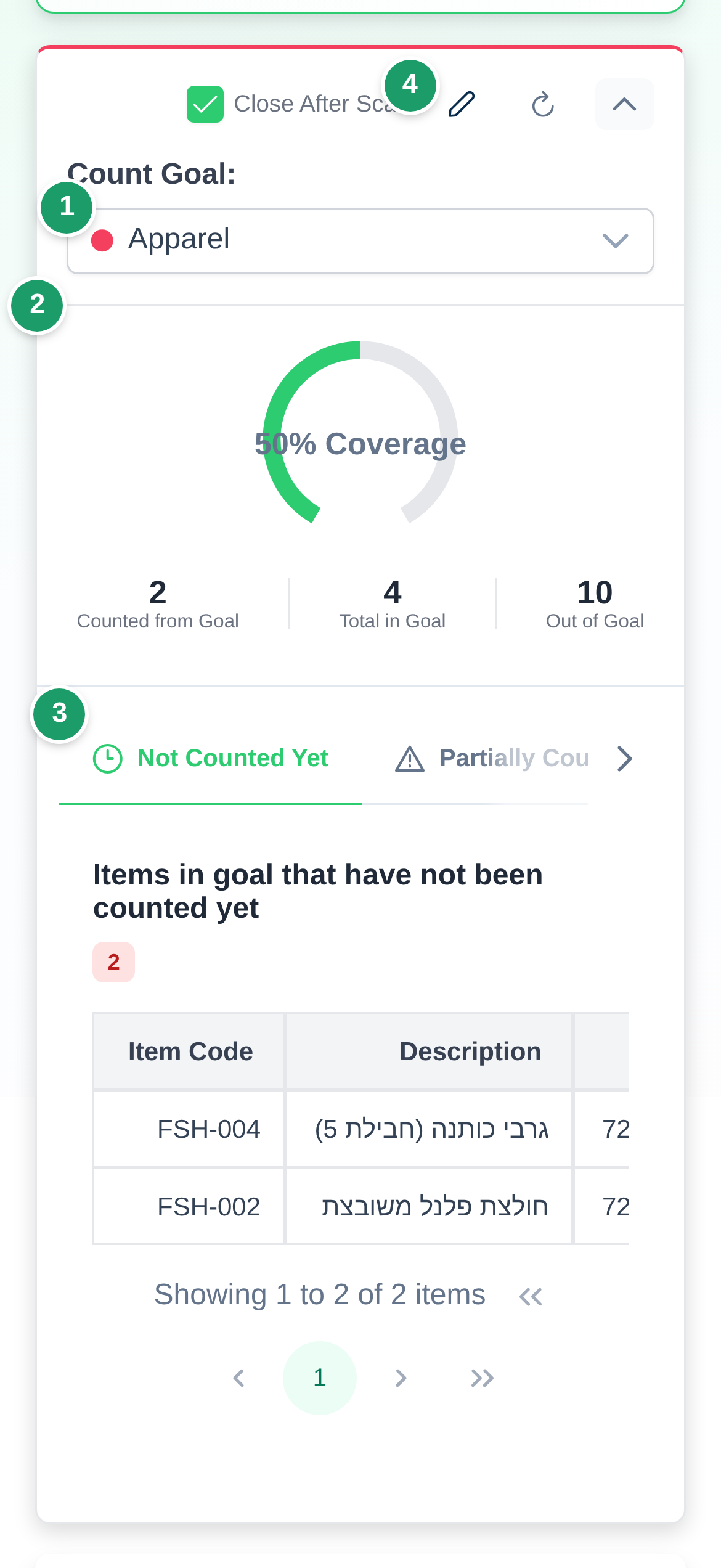
After you define scopes, the progress card appears automatically at the top of the count page โ€“ no manual activation required.

Selecting an Active Scope โ€‹

The card shows a dropdown list of all scopes defined for the branch. Select a scope โ€“ and the card starts tracking progress relative to that scope.

What's Shown in the Card โ€‹

  • Total items in scope โ€“ how many items meet the scope's filter conditions.
  • Items counted โ€“ how many of them have received at least one scan.
  • Coverage percentage โ€“ with animation and a progress bar/gauge.
  • Items outside scope โ€“ how many scans were performed on items not in the current scope.

"Missing Items" Tab โ€‹

A paginated list of items in the scope that haven't been scanned yet:

  • Item code, description, barcode, supplier, category.
  • Clicking a missing item โ†’ inserts the item code into the search field โ€“ you can immediately check/scan it.

"Partially Counted" Tab (managers only) โ€‹

Shows items that were counted, but the counted quantity differs from the ERP quantity โ€“ useful for identifying anomalies and catching errors before finishing the count.

๐Ÿ”„ The card refreshes automatically after each successful scan.

๐Ÿ“ค Export by Count Scope โ€‹

When downloading a count summary file (the green button in Recent Inventory Counts), at the "Filter Options" stage you can filter the export:

  • By count scope โ€“ select a specific scope; the file will include only items associated with that scope.

Useful when you want to export a focused report (e.g. "Supplier X only") and not the entire count.

๐Ÿงช Usage Examples โ€‹

Counting by Category โ€‹

Situation: A clothing store wants to count "Tops", "Pants", "Shoes" separately.

  1. Branch Management โ†’ click Count Goals for the branch.
  2. "Bulk Create Scopes" โ†’ select the Category field โ†’ automatically get a scope for each category.
  3. On the count page โ€“ select the "Tops" scope and see a dedicated progress card for tops only.

Sample Count for Items with ERP Quantity โ€‹

Situation: Want to count only items the ERP knows (have a defined ERP quantity).

  1. Add New Scope โ†’ name: "Items in ERP".
  2. Add condition: ERP Quantity โ†’ not empty.
  3. Test with "Test Conditions" โ†’ see exactly which items will enter.
  4. Save โ†’ select this scope in the progress card.

Counting Items from Multiple Suppliers Simultaneously โ€‹

Situation: There are two supplier categories โ€“ "import" and "local" suppliers.

  1. Add New Scope โ†’ name: "Import and Local Suppliers".
  2. Group 1: Supplier contains "import".
  3. Between groups: OR.
  4. Group 2: Supplier contains "local".
  5. Any item whose supplier contains "import" or "local" will enter the scope.

Counting by Price Range โ€‹

Situation: Want to count only expensive items (sale price > 500).

  1. Add New Scope โ†’ name: "Expensive Items".
  2. Condition: Sale Price โ†’ greater than โ†’ 500.
  3. Save and select the scope on the count page.

โš ๏ธ Things to Know โ€‹

  • Empty scope = entire catalog: If you didn't define any conditions, the scope will include all items in the branch โ€“ useful for a full count with progress tracking.
  • Scopes do not restrict scanning: The counter can scan any item, including those outside the scope. The card only tracks โ€“ it does not block.
  • Catalog changes affect scopes: If you added items to the catalog after defining the scope, they will be included in the scope automatically if they meet the filter.
  • Bulk Delete: The "Delete All Scopes" button deletes all scopes for the branch and cannot be undone. Use with caution.
  • Export by scope: Select a scope in the export filter to get a focused file; otherwise the export includes the entire count.

๐Ÿ”— Connection to Other Pages โ€‹

PageConnection
Branch ManagementCount scope management is accessed from here โ€“ click "Count Goals" in the branch row
Counter PageThe progress card is displayed at the top of the page and allows scope selection
Recent Inventory CountsCount summary export can be filtered by scope
Item Catalog ManagementThe scope's filter is based on catalog fields (supplier, category, price, etc.)

Summary โ€‹

Count Scopes are a powerful management tool that turns a large count into a collection of small, well-defined tasks. Define one-time scopes (annual sample), recurring ones (Supplier X every month), or automatic ones (Bulk by category) โ€“ and the system will count, track, and report.

โœ” Full scope management โ€“ create, edit, delete, Bulk create
โœ” Flexible filters โ€“ fields, operators, AND/OR groups
โœ” Test before saving โ€“ see which items will enter before confirming
โœ” Live progress card โ€“ counted / missing / anomalies in real time
โœ” Focused export โ€“ download file for scope items only