
Goods Receiving screen
The Goods Receiving screen lists every goods receipt in the company – drafts, receipts awaiting verification, verified receipts and cancelled ones. It is where you open a new receipt, upload a supplier document for automatic processing, send a receipt for verification and start the verification in the warehouse.
Who sees it: Primary User · Co-Manager · Sub-Manager · Worker with the goods-receiving manage or verify permission
Used in modules: goods receipt
TL;DR
A receipt is created by hand (New Receipt) or from a scanned document (Receive from Document), reviewed as a Draft, sent to Awaiting verification, and only changes stock when someone in the warehouse finishes verification with Finish verification. Clicking a row opens its actions. The full process is on the Goods receiving with AI page.
How to get here
- On the phone: ☰ menu → Management → Movements → Goods Receiving
- On a computer: side menu → Movements → Goods Receiving
Goods receiving with AI is a paid module that requires an active integration with an ERP that supports receiving: Bina ERP, Priority, SAP Business One, Hashavshevet, Boss Software Solutions or Kod Bina - Minisoft. The module does not work through Excel files. If the module has not been purchased, the menu item is shown locked. Details on the License & purchases and Integrations pages.
A worker sees the screen only if one of these permissions was ticked for them on the Users screen: Manage goods receiving (open, edit, send for verification) or Verify goods receipts only.
What is on the screen
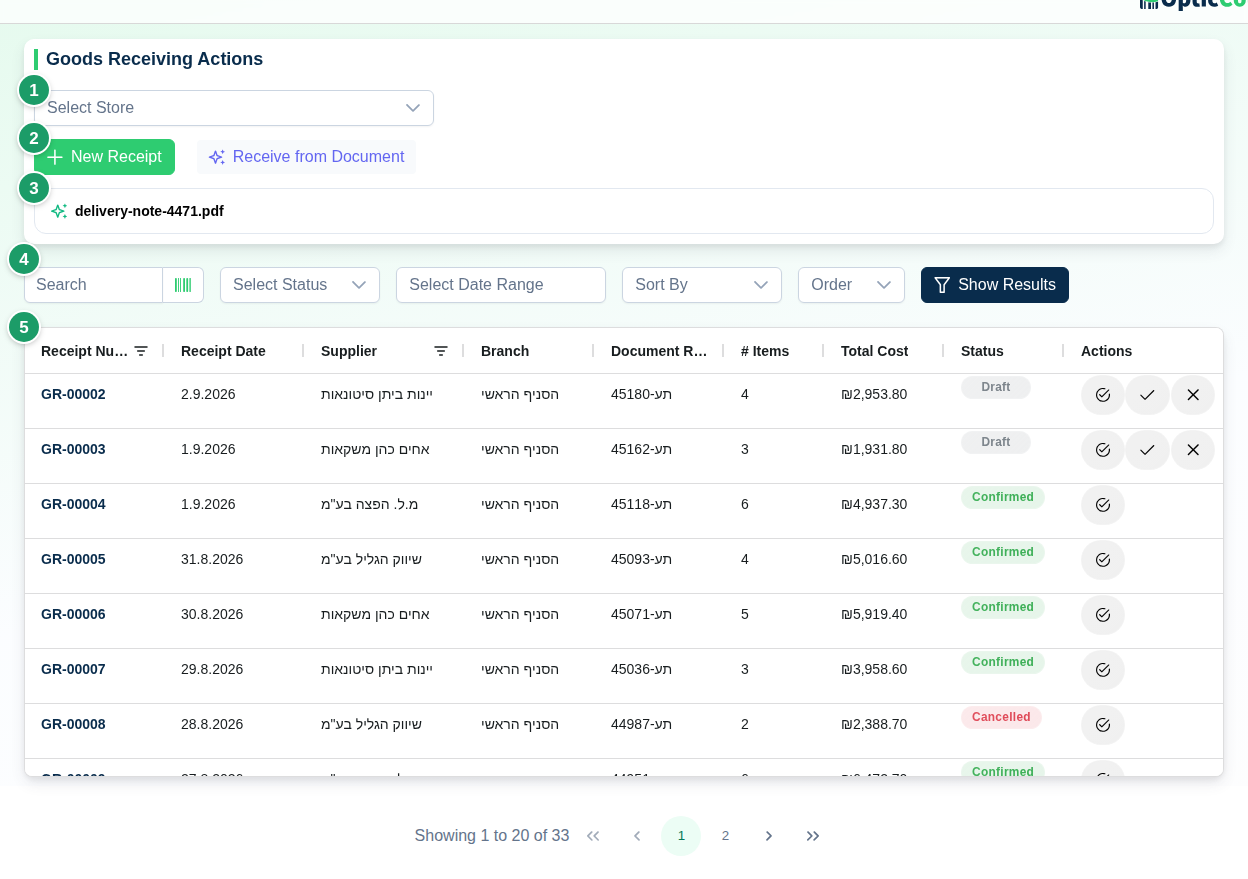
(1) Branch picker
Shown only when there is more than one branch. It filters the list and also pre-selects the branch for a new receipt.
(2) New Receipt / Receive from Document
- New Receipt – opens New Goods Receipt for a manual receipt.
- Receive from Document – opens Receive Goods from Document to upload a delivery note or tax invoice.
Both buttons are shown only to the primary user, co-managers and sub-managers. A worker with the manage permission does not see them.
(3) Document processing card
Every uploaded document gets a progress card until it is ready. The cards survive leaving the screen.
(4) Search and filters
Filter by status (All Statuses / Draft / Awaiting verification / Verified / Cancelled) and date range; sort by Created At, Receipt Number, Supplier Name or Receipt Date.
(5) Receipts list
Receipts are shown as a table or as cards. Choose with the View mode switch (Table / Cards). On a phone the default is cards, and your choice is kept in the browser. The table has no actions column: clicking a row or a card opens the actions dialog.
Table columns
| Column | Content |
|---|---|
| Document Ref. | The supplier's delivery note or invoice number. If the document had none, the OpticCount receipt number is shown instead (for example GR-00012). On a card this is the card title. |
| Receipt Date | The date entered on the receipt (default: the day it was created). |
| Supplier | The supplier's name. Suppliers are managed on the Suppliers page. |
| Branch | The branch the goods are received into. |
| Receipt Number | The running number of the receipt in OpticCount. In card view this field is hidden by default; show it through Fields. |
| # Items | Number of lines on the receipt. |
| Total Cost | Sum of the lines: the document's line total, otherwise unit price × quantity, otherwise catalog cost price × quantity. |
| Verified by | Who finished verification and on what date. Empty until verification finishes. |
| Status | See Statuses. |
Statuses
| Status | Meaning |
|---|---|
| Draft | The receipt is being built or reviewed. It can be edited, sent for verification and cancelled. Stock is unchanged. |
| Awaiting verification | The paperwork is closed and the receipt waits for the goods to be checked in the warehouse. It can be verified or cancelled. Stock is unchanged. |
| Verified | Verification finished and the quantities actually scanned were added to branch stock. No editing. |
| Cancelled | The receipt was cancelled and never touched stock. |
A receipt created from a document goes straight to Awaiting verification when you click Confirm Receipt on the review screen. Receipts confirmed before version 3.0.0 show as Verified.
Receipt actions
Clicking a row in the table or a card opens a dialog with the document number, supplier, branch, date, who verified, and the status. Below it are only the actions you are allowed on this receipt, each with a one-line explanation. If no action is allowed, you see No actions are available for you on this row.
| Action | When it appears | Who sees it | What it does |
|---|---|---|---|
| Verify Receipt | Awaiting verification | Managers and holders of either receiving permission | Opens the counter page in Receipt verification mode: scan what actually arrived against the receipt lines. |
| Reopen for Review | a Draft created from a document | Managers and holders of the manage permission | Reopens the Review Document Receipt screen. |
| Download Excel | always; disabled on Draft and Awaiting verification | Managers and holders of the manage permission | Downloads the receipt and its lines as an Excel file in the user's language, including a Locations column. On a draft or a receipt awaiting verification the button is disabled with the note Available once the receipt is confirmed. |
| Send for verification | Draft | Managers and holders of the manage permission | Moves the receipt to Awaiting verification. Needs a branch and every line linked to a catalog item. |
| Cancel Receipt | Draft or Awaiting verification | Managers and holders of the manage permission | Asks for confirmation and moves it to Cancelled. Nothing is added to stock. |
New Receipt (manual)
- Click New Receipt. The New Goods Receipt dialog opens.
- Fill in Branch / Warehouse, Supplier Name (required; searches the supplier list), Delivery Note / Invoice Number, Receipt Date, Allocation Number and Notes.
- Click Continue to Items. A draft is created and the counter page opens in Goods Receiving mode.
- Scan or type each item and quantity.
- Click Finish Receiving. You return to the list, where the receipt shows as Awaiting verification.
Receive from Document
- Click Receive from Document.
- Drop files into the dialog, click Choose Files or Scan Document. Accepted files: PDF, JPG, PNG, WebP, HEIC · up to 20MB each.
- Click Start Processing. The progress card moves through Queued → Identifying document type → AI extracting document data → Matching to catalog → Ready for review. A failed document shows Retry; an upload still in progress can be stopped with Cancel upload.
- Click Review & Confirm on the card. The Review Document Receipt screen opens.
If the upload was cut off, mostly on an iPhone, the message The file did not reach the server in full appears. Try again, and if it keeps failing, reload the page and pick the file again.
Review Document Receipt screen
- Original Document – the file shown next to the data. It can be hidden, shown half-and-half, or given most of the width.
- Receipt Details – Supplier Name (search the supplier list or Add new supplier), Branch / Warehouse, Delivery Note / Invoice Number, Receipt Date, Allocation Number and Notes.
- Detected Items – one line per item on the document: Catalog Assignment, Supplier Description, Catalog Item, Qty, UOM, Unit Price, Line Total and Doc. Code / Barcode. You edit the description, quantity, unit and prices directly in the table; Add item adds a line the engine missed, and the trash icon (Delete line) removes an unwanted one.
- Catalog Assignment – a confidence chip on each line: Certain match, Good match, Worth checking, Manual assignment or No match found. An item that AI suggested for an uncertain line stays at Worth checking at most and is never accepted automatically.
- Picking an item – clicking Catalog Item on a line opens Select Catalog Item. If the item is not found, Create new catalog item opens an item dialog pre-filled from the line: name, item code, barcode, buying price (after the line's discount), unit and supplier, plus other columns from the document's table such as model, colour, size, consumer price and pack quantity.
- Create N missing items – shown when some lines have no item. Opens a new-item dialog for each such line in turn, pre-filled from the document and the supplier, with Adding item X of Y and a Skip button.
- Totals – Computed Total against Subtotal (pre-VAT), VAT and Document Total.
- Review notes – shown when there is a Total mismatch between the lines and the document total, or an allocation-number warning on a tax invoice.
- Confirm Receipt – sends the receipt to Awaiting verification and shows Receipt sent for verification. While a branch is missing or some lines have no item, the button is disabled and a red chip next to it lists the reason (the full explanation starts with Cannot confirm yet:). Clicking the chip takes you to the first line that has no item.
- Back to list – on the full page, returns to the list without sending for verification.
Document processing has a daily quota. When it is reached you see Daily AI limit reached and processing resumes the next day. Manual receipts keep working.
Verifying and finishing a receipt
Verify Receipt opens the counter page in Receipt verification mode. Three buttons sit at the top of the page:
| Button | What it does |
|---|---|
| View Verification Status | Shows a summary of the verified and remaining lines. |
| Back to Goods Receiving | Returns to the list without finishing. The scanned quantities are kept. |
| Finish verification | Closes verification, moves the receipt to Verified and adds the quantities actually scanned to branch stock. |
A line nobody scanned adds nothing to stock. If some lines are not fully verified, Finish verification asks whether to finish anyway. Scanning beyond a line's quantity shows a question with a Record anyway button.
When the connected ERP supports it, Finish verification also creates a supplier delivery note in the ERP. For that the supplier must be linked with an external code, otherwise you see Link a supplier with an external code to this receipt before confirming. If the ERP rejects the document, the receipt stays Awaiting verification. Full details on the Goods receiving with AI page.
Dangerous actions
Finishing verification cannot be undone
After Finish verification the receipt cannot be edited or cancelled, and the quantities are already in stock. Fix mistakes with a manual count or a supplier return. Check the lines that are not fully verified before finishing.
Related pages
- Goods receiving with AI – upload a document, review, send for verification and verify
- Users – give workers the manage or verify permission
- Suppliers – manage suppliers and their ERP external codes
- Item catalog – add items that are missing from the catalog
- License & purchases – see credit usage for receipts