
Overview screen
The Overview screen shows the state of the active count in one place: how much has been scanned, what the counted stock is worth, who counted how much, and how fast the team is working.
Who sees it: Primary User · Co-Manager · Sub-Manager
Used by modules: Counting (Picking, Returns and Receiving tiles appear once those modules have data)
How to get here
- On the phone: ☰ menu → Overview
- On the computer: side menu → Overview
The screen opens empty with the message Please select a store. Data loads only after you pick a store.
What's on the screen
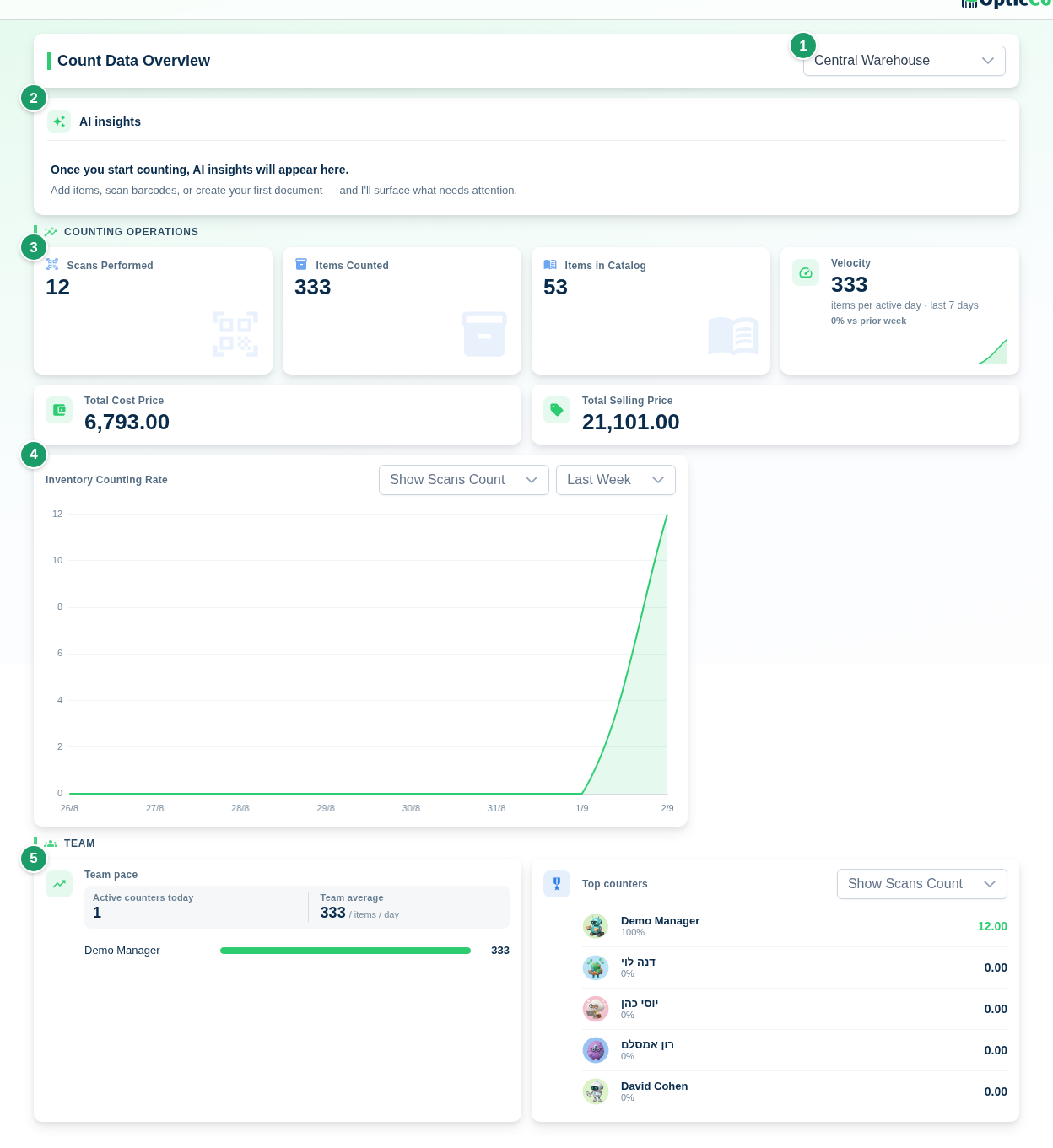
(1) Store select
The Select Store list holds every branch plus All Stores (shown only when the company has more than one branch). Picking a branch shows the data of that branch's active count session. Combined mode sums the active sessions of all branches.
(2) AI insights
The AI insights card shows up to two insights; when there are more, click +N more. Clicking an insight jumps to the relevant management screen (counts, orders, users and so on). The card ends with AI-generated. Review before acting. – insights are suggestions, not figures. When there are no insights to show – before you start working, or on a quiet day with no activity – the card shows Once you start counting, AI insights will appear here. with a suggestion below it to add items, scan barcodes or create a first document.
(3) Counting Operations
The Counting Operations group holds the basic count metrics. See the table under Fields and options.
(4) Inventory Counting Rate chart
The Inventory Counting Rate chart plots scans over time. Two selects above it control what is drawn:
| Choice | Options |
|---|---|
| What to count | Show Scans Count · Show Items Count |
| Time frame | Last Week · Last Month · Last Year |
(5) Team
The Team group has two tiles:
- Team pace – Active counters today (users with at least one scan), Team average in items per user per day, and a bar per user (the top 10) with their items per day over the last 7 days.
- Top counters – a ranked list of the users who scanned in the active session, with their total and share of the work. The Show Scans Count / Show Items Count select decides what the ranking is based on.
When neither tile has data, the group shows No team activity yet.
Groups that appear only with data
| Group | Tiles | When it shows |
|---|---|---|
| Counting Scope | Scope coverage (percentage, progress bar, "N items still to count"), Out of scope, Progress by scope | When count scopes are defined for the branch |
| Orders | Open orders (with an overdue badge when relevant), Avg fulfillment over the last 30 days | When the picking module has orders |
| Returns | Open returns, Awaiting collection | When there are returns documents |
| Goods Receiving | In review (AI-extracted receipts pending approval), Receiving accuracy over the last 7 days | When there are goods receipts |
Fields and options
Counting Operations tiles:
| Tile | What it shows | Notes |
|---|---|---|
| Scans Performed | Number of scan events in the active session | Scanning the same item again counts again |
| Items Counted | Sum of the quantities of all scans | A negative scan (stock removal) lowers the sum |
| Items in Catalog | Number of items in the company catalog | The catalog is shared by all branches, so this number does not depend on the selected store |
| Velocity | Items per active day over the last 7 days, with the percentage change vs the prior week | |
| Total Cost Price | Sum of (counted quantity × cost price from the catalog) | An item without a price contributes 0. The tile shows to everyone who can open the screen, even without the permission to view cost prices |
| Total Selling Price | Sum of (counted quantity × selling price from the catalog) | An item without a price contributes 0 |
The numbers belong to the active count
The screen sums the branch's active count session. The money figures are the value of what was actually counted, not ERP balances.
Common problems
- If Total Selling Price is lower than expected → prices are missing in the catalog. Fill them in on Item Catalog.
- If a user is missing from Top counters → they have not scanned in this branch's active session yet.
- If Scans Performed is far higher than Items Counted → many repeat scans of the same items. Check Inventory Counts merged by item code.
- If the numbers do not refresh → pick the store again from the list. A thin bar at the top of the screen means a load is in progress.
Related pages
- Inventory Counts – review, fix and export the scans themselves
- Count Scopes – define what the scope coverage tile tracks
- Item Catalog – fill in the prices that feed the money tiles
- Inventory count – the full end-to-end process
- Users – who sees this screen and cost prices