
Barcode Labels screen
The Barcode Labels screen prints labels for catalog items: pick a template, add items with a number of copies, then download a PDF or send it to the printer.
Who sees it: Primary User · Co-Manager · Sub-Manager and Employee with Allow printing labels
Used by modules: Catalog Receiving
TL;DR
Pick a template in the template strip (or create one with Add template), click Add Item to choose catalog items, set Copies per item, check the preview and click Print or Download PDF.
How to get here
- On the phone: ☰ menu → Inventory → Barcode Labels
- On the computer: side menu → Inventory → Barcode Labels
- From the catalog: the Add to labels list button in an item row adds it to the list here
The menu item always shows for the Primary User and Co-Manager. Sub-Managers and employees see it only when Allow printing labels is checked for them on Users.
What's on the screen
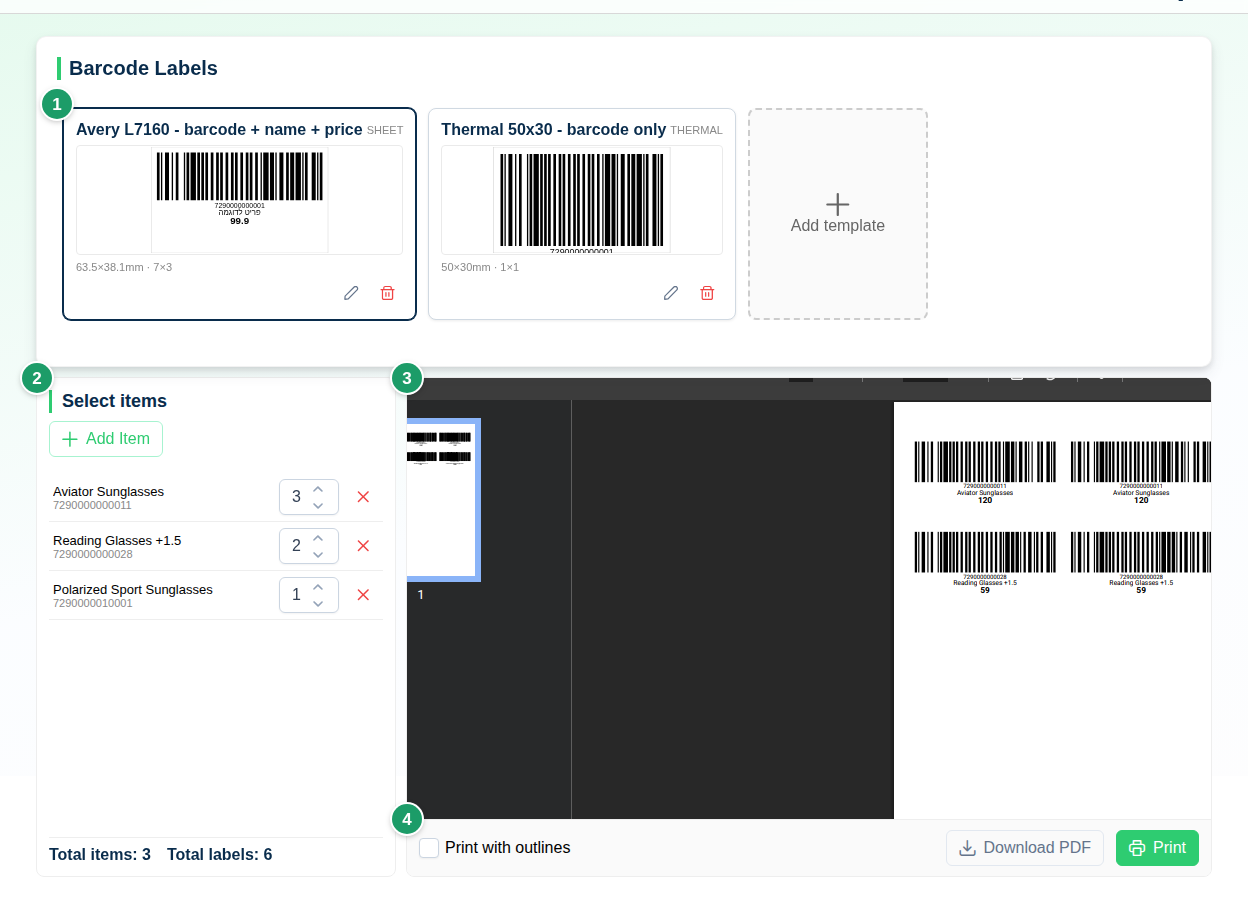
(1) Template strip
Each card is a saved template with a thumbnail of the label. Clicking selects it; the pencil icon opens it for editing, and the trash icon deletes it after confirmation (Delete Template). The Add template slot opens the template editor with a new template. A template with missing settings shows a Missing fields list on its card.
(2) Select items
| Element | What it does |
|---|---|
| Add Item | Opens the item identification dialog: type or scan an Item Identifier (barcode, item code or name) and click Search |
| Item row | Description and barcode. A warning icon means Missing fields – a field the template prints is empty on this item |
| Copies | How many labels to print for the item (1 to 9999). Adding the same item again increases its copies |
| ✕ | Removes the item from the list |
| Total items / Total labels | List totals |
The list and the selected template are stored in the browser, so they survive leaving the screen.
(3) Preview
The preview re-renders after every change to the template, the items or Print with outlines. It shows up to 3 pages; with more, the banner Preview shows first 3 pages of N appears. The full PDF contains every page.
(4) Print actions bar
| Button | What it does |
|---|---|
| Print with outlines | Draws a border around each label – useful for calibrating a label sheet |
| Download PDF | Saves a file named after the template |
| Opens the browser's print dialog with the PDF |
The template editor
The editor opens from Add template or the pencil icon on a card. One side holds the settings in collapsible sections; the other shows a Live preview of a single label with sample data.
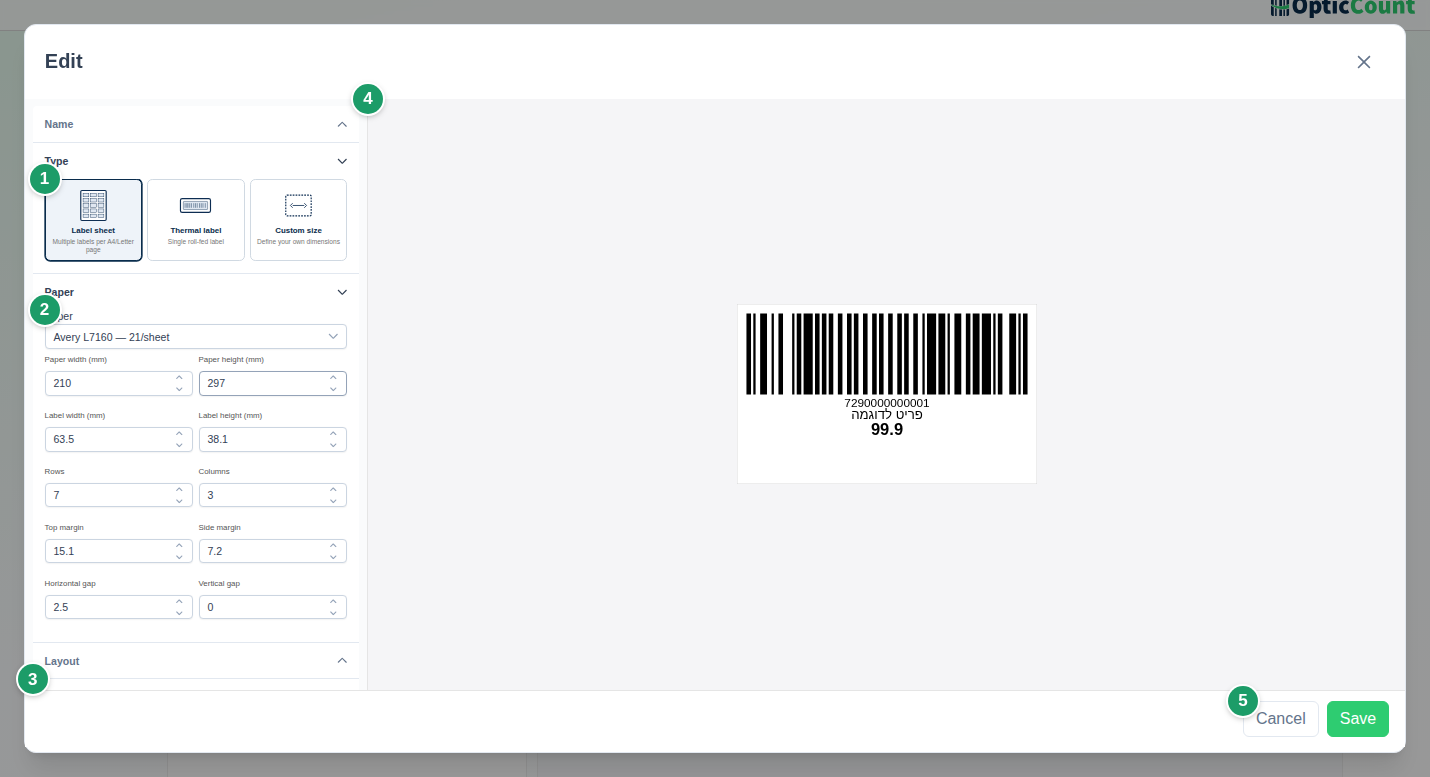
Name
Template name – required.
Type
| Type | When |
|---|---|
| Label sheet | Multiple labels per A4/Letter page, on a regular printer |
| Thermal label | Single roll-fed label, on a label printer |
| Custom size | Define every dimension yourself |
Paper
For a sheet, pick a ready-made preset under Paper; for a thermal label, enter Label width (mm) and Label height (mm). Custom size (and sheets) expose Paper width (mm), Paper height (mm), Label width, Label height, Rows (up to 40), Columns (up to 20), Top margin, Side margin, Horizontal gap, Vertical gap.
Ready-made paper presets
Sheets: Avery L7160 — 21/sheet, Avery L7163 — 14/sheet, Avery 5160 US — 30/sheet, Avery 5163 US — 10/sheet, Formtec 3100 — 24/sheet, A4 generic 24-up, A4 generic 40-up, A4 generic 65-up. Thermal: Thermal 40×30 mm, 50×30, 58×40, 60×35, 100×50, 100×70, 100×150.
Changing the label dimensions automatically rescales the position and size of existing elements.
Layout
Three layout presets arrange elements to fit the label size: Barcode only, Barcode + name, Barcode + name + price. Applying a preset replaces the existing elements.
Elements
A label is built from Barcode and Text elements. Add them with Add element — Barcode or Add element — Text, and reorder with the up/down arrows. Each element's Value holds fixed text or an item attribute in the form : click one of the attribute chips (Click attribute to copy) to copy the token, then paste it into the field.
Available attributes: Item code, Description, Barcode, Buying price (only with permission to view buying prices), Selling price, Provider, Category, Sort code, Color, Size, Model, Unit of measure, ERP location, Package quantity.
| Element | Settings |
|---|---|
| Barcode | Value, Barcode format, Show text (the digits under the bars), Align, and for the text: Font, Font size (mm), Barcode-text gap; X/Y position and width/height in mm |
| Text | Value, Font, Font size (mm), Bold, Align (Start · Center · End), X/Y position |
Barcode format: CODE128 (default, accepts any character), EAN-13 (needs 12 or 13 digits), CODE39, CODE93, ITF.
Font: Heebo (default, supports Hebrew), Arial, Helvetica, Verdana, Tahoma, Times New Roman, Georgia, Courier New. The PDF embeds Heebo only; the other fonts affect the live preview and print as Heebo.
Sample data (preview only)
Edit the values to see how the label looks with real data. Changes are not saved in the template; Reset to defaults restores the sample.
Saving
Save is enabled only when no error chips show: Name required, Paper config invalid or At least one element required. After saving, Template saved appears and the template is selected automatically. Templates are shared by every user in the company.
Common problems
- If Barcode Labels is missing from the menu → the user (Sub-Manager or employee) lacks Allow printing labels. A manager checks it on Users.
- If the preview says Template incomplete → the template has no paper settings. Click the pencil on the card and fill in the dimensions.
- If the preview says Select a template and add items to see a preview → no template is selected or the item list is empty.
- If an EAN-13 barcode prints in another format → the value is not 12 or 13 digits. The system falls back to CODE128 automatically; fix the barcode in the catalog or choose CODE128.
- If a field on the label is blank → check the Missing fields warning icon next to the item and fill the field on Item Catalog.
- If labels do not line up on the sheet → print with Print with outlines on plain paper, compare against the sheet, and adjust Top margin, Side margin and the gaps. Make sure the browser prints at 100% and not "fit to page".
- If the print dialog does not open → the browser blocked the window. Click Download PDF and print from the file.
Related pages
- Item Catalog – fill in the fields printed on the label
- Users – grant the label printing permission
- Goods receiving – print labels for received goods
- Barcode scanner – formats the scanner recognizes