
Recent Counts screen
The Recent Counts screen lists every scan of the branch's active count. From here you correct, delete and export scans to a summary file or straight into your ERP.
Who sees it: Primary User · Co-Manager · Sub-Manager
Used by modules: Counting
TL;DR
Pick a store, filter and merge the scans in the search bar, fix quantities in the table, then click Export Count Summary Data File to download a file in your ERP's format or a custom Excel.
How to get here
- On the phone: ☰ menu → Inventory → Recent Counts
- On the computer: side menu → Inventory → Recent Counts
What's on the screen
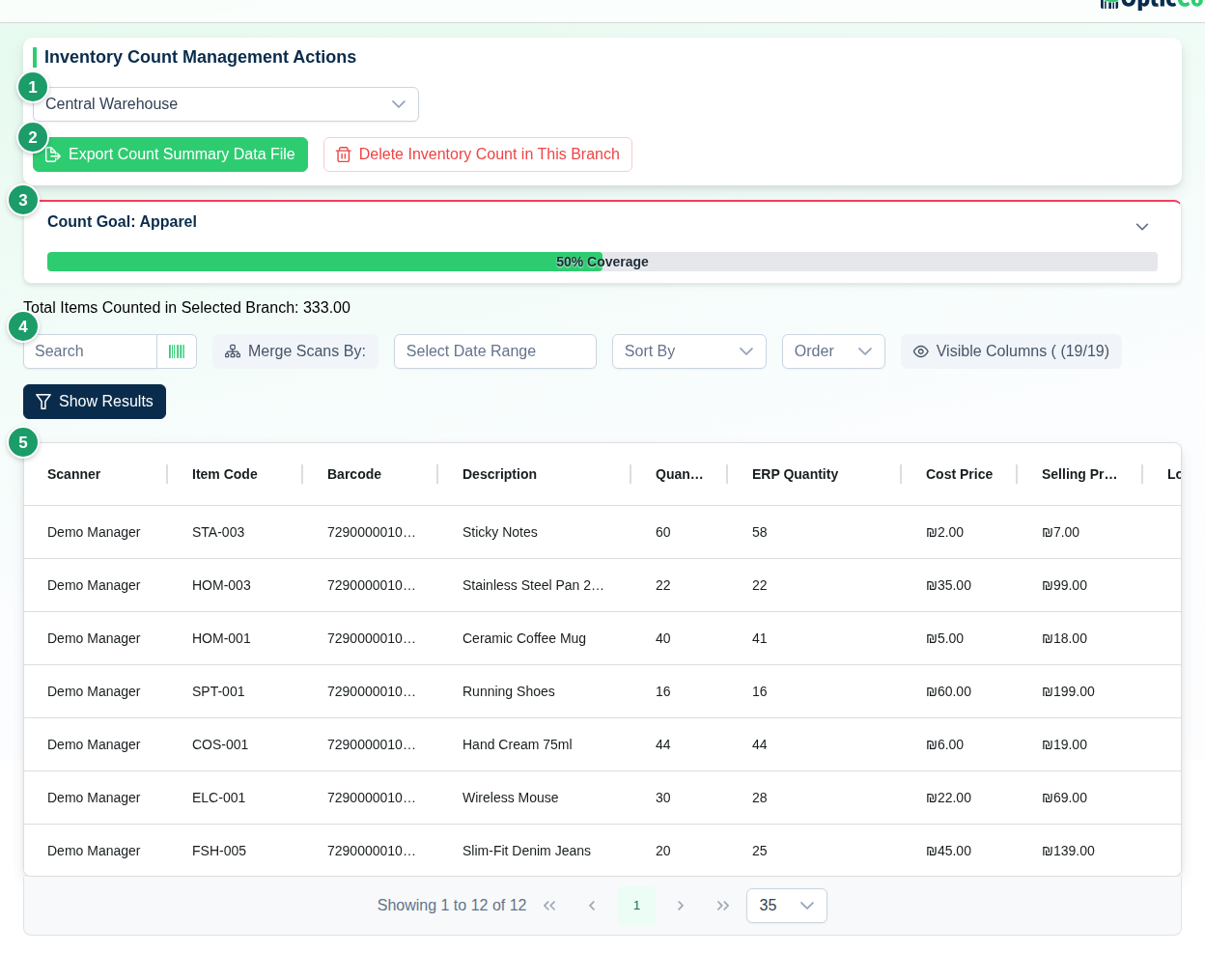
(1) Store select
The Select Store list decides which branch you work on. Every action on the screen – filtering, deleting, exporting – applies to the selected branch. Below the list, Total Items Counted in Selected Branch shows the sum of quantities.
(2) Action bar
| Button | What it does | When it shows |
|---|---|---|
| Export Count Summary Data File | Opens the download dialog (see Exporting a summary file) | Always |
| Expiry report | Opens the report of scanned items that have an expiry date. See Expiry report | When at least one scan in one of your branches has an expiry date |
| Delete Inventory Count in This Branch | Deletes every scan in the branch. See Dangerous actions | When a store is selected and it has scans |
| Export count summary with «system name» | Sends the count summary straight to the ERP through the integration. See Direct export through an integration | When an integration that supports export is set up in Integrations |
| Export Summary | A menu to choose which system to export to | When several integrations are set up |
(3) Count scope card
When count scopes exist for the branch, the progress card appears here: scope select, coverage percentage, and the Not Counted Yet, Partially Counted - Variance Report and Out of Scope tabs. The Edit Count Goals button on the card (Primary User and Co-Manager only) opens the scope management dialog.
(4) Search, merge and sort
| Field | Options |
|---|---|
| Search | Free text. The barcode icon in the field opens the camera – scan an item to see all of its scans |
| Search scope | All Parameters · Collector Name · Location Name |
| Merge Scans By | Item Code · Barcode · Location · Batch Number · Expiry Date · Status · Merge by parent · Group by category, plus one option per account scan field, named after the field (several can be checked) |
| Select Date Range | Shows only scans in the range |
| Sort By | ID · Scanner · Item Code · Quantity · ERP diff · Monetary diff · Updated At |
| Order | Ascending · Descending |
| Visible Columns | Choose which columns the table shows. The choice is remembered |
Click Show Results to apply, or Clear All to reset.
When to merge: without merging, every scan is a row – good for auditing one counter's work. Merging by Item Code or Barcode gives one row per item with its total quantity, and is the only mode in which the ERP diff column is calculated.
(5) Scans table
The columns are listed under Fields and options. Each row ends with two buttons:
- Edit Quantity – opens a dialog to change the scan's quantity, which also holds the scan field values. The change saves immediately and updates the totals.
- Delete Item from Count – deletes the scan after confirmation.
The paginator under the table offers 10, 20, 35 or 50 rows per page.
Fields and options
| Column | What it shows |
|---|---|
| Scanner | The user who scanned |
| Item Code, Barcode, Description | From the catalog. A parent item (a case with its own barcode) carries a Parent badge |
| Quantity | The counted quantity. Negative = stock removal |
| ERP Quantity | The catalog balance for this branch. When the figure is summed across several catalog items, hovering shows the breakdown |
| ERP diff | Counted minus ERP. Shown only when merged by item code or barcode; if the row is still split by location, batch, expiry, status or a scan field the diff is partial |
| Monetary diff | The diff multiplied by the price |
| Cost Price, Selling Price | From the catalog. Hide Cost Price under Visible Columns if you do not want it on screen |
| Location | The location entered at scan time |
| Expiry Date, Batch No., Status | Entered at scan time when the matching settings are on. Status comes from the account's status field |
| Scan fields | The values the account's other scan fields received at scan time, as Field name: value |
| Lender (Loan/Return) | Borrower name and action type, for scans from the loans module |
| ERP Location, Supplier, Category | From the catalog |
| Count Date | Date and time of the scan's last update |
Notes written on a scan (the Scan notes setting) do not appear in the table. They are included only in the Notes column of the Excel file.
Scan fields in the table and the export
Scan fields are pick lists the account defines (status, color, size and so on), and every counter fills them in after a scan. Their values show on this screen as follows:
- In the table: the Scan fields column shows the values, and status has its own Status column.
- When editing: Edit Quantity lets you correct the values. A field set as required is not enforced in this dialog.
- When merging: under Merge Scans By each field is a separate option. A ticked field merges rows with different values; an unticked field splits rows by the picked value.
- In an Excel file: each field gets its own column, and Merge Scans into One Row By: offers an option per field, as in the table.
- In an ERP format: rows are always merged across scan fields, because the ERP file has no columns for them.
Exporting a summary file
Export Count Summary Data File opens a dialog with three steps.
Step 1 – Download Inventory Count Summary File
- Pick a branch under Select Store. A company with several branches also gets All Branches Combined.
- Optional: pick a Count Scope – the file then includes only the scope's items. Default: All - No Scope Filter.
- Optional: pick Filter by session – Active (default), All sessions or a specific session.
- Pick a format under Select Format for Count Summary File.
- Click Continue to Download, or Show Filter Options to narrow the data first.
Available formats: Excel File with All Count Data, Priority, Hashavshevet, Yarpa, SAP B1, SAP B1 - Retail Module, Nesher - Tevel, All4Shop - ProfitAge, One - ERP, One - Advanced, Kod Bina - Minisoft, Orpak, Restigo, Rivhit, Comax, Musachit 2000. Kod Bina - Minisoft adds one more settings dialog; every other non-Excel format downloads immediately in the layout the external system expects. Pharmacies connected to Yarpa can also send the summary directly, with no file – see Direct export through an integration.
Step 2 – Filter Count Data (optional)
| Option | What it does |
|---|---|
| Export Data in Selected Locations | Only scans from the chosen location. Default: All - No Location Filter |
| Export Data in Specific Time Range | Only scans within the date range |
| Export Only Items Added Manually to the System | Items created in the app rather than from a file or integration |
| Export Only Items Counted with Negative Quantity - Outgoing from Inventory | Stock removals only |
| Export Only Items Not Counted | Catalog items with no scan |
| Export Only Items with Difference Between Counted Quantity and ERP Quantity | Variance report |
Active filters show as tags at the bottom of the dialog. Click Exit Filter Settings and Continue to Download to move on.
Step 3 – Excel settings (Excel format only)
In Export Data to Excel File - Default Settings Can Be Changed:
- Merge Scans into One Row By: Item Code · Barcode · Location · Batch · Expiration Date · Status · Merge parent into child · Group by category, plus one option per account scan field. With nothing checked, every scan is a row.
- Export Entire Item Catalog as One List - Including Uncounted Items – uncounted items get quantity 0.
- Also Export Items Not Counted but with Existing ERP Quantity Value.
- Select Columns to Appear in Count Summary File – the choice is remembered for the next download.
Click Download File with These Settings. The message The count summary file is downloading now confirms the download started.
Available Excel columns
Item Code, Item Name, Barcode, Quantity, Discrete Quantity, Location, Counter Names, Total Buying Price, Sort Code, Color, Size, Model, Unit of Measure, Total Selling Price, Buying Price, Selling Price, Supplier Name, Added Manually to Catalog, Category, Quantity by Inventory Management System, Location by Inventory Management System, Quantity Difference, Update Date, Update Time, Batch Number, Expiration Date, Status, Notes, Package Quantity. In addition, every account scan field gets a column named after the field.
Direct export through an integration
When an integration that supports export is set up, for example Yarpa for pharmacies, Export count summary with «system name» sends the count summary straight to the ERP, with no file.
- Click Export count summary with «system name» (or Export Summary and pick a system).
- In the Export Count Summary to Inventory Management System dialog pick a branch and click Export Count Summary to Inventory Management System.
- When it finishes, a summary appears: N items sent, and if some lines were not sent – N lines were not sent: with the reasons.
With Yarpa, a line is not sent when the item was added by hand during the count, does not exist in the ERP's catalog, has a non-numeric or missing item code, or has a negative or fractional quantity. Fix those lines in the ERP or the catalog and send again.
If the export stops partway, the message says how many items already reached the ERP and how many did not. Check with the ERP provider before sending again, so nothing is counted twice. Details for each system are on Integrations.
Expiry report
The Expiry report button gathers every item scanned with an Expiration Date, soonest first. It shows what has already expired and what needs to come off the shelf soon, without exporting the count.
- The red number on the button: how many rows have expired or expire within 7 days.
- What is included: scans with an expiry date from every count, including closed counts (marked Closed count: with the count name), in the branches you may count in. Picking scans are left out, because those items have already left the shelf.
- One row per item for the same expiry date, batch, location and count. Repeat scans merge into one row with the quantities summed and the number of scans.
- Filter tiles: Expired, Within 7 days, 8-30 days, 31-90 days and Over 90 days, each with its number of rows and units. Clicking a tile filters the list.
- Search by item, barcode, batch, location or counter.
- Selected branch / All branches: when you have picked a branch and have several branches, the report opens on the picked branch and you can switch to all branches. With no branch picked it shows all branches.
- Export to Excel downloads the rows shown after filtering.
The report shows up to 5,000 rows, those closest to expiry. On a phone the rows show as cards, and Show more loads the next ones.
To get a WhatsApp alert about items about to expire, turn on Daily Expiration Report in WhatsApp alerts.
Dangerous actions
Irreversible
Delete Inventory Count in This Branch removes every scan in the branch. The Delete Counts in «store name» dialog asks for confirmation. There is no undo – download a summary file first.
Related pages
- Count Scopes – define what to track and export by scope
- Locations – export a summary for one location and view its scans
- Integrations – connect an ERP for direct export
- Inventory count – the full end-to-end process
- Overview – count metrics and totals