
License & Purchases screen
The License & Purchases screen shows what your licence includes, how many credits are left and where they went, and opens the purchase page to load credits, add modules and users, or renew.
Who sees it: primary user · co-manager · sub-manager
Used by modules: counting picking goods receipt returns loans
TL;DR
The licence sets the term, the modules and the number of parallel users. Credits are the amount of work: one credit per item counted, received or picked, from a single bank shared by every module. When the bank is empty you cannot open new work, and every scan or line that costs a credit is refused until you top up.
How to get here
- On the phone: ☰ menu → Setup → License & Purchases
- On the computer: side menu → Setup → License & Purchases
- Clicking the credit indicator in the app header also lands here.
What is on the screen
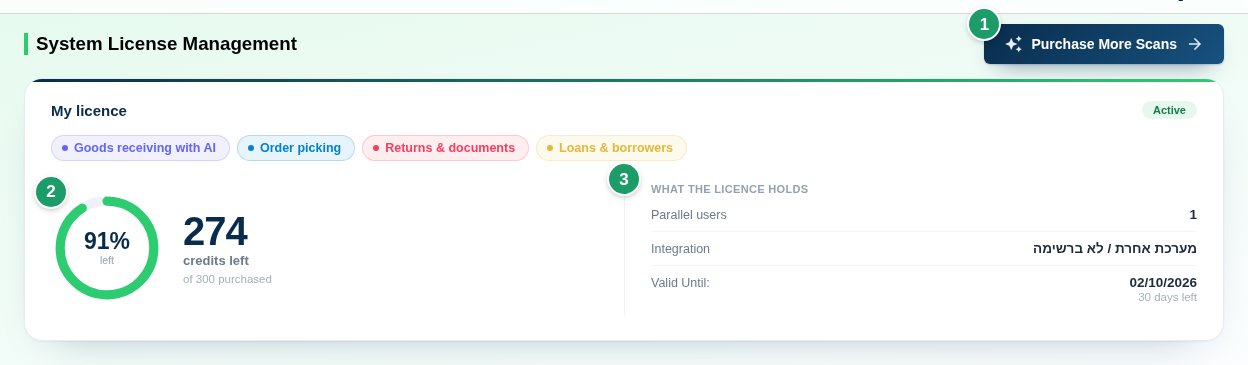
(1) Upgrade Package
Opens the purchase page (see below). For an account on a gift period or with no purchases the button reads Purchase More Scans.
(2) My licence – balance
At the top of the card: the term badge (Yearly licence / Monthly licence) and the licence state – Active, Out of credits, Expired or No active licence. Below it, chips for the unlocked modules. The ring shows the percentage left, next to credits left and of N purchased. N is the number of credits loaded into the current licence period (or the balance, if that is higher), not everything ever bought.
(3) What the licence holds
Parallel users, Integration (the purchased ERP, or a dash) and Valid Until: with N days left. An expired licence shows Ended on.
(4) Where your credits went
Usage by module over the last N days, one bar per module. Shown only when something was consumed in the window (which is why it is absent from the screenshot above).
Below the card:
- Purchases Pending Payment – a table of purchases started but not paid, with a Pending, click here to pay button.
- Purchase History – switchable between Cards and Table. With no purchases: No system license packages.
How credits are consumed
| Module | Billing unit | Not charged |
|---|---|---|
| Inventory counts | A scan | A run of scans of the same item by the same user in the same branch counts as one; quantity never matters; a deleted scan is refunded |
| Loans | A scan | Same as counting |
| Order picking | A document line, on its first pick | Re-picking or topping up the same line |
| Returns & documents | A document line, when created | Editing or confirming the line |
| Goods receipt | A line added to the draft, whether the AI extracted it or you typed it | Uploading the file, editing, confirming, cancelling |
| Item identification, reports and exports | – | Never |
Catalog, branches, users, locations, customers, suppliers, labels and integrations never consume credits, at any size.
When credits run out or the licence expires
Out of credits: opening new work (a count session, receipt, pick, document) is refused, and every scan or line that costs a credit is refused too – the balance never goes below zero. Instead of an error message, the purchase page opens. Open work is not closed, and after a top-up you continue from the same point. Expired: scans are refused with the message Purchased scan package has expired. All data is kept; signing in, the management screens and the count summary download stay available. What happens to the credit balance is in Term, renewal and upgrades.
The purchase page
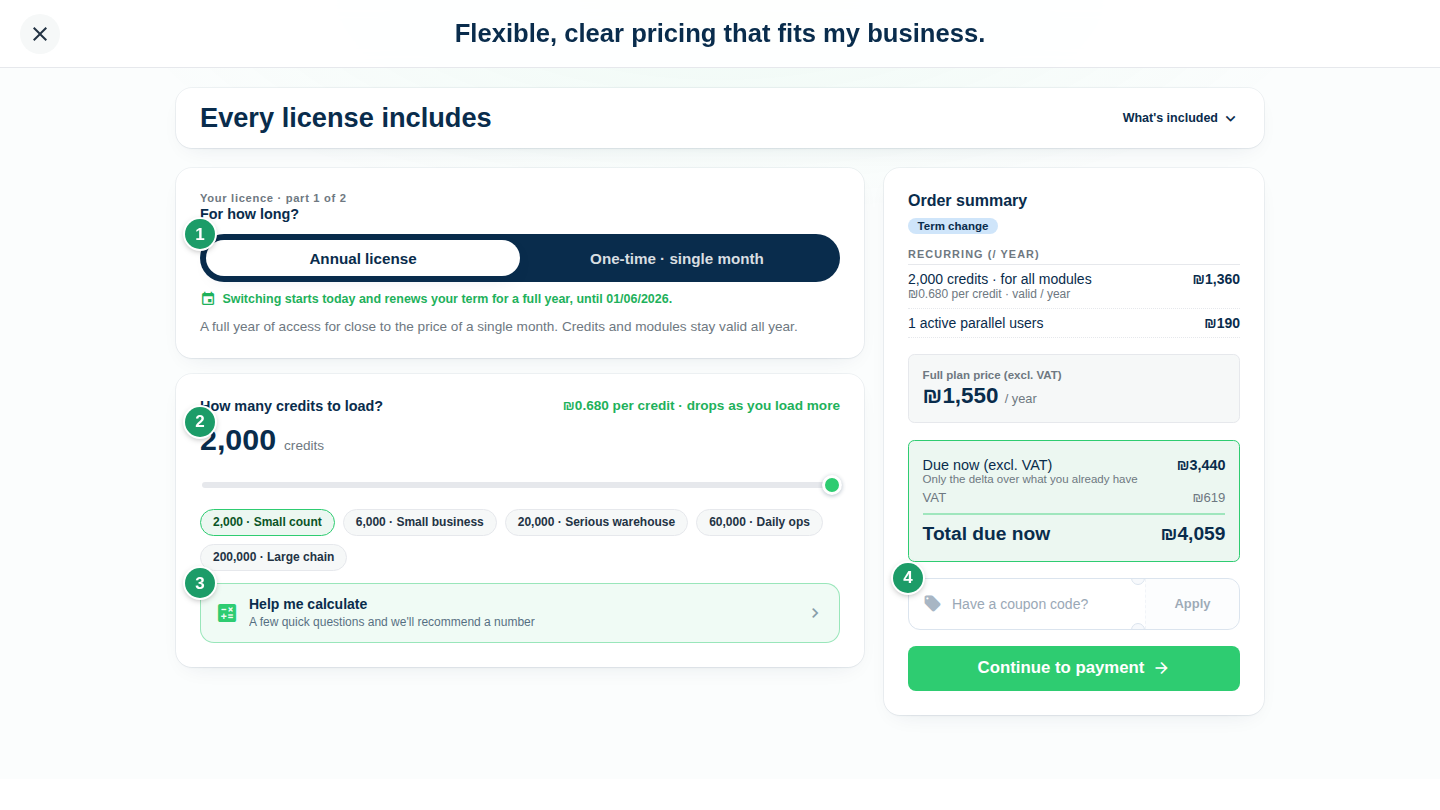
Upgrade Package opens a full-screen page. At the top, What the licence includes and How does it work?; then five stages with Your purchase summary beside them.
| Stage | What you choose |
|---|---|
| For how long? (1) | Annual license or One-time · single month. Credits and modules are valid for the chosen term. A customer holding a yearly licence does not see the monthly option. See Term, renewal and upgrades |
| Which processes do I want to improve? | Included modules are always ticked; add-on modules (goods receiving, picking, returns & documents, loans) carry a flat fee per term. Selecting all of them switches on the Ultimate bundle at a reduced price. A module that needs an ERP is tagged Requires ERP integration |
| How many credits to load? (2) | A slider in packages of 2,000 credits, with shortcuts (2,000 / 6,000 / 20,000 / 60,000 / 200,000), and an Other box for typing a number. A number typed in Other rounds up to a whole package. The price per credit drops as you load more. On an upgrade the slider starts from what you already hold, and credits added mid-term are priced as a mid-term top-up, higher than when loaded at the start of the term |
| Active parallel users | How many people work at the same moment. Click the buttons or type a number. Registered users are not limited |
| Add-ons | Bluetooth scanners (a one-time purchase, every sixth is free) and ERP integration. For most systems the integration is a one-time setup fee; for some systems (for example Yarpa) the integration fee renews with the licence; some systems are Price on request |
Current prices are shown on the page itself and on the website price list; this document does not list them.
Help me calculate (3)
The button under the slider opens How many credits to load?. The recommendation appears at the top immediately, and every change updates it.
- From actual usage. If the account has at least 14 active days, the window shows Based on your actual usage over the last N days with a monthly average per module – no questions.
- From questions. Otherwise you get one collapsible card per selected module, with questions such as how many branches, how many items in each and how often you count. Every question has a default, so you can accept without answering.
The recommendation includes a 15% safety margin and rounds up to whole packages. Use the recommendation puts it on the slider.
Purchase summary and coupon (4)
The panel lists recurring lines (credits, users-and-modules subscription, and an integration fee that renews with the licence – renews with the licence, not a one-time charge), one-time lines, and Full plan price (excl. VAT). On an upgrade it adds What changes from what you already have and Due now (excl. VAT) – the difference only. Credits added mid-term show Priced as a mid-term top-up. Credits you have not used stay yours. If nothing changed you see Nothing to pay.
If you have banked credits from the referral programme, the panel mentions them: on a purchase that adds at least 2,000 credits it shows N referral credits will land in your account with this purchase; on a smaller purchase it says they are waiting for a purchase that adds at least 2,000 credits.
In Have a coupon code? type the code and click Apply. A coupon is a percentage or fixed-amount discount with an expiry date and a usage limit; a code that expired, was used up or does not fit the purchase comes back with That code was not accepted. Check it and try again. The discount shows on the Coupon line before VAT and Total due now.
Payment
- Optional: tick I want to start the licence later, not right away. You pay today, and the term starts only on the day you activate it. See Buy now, activate later.
- Click Continue to payment. The payment provider's Complete Payment window opens.
- Once the charge is approved, Payment received appears with the credits added, users, modules unlocked and the total including VAT. The invoice goes to the Email for Receipt Delivery from Company Details, and the purchase appears in the history.
The purchase page does not save a new card. If you saved a card on an earlier purchase, the option Charge the saved card ending in XXXX appears, with a delete icon beside it that removes the saved card.
Term, renewal and upgrades
Upgrading on the same term. Upgrading an active licence on the same kind of term does not move its end date. It only adds credits, users or modules up to that date. An upgrade that adds nothing costs nothing.
Monthly to annual. Moving from a monthly to an annual licence stretches the licence to a full year from the day the monthly licence started. The month you already paid for counts towards the year.
Annual to monthly. A customer holding a yearly licence does not see the monthly option. Monthly can be chosen only after the yearly term ends.
Renewing an expired licence. An expired licence is renewed on the purchase page as usual. The renewal is bought as a new full term, starting on the purchase day, and is charged in full.
What happens to unused credits at the end of the term:
- Within an active term the whole balance stays, also when you add credits.
- On a monthly licence the balance expires with the term.
- On a yearly licence 25% of the balance carries into the next purchase, if you buy within 30 days of the end of the term. After 30 days the balance expires.
Renewing with no credits. If the previous balance expired, renewing at the same size adds no credits. In that case the purchase page shows This licence would be left with no credits, and the pay button stays disabled until you add at least one package.
Buy now, activate later
When you tick I want to start the licence later, not right away at payment, you pay today and the term does not start. The purchase is saved with the status Paid, not activated.
- In Purchase History, switch to the Table view. The button does not appear in the card view.
- On the purchase's row (Paid - Pending Activation), click Activate License.
- Confirm with Yes, Activate License. The licence term starts today.
An upgrade bought with a later start gives only the validity it was priced against, not a new term.
Purchase history
The history is grouped by licence period. Each group opens with the kind of period (Yearly licence, Monthly licence, Gift licence or Credit adjustment), the dates, the state Active or Ended, and N credits loaded into this period. Inside the group there is a card per purchase, with a tag that says what the purchase did: Opened the licence, Renewal or Gift. An upgrade buys capacity (credits, users, modules), not time.
Each card shows a status (Active, Ended, Gift, Pending, Failed, Awaiting payment, Paid, not activated), an Upgrade tag when relevant, the credits the purchase added (or No credits added), the modules, Parallel users, Bluetooth scanners, Integration, Valid from and Paid including VAT.
The Table view has a column per component: Payment Status, Subscription Active, Subscription Valid For, Purchase type, Credits, Credits price, Concurrent Active Users, Subscription price, Modules, scanners, Integration, Discount, Total before VAT, VAT and Next renewal. A purchase in Paid - Pending Activation shows an Activate License button.
Accounts on the old licence
A company still holding a licence from the previous model (date-to-date, no credit bank) sees the License is Valid! notice with the days remaining instead of the card, and the credit indicator in the header is hidden for it. Once it buys under the new model, the regular card takes over.
Related pages
- Company Details – invoice email and user activity
- Users – who counts in parallel
- Modules at a glance – what each module does
- Integrations – after buying an integration