
Supplier Management screen
The Supplier Management screen holds the supplier directory used by goods receipt and by supplier returns documents.
Who sees it: primary user · co-manager · sub-manager
Used by modules: goods receipt returns
How to get here
- On the phone: ☰ menu → Setup → Supplier Management
- On the computer: side menu → Setup → Supplier Management
What is on the screen
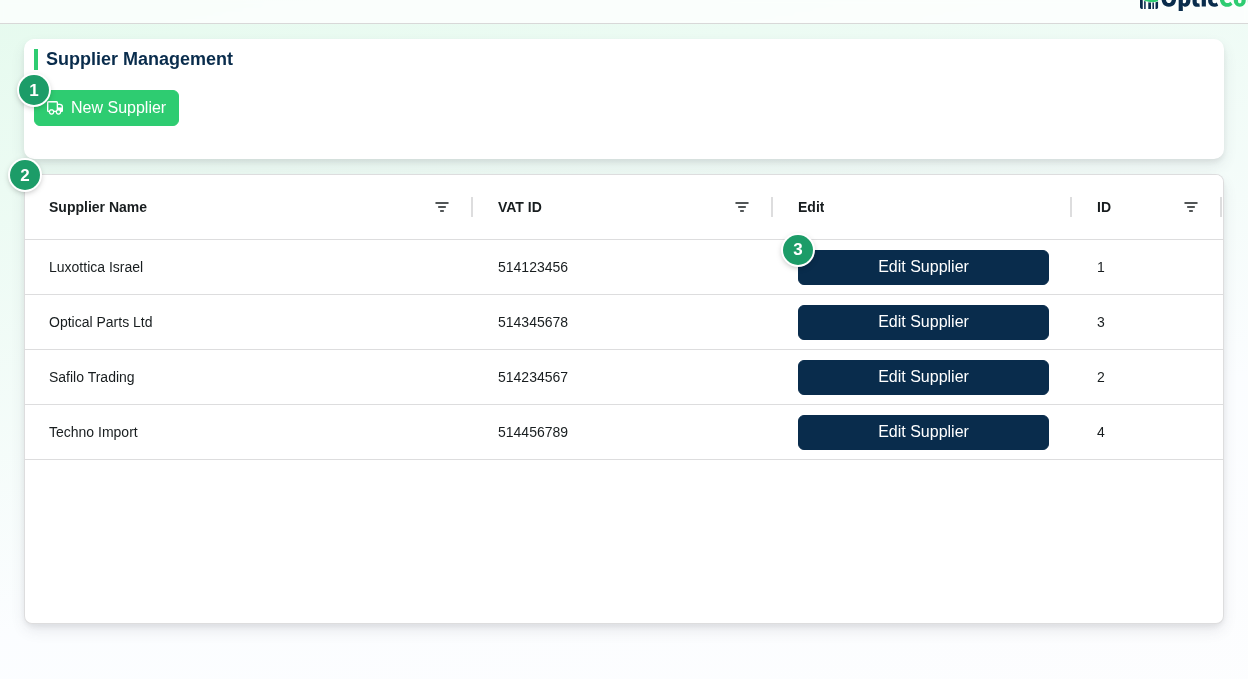
(1) New Supplier
Opens the Add New Supplier dialog.
Beside it, Import suppliers with and the system name appears when an integration other than WhatsApp is active. Supplier import works only with the Bina integration; for other systems the button appears but the action does not import suppliers. An existing supplier is matched by External code and updated instead of created again.
(2) Suppliers table
| Column | What it shows |
|---|---|
| Supplier Name | The name shown on receipt and returns documents |
| VAT ID | Tax identifier. Unique within the company |
| Edit | Edit Supplier – opens the edit dialog |
| ID | Internal number |
Clicking a column header opens a text filter. Deleted suppliers do not appear.
(3) Edit Supplier
Opens the Edit Supplier dialog with the same fields as create.
Dialog fields
| Field | What it does | Required |
|---|---|---|
| Name | Supplier name | Yes |
| VAT ID | Must be unique. If another supplier has it: This VAT ID already exists for another supplier | No |
| External code | The supplier's ID in your ERP or accounting system. Used to match on import | No |
Click Create Supplier or Save Changes (shown only after a change). Cancel closes without saving. After saving you see Supplier created successfully or Supplier updated successfully.
Where suppliers are used
- Goods receipt. The receipt review has a Supplier name field with search (Search by name or pick from the list…). When the AI reads a supplier name that is not in the directory you see No matching supplier found for this name and a Save as new supplier button – the supplier is created from the document and stored here. See Goods Receiving.
- Supplier returns. A Supplier return document opens on a supplier from the directory. See Returns.
Deleting
In the edit dialog click Delete Supplier. The Delete Supplier confirmation reads: "The supplier will be hidden from the active supplier list. Existing goods-receiving documents referencing this supplier will remain unchanged."
Deleting hides, it does not erase
The supplier disappears from the list and the search, but their receipt and returns documents keep their name. There is no restore from this screen; if you need them again, create a new supplier.
Related pages
- Goods Receiving – receive a document and pick a supplier
- Returns – open a supplier return document
- Catalog – manage the items received from suppliers
- Customer Management – the matching directory on the sales side