
Borrowers screen
The Borrowers screen manages the list of borrowers – employees or customers who take equipment and bring it back – and is where you start a loan or a return, check who is holding which item, and download a report per borrower.
Who sees it: Primary User · Co-Manager · Sub-Manager · Employee with Borrowers management access
Used in modules: loans
TL;DR
Add a borrower once. For every loan click Start loan on their row, scan on the counting page and click End; for a return click Start return. Activity shows what is still with them. Full process: Equipment loans.
How to get here
- On the phone: ☰ menu → Management → Movements → Borrowers
- On a computer: side menu → Movements → Borrowers
Loans & borrowers is a paid module. If the module has not been purchased, the menu item is shown locked. Details on the License & purchases page.
What is on the screen
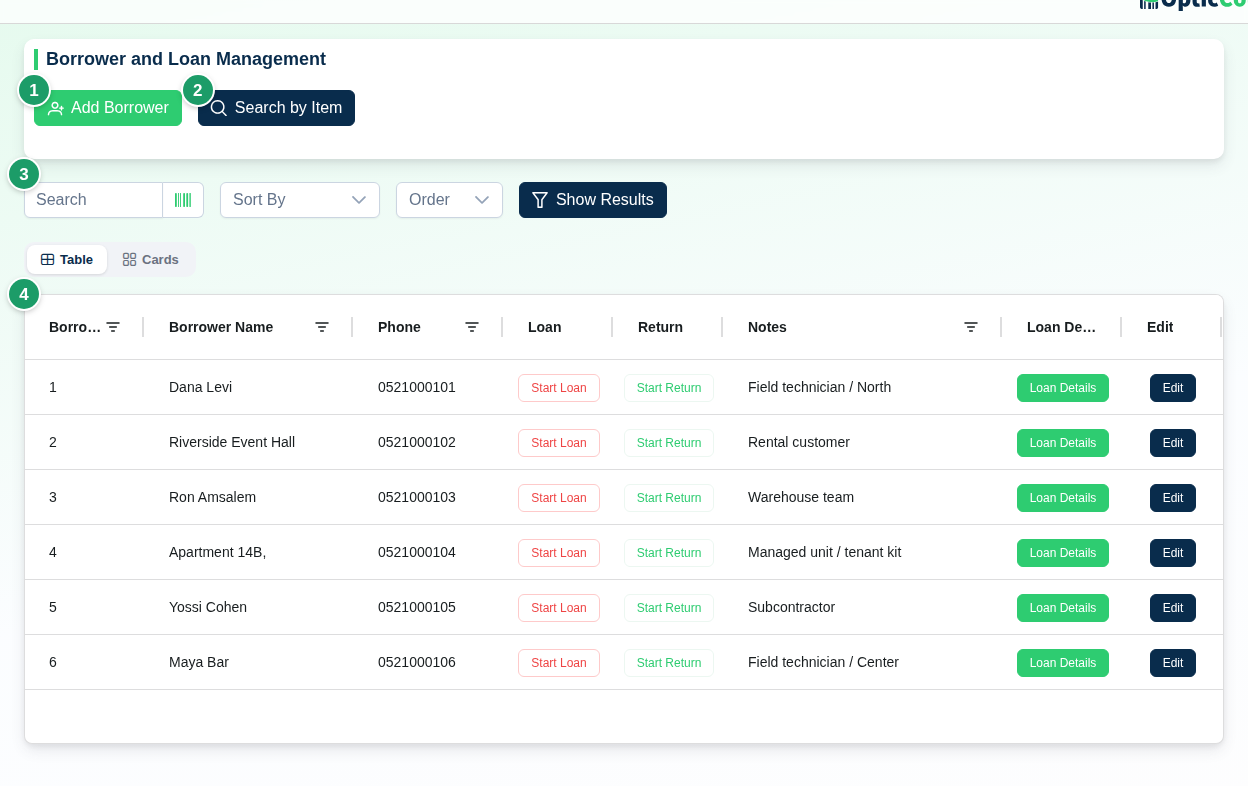
(1) Add borrower
Opens Add borrower. Shown only to users with Allow creating and deleting borrowers.
(2) Search by Item
Opens Identify Item from Catalog: scan or type a barcode or item code, and the item details open on the Borrowers with this item tab – who holds the item and the Quantity not yet back. If nobody holds it you see No borrower holds this item.
(3) Search and sort
Free-text search across name, phone and note; sort by ID, Borrower name, Phone, Notes or Created At.
(4) Borrowers table
Table columns
| Column | Content |
|---|---|
| ID | Internal number of the borrower (hidden by default in card view). |
| Borrower name | The employee's or customer's name. |
| Phone | The borrower's phone. Unique within the company. |
| Loan | The Start loan button. |
| Return | The Start return button. |
| Transfer | The Transfer to borrower button. |
| Notes | A free note about the borrower. |
| Activity | The Activity button. |
| Edit | The Edit button – only for users with the create/delete permission. |
Actions
Adding and editing a borrower
The Add borrower / Edit borrower details dialog has:
| Field | Required | Notes |
|---|---|---|
| Name | yes | |
| Phone | no | Must be unique; a number already on file is rejected. |
| ERP branch | no | Shown only when the connected ERP supports stock transfers. When linked, finishing a loan or return creates a matching stock transfer in the ERP. |
| Comment | no |
Click Add or Save Changes. When editing, Delete is also available.
Starting a loan or a return from this screen
- Click Start loan or Start return on the borrower's row.
- If you have more than one branch, pick one in the Select store: loan / Select store: return dialog and click Continue.
- The counting page opens with the header Loan: or Return: and the borrower's name. The borrower and the direction are locked for the whole session.
- Scan the items. A loan is recorded as a negative quantity (the item leaves the branch), a return as a positive one.
- Click End. You see Session finished successfully, or – when the borrower is linked to an ERP branch – Session finished — a transfer of N items was created in the ERP.
This is the only way to start a loan or a return: there is no entry to this mode from the home page, and the counting page settings have no loan-mode setting.
Transfer between borrowers
A transfer moves items from one borrower to another in a single scan, without going through the branch.
- Click Transfer to borrower on the row of the borrower who holds the items now.
- In the Transfer between borrowers dialog, pick the borrower who receives the items and click Continue. There is no branch to pick, since branch stock does not change.
- The counting page opens with the header Transfer: and both names.
- Scan the items. Each scan is recorded as a return from the first borrower and a loan to the second. Branch stock does not change, and the scan costs one credit.
- Click End. When the borrowers are linked to an ERP branch, two transfers are created: the return from the first and the loan to the second.
Deleting a transfer scan or changing its quantity applies to both sides together. There is no check that the first borrower actually holds the item.
Scan notes
When the Scan notes setting is on in the counting page settings, every scan card in a loan or return session gets a note icon. Type a free note there, for example Returned with a scratch. The notes later appear in the Activity dialog under Recent notes.
Activity
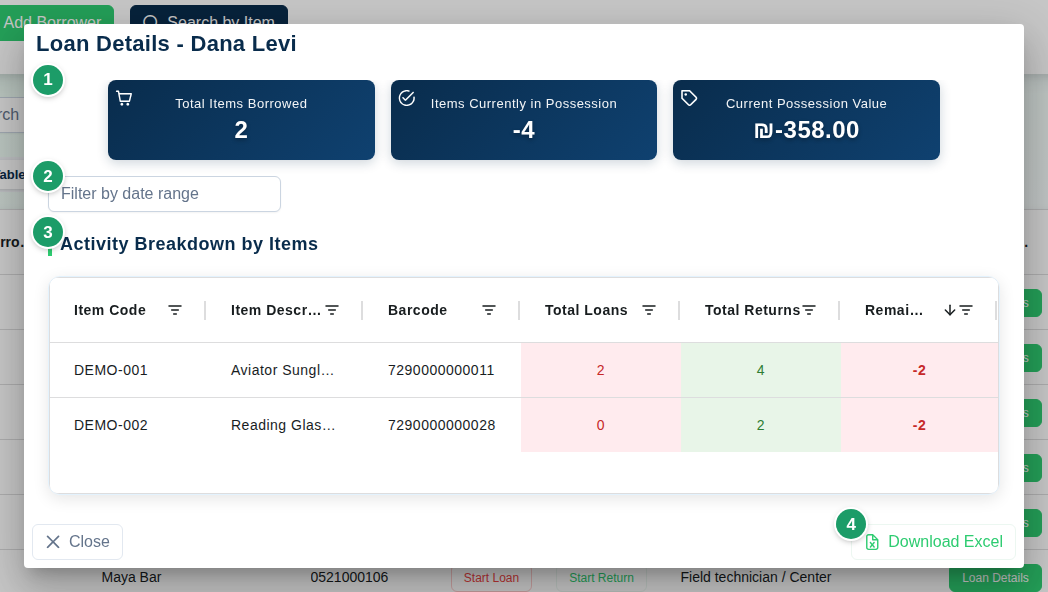
The Activity - [name] dialog shows:
- Summary cards (1): Total items (loan), Items not yet back and Value of items not yet back (at selling price).
- Filter by date range (2): a date range that narrows the breakdown.
- Activity Breakdown by Items (3): a table with Item Code, Item Description, Barcode, Loan, Return and Not yet back (loans minus returns).
- Recent notes: the notes written on scans, with the action (Loan / Return), the item and the quantity. Remove note deletes a note.
- Download Excel (4): a file with a Activity sheet and a summary for the borrower.
Customize terms
The Customize terms button (gear icon) is shown only to the Primary User and Co-Managers. It sets what the system calls whoever holds the equipment and the two actions, on every screen and for everyone in the company: the menu, the table, the counting page, the item card, the counts table and the permission names.
- Templates: Borrowers (default), Employees, Customers (rental), Apartments and Events. Each template is translated into every language. With Apartments, for example, the screen is called Apartments management and the buttons read Start move in and Start move out.
- My own words: fill in four words: who holds the equipment (singular and plural), the out action and the back action. They appear for users working in the language they were typed in; other languages show the default words.
- Preview shows the title and buttons with the chosen words before you save.
Only the words change. Data, permissions and how the module works stay the same.
Permissions
| Role | What they can do |
|---|---|
| Primary User, Co-Manager, Sub Manager | Everything: add, edit, delete, loan, return, loan details. |
| Employee with Borrowers management access | Sees the screen, starts loans and returns, views loan details and searches by item. |
| Employee with Allow creating and deleting borrowers as well | Also Add borrower, Edit and Delete. |
Permissions are set on the Users page. Whoever performs a loan in the field must be assigned to the branch it happens in.
Dangerous actions
Deleting a borrower cannot be undone
Delete removes the borrower permanently. Check Activity first to make sure no equipment is still with them.
Related pages
- Equipment loans – run a loan and a return on the counting page end to end
- Users – give an employee borrower management access
- Counting page – learn the scanning screen and the Scan notes setting
- Inventory counts – see loan scans as part of the branch count
- Integrations – connect an ERP that receives borrower stock transfers