
Locations screen
The Locations screen lists every location (physical spot) in the branch, how much was scanned in each and by whom. From here you add, merge, mark as completed and delete locations.
Who sees it: Primary User · Co-Manager · Sub-Manager
Used by modules: Counting Receiving
How to get here
- On the phone: ☰ menu → Inventory → Locations
- On the computer: side menu → Inventory → Locations
What's on the screen
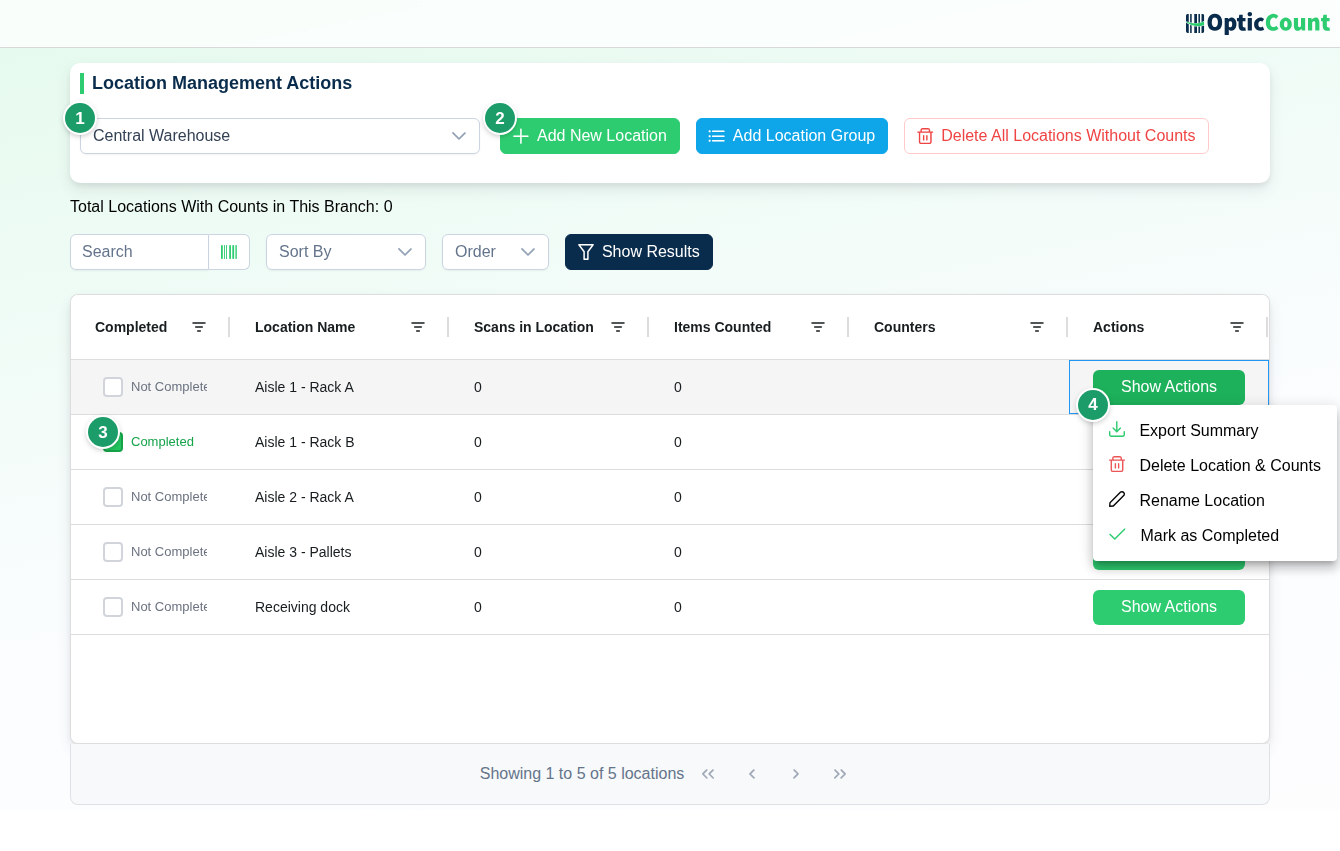
(1) Store select
Every location belongs to one branch. The Select Store list decides which locations are shown and which the actions apply to. Below it, Total Locations With Counts in This Branch shows the count.
(2) Action bar
| Button | What it does |
|---|---|
| Add New Location | Opens the Location Name dialog for one name. Click Add |
| Add Location Group | Opens Create Advanced Locations Sequence |
| Delete All Locations Without Counts | After confirmation, deletes only locations with 0 scans |
(3) Completed checkbox
The Completed column is a checkbox: clicking it toggles between Completed and Not Completed. The mark does not lock the location – see Completed status.
(4) Show Actions menu
The Show Actions button at the end of each row opens:
| Action | What it does |
|---|---|
| Export Summary | Opens the summary export dialog with this location pre-filtered. See Recent Counts |
| Delete Location & Counts | Deletes the location and every scan in it. See Dangerous actions |
| Rename Location | Opens the Location Name dialog (New / existing location name). If the name already exists in the branch, the scans move to the existing location and the old one is deleted |
| View Counts | Jumps to the Recent Counts screen filtered by this location. Shown only when the location has scans |
| Mark as Completed / Unmark as Completed | Toggles the Completed mark, same as the checkbox in the row |
Fields and options
Table columns:
| Column | What it shows |
|---|---|
| Completed | Completed / Not Completed, toggled with a click |
| Location Name | The name counters type on the count page |
| Scans in Location | Number of scan events in the location |
| Items Counted | Sum of quantities counted in the location |
| Counters | Names of the users who scanned there |
| Actions | The Show Actions button |
Search bar: Search by name, Sort By (Location Name, Completion Status, Scans Count, Items Count, Counters Count), Order and Show Results.
Create Advanced Locations Sequence
Add Location Group opens a dialog that creates a series of locations in one go:
| Field | What it does | Example |
|---|---|---|
| Start Location from Number | First number in the series | 1 |
| Zero Padding Length from Left | Fixed number of digits, padded with leading zeros | 3 gives 001, 002… |
| Create Locations Until Number | Last number in the series. Must be larger than the first | 50 |
| Location Prefix | Text before the number (optional) | A gives A001 |
| Location Suffix | Text after the number (optional) | B gives 001B |
Example of Locations to be Created lists what will be generated. Click Save Changes. A location that already exists with the same name is not created again, so you can run the dialog several times for different areas.
Completed status
The Completed mark is a management flag for tracking progress. It does not block scanning. To warn counters when they enter a location marked as completed, turn on Show Warning if Counting in Location Marked as Complete in Customization settings. Sort by Completion Status to see what is left.
Location settings on the count page
These settings live in the Location Settings group of Customization settings and decide how the locations on this screen affect counters:
| Setting | What the counter sees |
|---|---|
| Show Location Input Option | A location field at the top of the count page. Enter a location, scan everything in it, then move to the next |
| Set Location Entry as Required | A warning when scanning without a location |
| Show Warning if Counting in Location Marked as Complete | A warning when the location is marked Completed here |
| Show Warning if Item Counted in Location Someone Else Counted | A warning when another user already scanned in this location in the branch |
| Show Warning if Location Not Pre-Defined | A warning when the location is not in the list on this screen. With the setting off, a new location is added to the list automatically |
| Show Warning for Non-Matching Location | A warning when the entered location differs from the item's ERP Location in the catalog |
Dangerous actions
Irreversible
Delete Location & Counts removes the location and every scan made in it in the branch. To keep the scans, use Rename Location and merge into another location instead. Delete All Locations Without Counts removes empty locations only.
Related pages
- Customization settings – turn on location entry and the warnings
- Recent Counts – filter scans by location and export
- Item Catalog – load an ERP location per item
- Inventory count – the full end-to-end process
- Count page – how a location is entered while scanning