
Users screen
The Users screen is where you create and edit employee accounts, set each one's permission level, individual permissions and permitted branches, and manage passwords.
Who sees it: primary user · co-manager · sub-manager
Used by modules: counting picking goods receipt returns loans barcode labels
TL;DR
An employee signs in with their phone number and the Fixed Password for Business Employees. The primary user and co-managers sign in with a personal password. What an employee sees and can do comes from the permission level, the permission checkboxes and the list of permitted branches.
How to get here
- On the phone: ☰ menu → Setup → Users
- On the computer: side menu → Setup → Users
What is on the screen
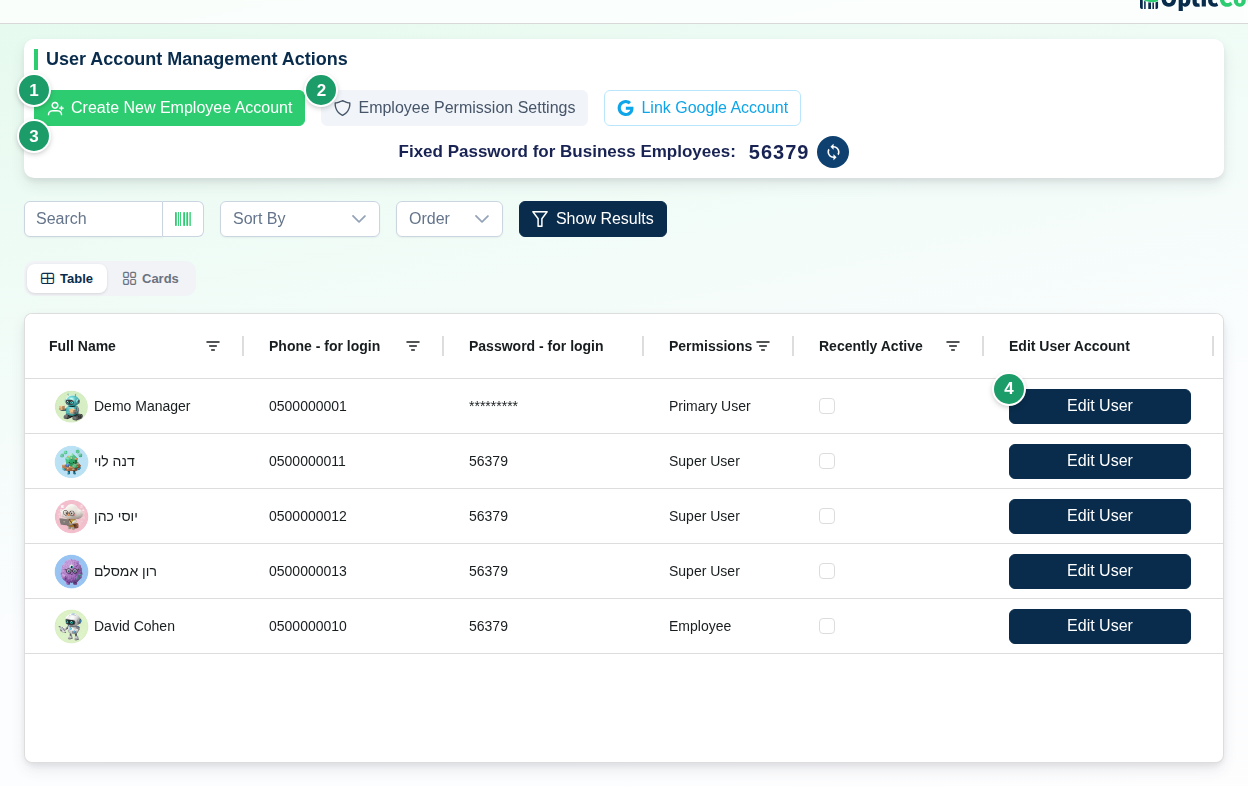
(1) Create New Employee Account
Opens the employee dialog in create mode (see "The employee dialog").
(2) Employee Permission Settings
Opens the Bulk Permissions Settings for All Employees dialog (see below).
(3) Fixed Password for Business Employees
The line shows the shared password every employee and sub-manager signs in with. The sync button beside it (Reset Password for All Employees) generates a new password and applies it to every employee, sub-manager and inactive user at once.
Next to the buttons you also find Link Google Account – links the signed-in user's Google account for faster sign-in. Once linked, the button reads Google Account Linked. Whenever an integration other than WhatsApp is active, Import users with and the system name appears too. User import works with Bina and Boss; other systems return an error.
(4) Users table
| Column | What it shows |
|---|---|
| Full Name | Avatar and name. An inactive user is greyed out |
| Phone - for login | The sign-in identifier |
| Password - for login | Hidden by default. Employees – the fixed password; managers – asterisks |
| Permissions | The level: Primary User, Co-Manager, Sub Manager, Employee, Inactive User |
| Recently Active | Yes if the user did something in the last 10 minutes |
| Google account email | The email of the Google account the user linked for sign-in. Empty if no account is linked |
| WhatsApp login link | Send login link on WhatsApp – sends the employee a personal login link (see WhatsApp login link). Empty on the rows of the primary user and of inactive users |
| Edit User Account | Edit User – opens the employee dialog |
A User ID column sits at the end of the table; in the card view it stays hidden until you expand the card. A sort-and-search bar sits above the table.
Permission levels
| Level (as shown in the dialog) | What it allows |
|---|---|
| Company Manager - Full Control | The account owner. All branches, all management screens. Cannot be created again or deleted |
| Co-Manager - Full management (same access as primary) | Same as the primary user, purchases included. Signs in with a personal password |
| Sub-Manager - Management and Control Permissions | Management screens, but only for the branches assigned to them |
| Worker - Counting Permissions Only | Scans and counts in assigned branches. No management screens |
| Inactive User - Cannot Log In | Blocked from signing in. History is kept |
The primary user and co-managers have no permission checkboxes and no branch selection – everything is open to them.
The employee dialog
The dialog is titled Edit Worker Details even when creating.
| Field | What it does |
|---|---|
| Full Name | The name shown in reports and count tables. Required |
| Phone - for login | The sign-in number. Changing it swaps the sign-in without creating a new user |
| System Permission Level | One of the levels in the table above |
| Reset Main User Password | Shown only when editing a primary user or co-manager. Opens a Reset Password prompt for a new password. The new password is set for the user who is signed in (the one who clicked), not for the user being edited |
| User will have access only to selected stores | The permitted-branch list. Grant Permission to All Stores / Revoke Permission from All Stores select all or none |
Permission checkboxes
Shown only for sub-managers, employees and inactive users.
| Permission | What it unlocks |
|---|---|
| View Cost Prices Permission | Shows cost prices in the catalog and reports |
| Add and Edit Catalog Items Permission | Lets the user add and update items, including creating items while counting |
| Delete Catalog Items Permission | Lets the user delete catalog items |
| Show inventory data from ERP system (if available) | Shows the ERP quantity beside the counted quantity |
| Allow printing labels | Adds the Barcode Labels screen to the menu |
| Full order management access (manager-level for orders only) | Lets the user create, edit and assign orders in Orders. Without it an employee sees only orders assigned to them. It also gives access to managing the documents the employee opens in Returns |
| Full returns management access (manager-level for returns only) | Lets the user open, scan, edit, delete and send to the ERP returns documents, without the orders permission. The employee sees only the documents they opened |
| See and manage all returns (not only their own) | Shows the employee every returns document in the company, not only their own, and lets them manage all of them |
| Manage goods receiving (open, edit, send for verification) | Shown only when the goods receiving module is active. Shows the Goods Receiving tab and lets the user edit receipts, send them for verification and cancel them. The New Receipt and Receive from Document buttons are shown only to the primary user, co-managers and sub-managers |
| Verify goods receipts only | Shown only when the goods receiving module is active. Shows the Goods Receiving tab and lets the user verify receipts awaiting verification, without opening or cancelling a receipt |
| Borrower management access | Shown only when the loans module is active. Opens Borrowers |
| Allow creating and deleting borrowers | Sub-permission of the previous one: add and delete borrowers, not just lend |
At the bottom: Create Worker (create), Save Changes (appears after a change), Close, Delete User (edit mode, not for the primary user) and Send login link on WhatsApp (edit mode, not for the primary user or an inactive user).
A co-manager gets a temporary password
When you create a co-manager, or promote an existing user to that level, the Temporary Password Created window opens with the password and a Copy Password button. Hand it to the manager – they must replace it on first sign-in.
When you move a co-manager to any other level, their password is reset to the Fixed Password for Business Employees and the Password Reset to Workers Password window opens with Copy Password. Hand the password to the employee; they are not asked to change it.
WhatsApp login link
Who sends: Primary User · Co-Manager · Sub Manager. Who receives: an employee, sub manager or co-manager. Never the primary user or an inactive user.
So an employee does not have to look up the app address and type in their phone, you send them a personal link on WhatsApp.
- In the users table click Send login link on WhatsApp on the employee's row, or open the employee with Edit User and click the button at the bottom of the dialog.
- The employee gets a WhatsApp message on their registered phone with the business name and a login link. The message Login link sent to ... on WhatsApp appears.
- Opening the link shows the login screen with the employee's phone already filled in and the greeting Hi ..., enter your password to log in. The employee types the password and logs in.
- The password is still required. The link only fills in the phone. It never logs anyone in by itself and changes nothing on the account.
- Once a day per employee. After sending, the button is disabled until tomorrow. Another try the same day returns A login link was already sent to ... today. You can send it again tomorrow.
- The same link every time. Each employee has one fixed link, so an older link keeps working.
- A wrong or broken link shows This login link is not valid. You can log in with your phone and password. and leaves the regular login screen.
- A temporary trial (demo) account cannot send a link.
Bulk permission update
Employee Permission Settings opens Bulk Permissions Settings for All Employees. The change applies to every employee, sub-manager and inactive user in the company, not to the primary user or co-managers.
- Check or uncheck: Permission to View Cost Prices, Permission to Add and Edit Catalog Items, Permission to Delete Catalog Items, Show Inventory Data from ERP System, Allow printing labels, Full Order Management Access, Full Returns Management Access, See and manage all returns, Manage goods receiving and Verify goods receipts only.
- Click Apply to All Employees. You see Permissions successfully updated for all employees.
The state of every checkbox in the dialog is written to every employee – including boxes you did not touch. Borrower permissions and permitted branches are not part of this dialog; set them per employee, or use Grant access to all employees when creating a branch.
Resetting passwords
| Who | How |
|---|---|
| All employees and sub-managers | The sync button beside Fixed Password for Business Employees. A new password is generated and shown on the line |
| A single employee | Employees have no personal password – they use the fixed one |
| A co-manager | A temporary password is generated only when a user is promoted to Co-Manager. After that they reset it themselves with Reset Main User Password in the dialog while signed in. Forgot Password on the sign-in screen is not available to them: the message Only a company manager can reset the password this way appears |
| A co-manager moved to another level | Their password is reset automatically to the fixed employee password |
| The primary user | Reset Main User Password in the dialog while signed in, or Forgot Password on the sign-in screen with a 6-digit verification code sent on WhatsApp. Only the primary user can reset a password this way |
Dangerous actions
Deleting a user cannot be undone
Delete User opens the Delete User from System confirmation: "The user will no longer be able to log into the system. This action is irreversible and the user cannot be recovered." The user leaves the list, their phone number is freed for reuse, and their scans and orders stay in the reports. To block an employee temporarily without deleting, pick Inactive User - Cannot Log In.
Related pages
- Branches – add a branch and grant access to everyone
- Orders – what the order-management permission unlocks
- Returns screen – what the returns permissions unlock
- Barcode Labels – the screen the printing permission unlocks
- Borrowers – borrower permissions in practice