
Count page screen
The screen where the scanning happens: inventory counts, loans and returns, order picking, document creation and goods receiving all run on the same page in different modes.
Who sees it: manager · branch manager · warehouse worker
Used in modules: Counting Loans Picking Returns Receiving
TL;DR
Scan or type an Item Identifier, the item appears as a card in the list, and the count is saved to the server in the background (even offline). The mode depends on where you came from: Start Scan on the main menu opens an inventory count; the management pages open the other modes.
How to get here
- On the phone: main menu → Start Scan → (with several stores) Select Store → Start Count.
- On desktop: side menu → Inventory Count, or Start Scan on the main menu.
- For the other modes: from the matching management pages – see Modes.
What's on the screen
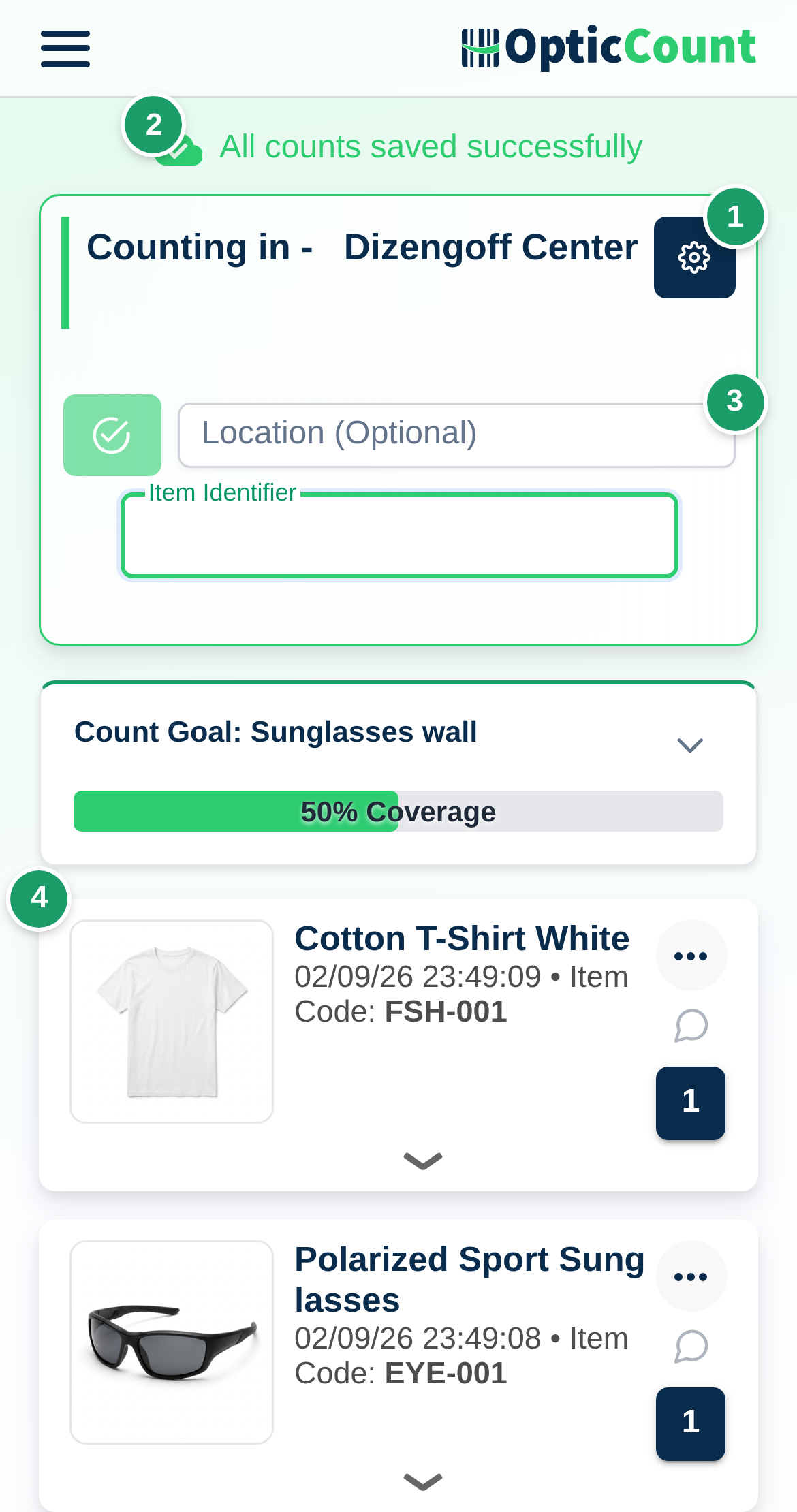
(1) Settings button
The cog opens the Personalization Settings panel inside the page. The camera is paused while the panel is open. Every setting is documented on Personalization Settings.
(2) Sync bar
| Message | Color | Meaning |
|---|---|---|
| Just a moment, syncing data with server + percentage | orange | The item catalog is being loaded onto the device. You can scan; lookups are slower until it finishes. |
| Loading count data... | red | Your latest counts are loading. |
| Transmitting count data... | red | Some scans have not reached the server yet. |
| All counts saved successfully | green | Everything is on the server. |
| All counts saved successfully + Show Warning button | orange | Everything is saved, but a card with a warning is waiting. The button scrolls to it. |
In document-creation and receiving modes the messages are All data synced or Transmitting count data....
Under the bar, Device appears to be connected to weak or slow internet appears when server responses are slow.
(3) Input area
The heading shows the mode and the store, for example Counting in – Main. Tapping the store name opens the active count's details (name, start date, target date, and (Frozen) if the manager paused it).
The fields, in order:
| Field | When it appears | What you do |
|---|---|---|
| Location (Required) / Location (Optional) | Show Location Input Option is on | Type or scan a location name. Autocomplete shows who already counted there and whether it is finished. The green button next to the field (camera off) finishes the location. |
| Fixed Prefix for Item Identifier | Show Fixed Prefix Input Option is on | Text added in front of every scanned identifier. |
| Item Identifier | always | Barcode, item code or name. Typing opens autocomplete; Enter or picking from the list adds the item. |
| Add to stock / Subtract from stock | Show Add/Subtract from Inventory Selection is on | Decides whether the next scans add or subtract. |
The hint Click on the item identifier field to continue counting shows when the cursor is not in the field. A wireless scanner types into whichever field has the cursor, so the field must be active (see Barcode scanner).
(4) Camera and scan target
With Scan with Smartphone Camera on, the camera view appears under the fields with Start Camera / Stop Camera, Switch Camera, Flashlight and Zoom. The first time, the back camera opens, and the camera you pick with Switch Camera is remembered on that phone. After each read you see Tap the screen to scan again. With Continuous scanning (no tap between scans) on, the camera resumes by itself after each saved count, with no tap; after a location scan you still tap the screen.
To save battery, a camera that waits 30 seconds without a scan (20 seconds with continuous scanning) turns off. It does not restart by itself: tap Start Camera to continue. The camera also turns off when you switch to another app. When you come back, a camera that was scanning restarts by itself, and a camera that was waiting for a tap comes back with Start Camera.
When locations are on as well, a selector sits under the camera: Scan Item Identifier or Scan Location. After you scan a location, the second option becomes Finish This Location. Tapping either field also switches the target.
Tips for reliable camera scanning
- Wipe the lens before you start – a smudged lens slows recognition.
- Prefer the standard (1x) lens. A wide lens distorts the code and a telephoto lens struggles to focus. Switch Camera cycles through the lenses.
- In weak light or on glossy labels, turn on Flashlight.
- For a small or distant barcode use Zoom instead of moving in until the image blurs.
(5) Scan cards
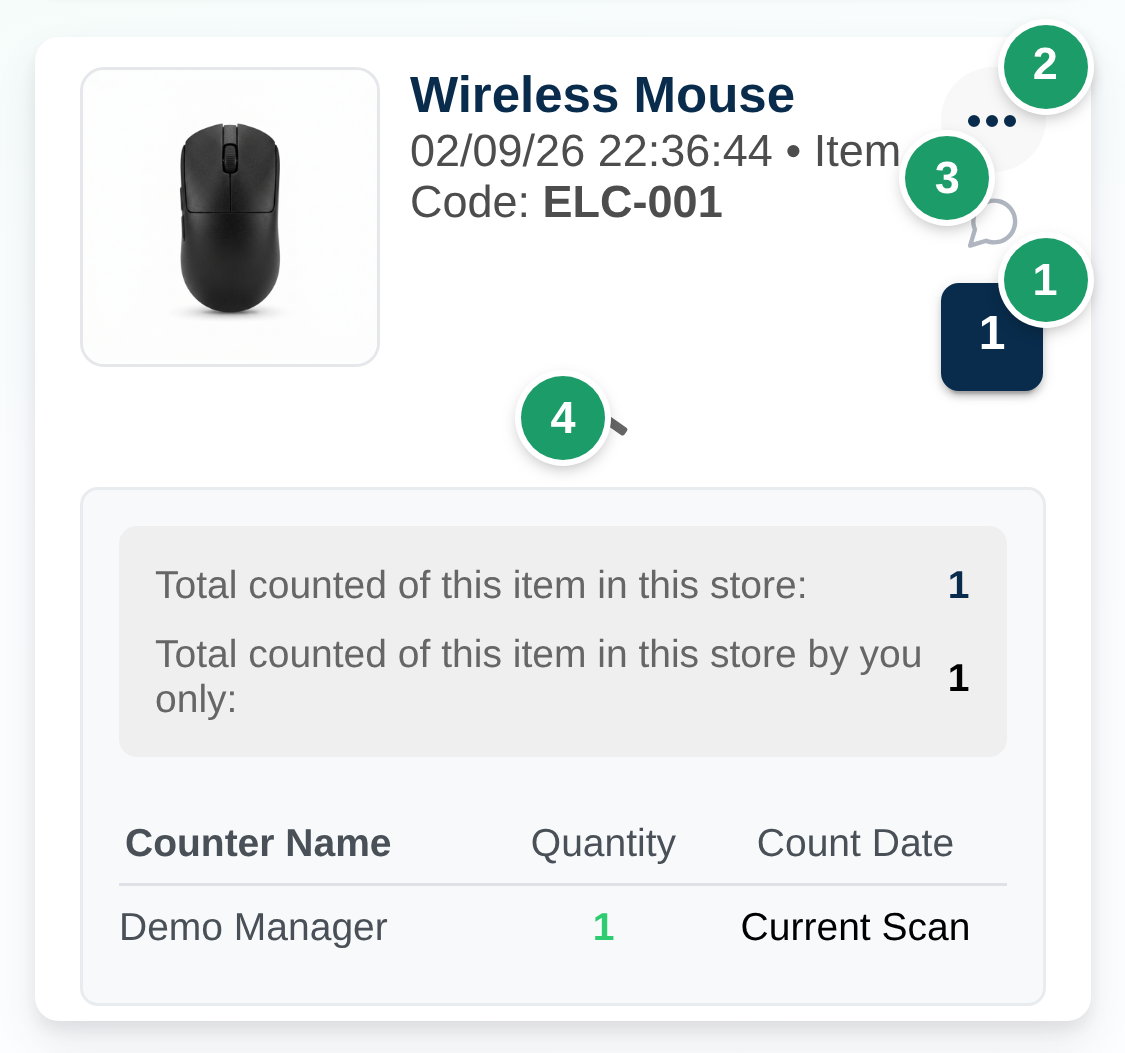
Each scan adds a card at the top of the list. The list shows your scans in this store; other people's scans appear in the item history and on Recent Counts.
| Part of the card | What it shows / does |
|---|---|
| Title and details line | Item name, scan time, then the fields you chose under Display on Scan Card (item code, barcode, prices, supplier, category, sort code, color, size, model, unit of measure, image, location and quantity by ERP). |
| Batch Number:, Expiration Date:, Status: and the account's scan fields | Only if entered in the after-scan window. A scan field shows as Field name: value. |
| Location: | The location entered at scan time. |
| Loan / Return + Borrower: | Loan and return modes only. |
| Quantity button (1) | Opens the quantity window for editing. With a discrete quantity it shows before the bar: 3 | 12. |
| ⋯ menu (2) | Delete item from count, and Edit item from catalog for users with catalog-edit permission. |
| Note icon (3) | Opens Scan note – free text saved on the scan. Available only in count, loan and return modes, and when Allow notes on scans is on. |
| Expand arrow (4) | Opens the item history: Total counted of this item in this store:, Total counted of this item in this store by you only:, and a table Counter Name | Location | Quantity | Count Date. Rows that match the current scan (same quantity and location) are highlighted. |
A card with a warning (duplicate scan, finished location, and so on) is tinted and opens automatically with the message and two buttons: OK keeps the scan, Delete this scan removes it. Until every warning is handled, the sync bar stays orange.
When Show Option to Hide Keyboard During Scanning is on, a Hide Keyboard / Show Keyboard button floats at the bottom of the screen (not at the end of the list), in count, loan and return modes. While the keyboard is hidden, the phone keyboard stays down and a physical scanner scans continuously – see Hiding the keyboard while scanning.
What happens after a scan
- The identifier is processed according to your settings: barcode transformation rules, space removal, fixed prefix and UPC-A conversion.
- The app looks the item up in the catalog stored on the device, and if it is missing – on the server.
- Found: the card is added right away (or after the after-scan window, if it opens) and a success sound plays.
- Several items share the identifier: if Show All Matches When Identifier Is Ambiguous is on, the Multiple items match "…" dialog opens. Otherwise the first match is used.
- Not found: the failure sound plays and the Item Not Found in Catalog dialog opens. Depending on settings it offers similar items, a Smart Suggestion from the common-items database, Add to Catalog (catalog-creation mode) or linking the barcode to an existing item (barcode-link mode). The Smart Suggestion can also come from the name other businesses give the same public barcode. An item added with Add to Catalog is counted at once; if that count fails you see The item was added to the catalog but was not counted. Scan it again. A scan while the dialog is open plays the failure sound and the dialog stays open. Close it with Got it, Close or Add to Catalog.
- Communication error: if the item is not in the device catalog and the server lookup fails, the failure sound plays and Communication error, please check internet connection and try again appears. An item that is in the device catalog is counted even offline and sent once the connection returns.
Quantity window
The after-scan window opens after every scan when any of these is true: Show Quantity Window After Scan is on, Show Batch Number Field After Scan or Show Expiration Date Field After Scan is on, or the account has scan fields. In picking and document creation it opens only according to Show Quantity Window After Scan. It always opens when you tap the quantity button on an existing card.
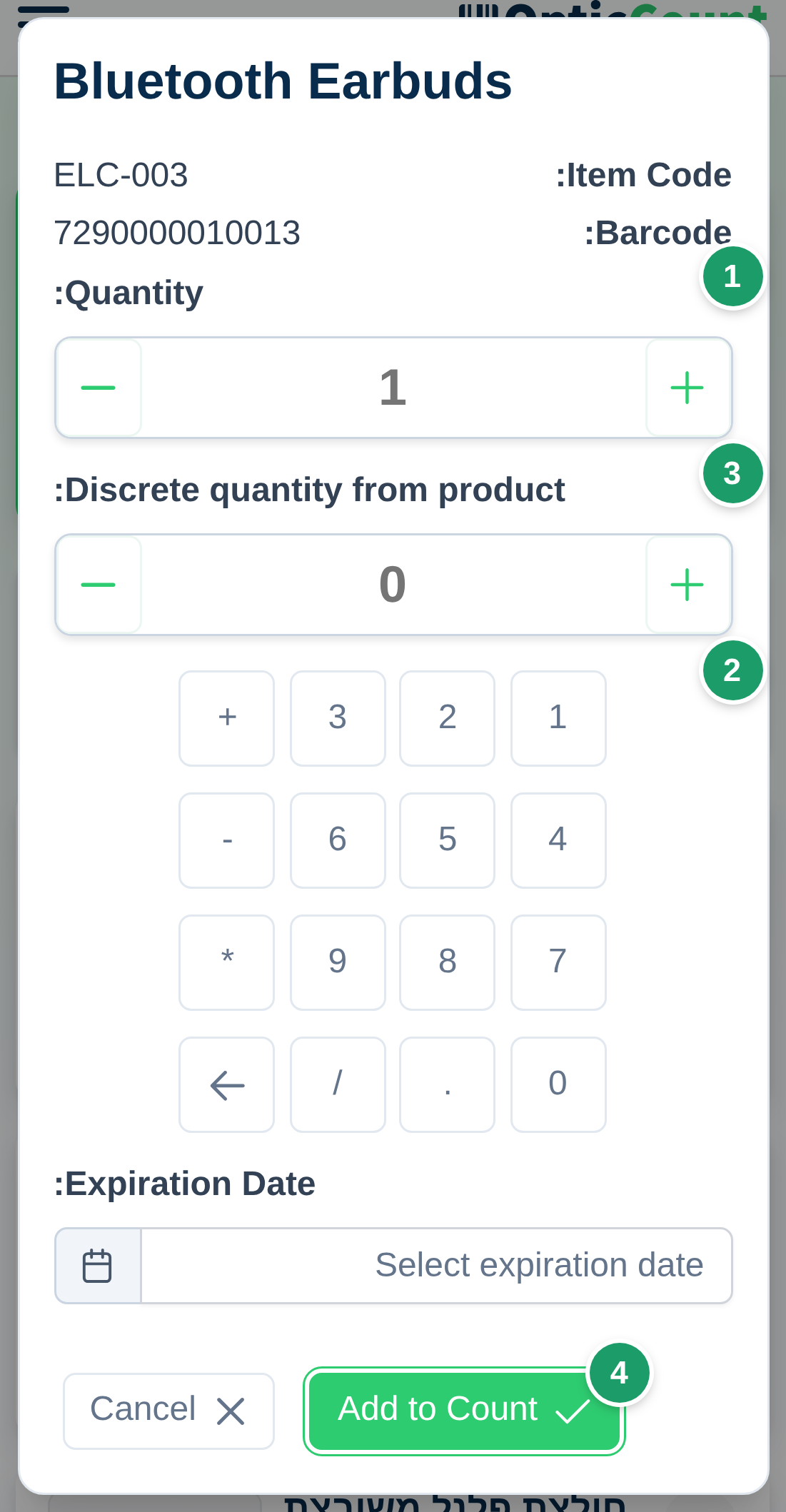
- Quantity: – the virtual keyboard includes
+-*/. Type an expression such as4*7and the result (28) becomes the quantity. Up to 7 digits and two decimals. - Discrete quantity from product:, Batch Number:, Expiration Date: – shown according to the matching settings.
- The account's scan fields, for example Status or a color – a pick list per field, showing Select... until a value is picked. An empty required field blocks confirming with Please select «field name». The fields do not appear in picking and document creation.
- Package contains: N units with Package Mode / Units Mode – for items with a package quantity, see Packages and parent barcodes.
- A quantity outside the range set by Minimum Possible Quantity Value / Maximum Possible Quantity Value is blocked with a message.
- Add to Count confirms; Cancel closes without counting.
The virtual keyboard is hidden when Hide Virtual Keyboard When Editing Quantity is on, and also whenever the camera is on.
Count goal card
In inventory-count mode, when the store has count goals defined, a Count Goal card appears above the list. Pick a goal in Select Count Goal and the card shows the coverage percentage, Counted from Goal, Total in Goal and Out of Goal. Expand Details opens the tabs Not Counted Yet, Partially Counted - Variance Report (managers and users allowed to see ERP quantities) and Out of Scope. Tapping an item in the missing list puts it into Item Identifier. Close After Scan collapses the card after every scan. Creating and editing goals: Count scopes.
Working offline
- The catalog is stored on the device, so item lookup works without a connection.
- Every scan goes into a local queue on the device and is sent to the server immediately; if sending fails it returns to the queue and is retried automatically every 15 seconds while the page is open.
- Refreshing or leaving the page does not clear the queue. The next time you open the same store, queued scans appear in the list and are sent.
- Leaving the page with unsent scans shows Some scans are not yet saved to the server… with Exit Anyway. Better to wait for green.
Modes
The mode is set by the page you came from. The table summarizes; the sections below give the details.
| Mode | Opened from | Screen heading | Finish button | Scan notes |
|---|---|---|---|---|
| Inventory count | main menu → Start Scan | Counting in | none – leave when everything is green | ✔ |
| Loan / return | Borrowers → Start Loan / Start Return | Loans & Returns in | End | ✔ |
| Order picking | Orders → Start Collection | Collection in Store: + order number | End Collection | – |
| Create order / returns document | Orders → New Order, Returns → New Return | Creating New Order - store / Creating a new return - store | Finish Creating Order / Create return document | – |
| Goods receiving | Goods Receiving → New Receipt | Receiving from supplier | Finish Receiving | – |
Inventory count
The default mode. Everything described above is available: locations, count goals, notes, add/subtract, creating items while counting. There is no finish button – the store's count is closed on Recent Counts or Branches. If the manager paused the count, or the store has no active count, scanning is blocked with a message that points to the manager. A store marked Closed blocks workers from adding and editing counts. The full process: Inventory count.
Loan and borrower return
- How it opens: on Borrowers, tap Start Loan or Start Return on the borrower's row and pick a store in Select store for loan / Select store for return.
- What's different: above the identifier field a bar reads Loaning to: or Returning from: with the borrower's name and an End button. The direction is fixed for the whole session. A loan is recorded as a negative quantity (stock leaves), a return as a positive one, and every card is tagged Loan / Return with Borrower:. The list shows only this borrower's scans (No existing counts for borrower: when there are none). The count goal card, Add to stock / Subtract from stock and catalog-creation mode are unavailable.
- How it ends: tap End. The app waits for all scans to reach the server, closes the session (and, when the borrower is linked to an ERP branch, creates a stock transfer) and returns to Borrowers. If the ERP did not confirm, a message appears and the session still closes; resend from the borrowers page. The full process: Equipment loans.
Order picking
- How it opens: on Orders, tap Start Collection on the order's row.
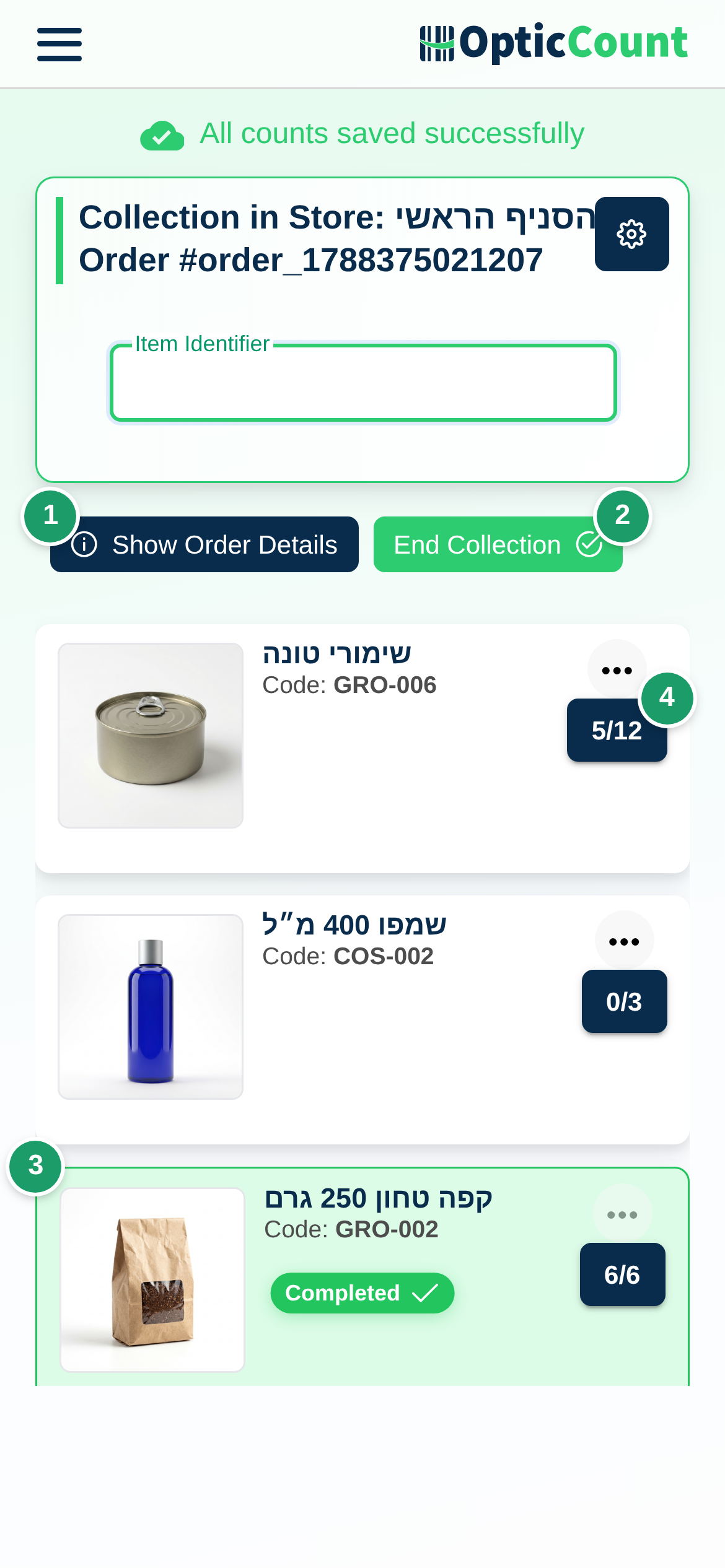
- What's different: instead of scan cards you see the order lines with collected X of Y. Scanning an item from the order advances its line; tapping the quantity opens editing. A quantity above the requested one asks for confirmation. An item that is not on the order opens Item Not in Order with Use this item as replacement (when the integration supports replacements). Show Order Details opens the customer card and notes. The settings panel shows only the relevant scan settings. No scan notes and no locations.
- How it ends: when every line is complete, Order Collection Completed Successfully! opens; you can also tap End Collection midway (a warning lists missing lines). When there is more than one option you choose Where to report? and Which document to create? (for example Just finish, Create delivery note, Create tax invoice). A Collection Summary follows with Items in order, Fully collected, Partially collected, Not collected, and you return to Orders. If sending to the integration failed, the order stays Collecting and you can retry. The full process: Order picking.
Creating an order or a returns document
- How it opens: on Orders, tap New Order; on Returns, tap New Return and choose Customer return or Supplier return. Fill in the document details in the dialog; Continue to Add Items opens the Count page with a draft that is already saved. Editing an existing order opens the same screen headed Editing Order #N.
- What's different: the heading is Creating New Order - store, Creating a new return - store or Creating a new supplier return - store. Each scan adds a line to the document (quantity through the quantity window if enabled; scanning again updates the quantity). A line's ⋯ menu has Delete Item from Order. Show Order Details shows what you filled in. Changes are saved to the draft in the background – the sync bar reads All data synced. No scan notes and no locations.
- How it ends: for an order tap Finish Creating Order (or Finish Editing Order). For a returns document tap Create return document / Create supplier return document, choose where to report if there are several options, and the Customer signature / Supplier signature dialog opens: sign in the box, Confirm attaches the signature to the document, Skip continues without it. The button is disabled while there are no lines. You return to the tab you started from. The full process: Returns and documents.
Goods receiving
- How it opens: on Goods Receiving, tap New Receipt, fill in Supplier Name, Branch / Warehouse, Delivery Note / Invoice Number, Receipt Date, Allocation Number and Notes, and tap Continue to Items. Receiving from a photographed document goes through the AI review instead of the Count page – see Goods receiving.
- What's different: the heading is Receiving from supplier. Each scan adds a line with a quantity; Show Receipt Details shows the document details. Lines are saved to the draft in the background. No notes, locations or count goal.
- How it ends: tap Finish Receiving. Receipt N created successfully appears, the receipt moves to Awaiting verification and you return to Goods Receiving. Stock does not change yet.
- Verification: Verify Receipt on the management page (only for a receipt Awaiting verification) opens the Count page headed Receipt verification at: with the document lines, and every scan marks a verified quantity. View Verification Status shows Fully Verified / Partially Verified / Not Verified. Tap Finish verification to finish: the receipt moves to Verified and only the verified quantities go into stock. Back to Goods Receiving leaves without finishing. Details on Goods receiving.
Leaving the page
The logo and Home return to the menu. With unsent scans a warning appears with Exit Anyway; with cards that carry a warning you see Please pay attention to counts with warnings before exiting the count page with Exit Count Page and Delete Warnings – the warnings are cleared, the scans stay.
Related pages
- Personalization Settings – decide how the page behaves when you scan
- Inventory count – run a full count end to end
- Barcode scanner – pair a wireless scanner and scan faster
- Packages and parent barcodes – count cartons without opening them
- Recent Counts – see every scan and close a count