
Integrations screen
The Integrations screen connects OpticCount to external systems: importing the catalog, branches, users, customers and suppliers; exporting the count summary; automatic sync on a schedule; syncing orders from Bina; and WhatsApp alerts.
Who sees it: primary user · co-manager · sub-manager
Used by modules: counting picking goods receipt returns
TL;DR
Add an integration, fill in the connection details, switch Active on and save. From then on the Import … with and Export Summary buttons appear on the relevant screens, and the Automatic sync column lets you schedule regular data pulls. What each system can do is in the tables below.
How to get here
- On the phone: ☰ menu → Setup → Integrations
- On the computer: side menu → Setup → Integrations
What is on the screen
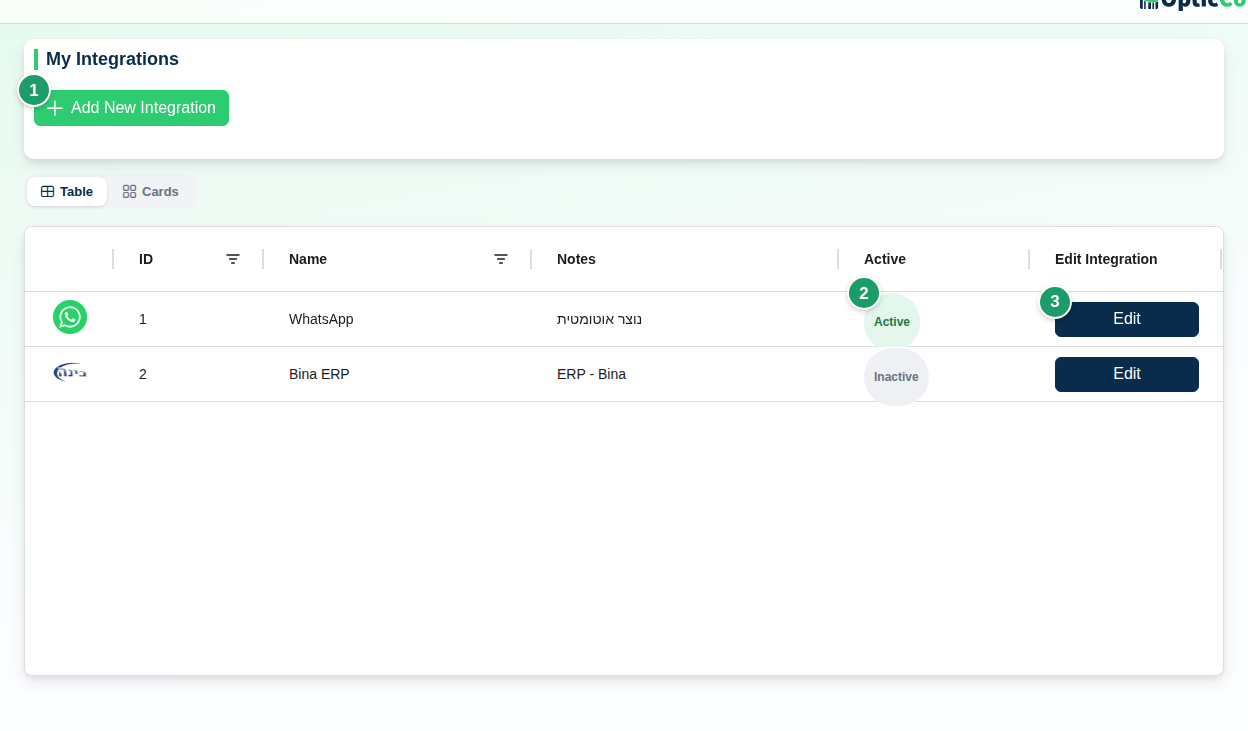
(1) Add New Integration
Opens the Add Integration dialog.
(2) Integrations table
| Column | What it shows |
|---|---|
| Logo | The system's icon |
| Name | The integration type |
| Notes | The comment you wrote (for example "production server") |
| Active | An Active or Inactive badge |
| Automatic sync | The Schedule button, or Not available when the system does not support automatic sync or the integration is switched off. See Automatic sync |
| Edit Integration | Edit – opens the Update Integration dialog |
An ID column sits at the end of the table; in the card view it stays hidden until you expand the card.
(3) Edit
The edit dialog also offers Delete Integration (confirmed with "This action cannot be undone"), and for Bina, Boss, Priority and Minisoft also Reset Sync – clears the last-sync date so the next import fetches everything again.
The integration dialog
Pick the system under Select Name, fill in that system's fields, then Comment and Active. Click Create Integration or Save Changes. Close Without Saving appears when there is an unsaved change.
| System (as listed) | Connection fields |
|---|---|
| Hashavshevet | Station, Plugin (HESHIN / IMOVEIN / KUPAIN), Company, Passport, Private Key |
| Priority | API URL, Personal Access Token, Password |
| Phone Numbers, Triggers (see below) | |
| Bina ERP | API URL, API Key |
| Boss Software Solutions | API URL, Boss Unique ID, Username, Password, Proxy Password, and two switches: Pull updated inventory data on each scan and Fetch supplier names - only if necessary |
| Kod Bina - Minisoft | API URL (for example https://w.minisoft.co.il), Username (usually Api), Password |
| Yarpa | Pharmacy token, and Branch for ERP stock (optional). See Yarpa integration |
An inactive integration does nothing
Import and export buttons on the other screens, and the Schedule button, appear only for integrations switched to Active. If a button is missing, check the switch first.
What each system can do
This table shows the actions each system performs through this screen and the buttons on other screens. Which modules each system supports is in the next section.
| System | Catalog import | Branch import | User import | Customer / supplier import | Count summary export | Orders |
|---|---|---|---|---|---|---|
| Bina ERP | Yes | Yes | Yes | Yes | Yes | Order sync |
| Boss Software Solutions | Yes | Yes | Yes | – | Yes | – |
| Kod Bina - Minisoft | Yes | – | – | – | Yes | – |
| Priority | Yes | – | – | – | Yes | – |
| Yarpa | Yes | – | – | – | Yes | – |
| Hashavshevet | – | – | – | – | – | – |
On this screen Hashavshevet is stored with its connection details only. Integrations with Priority, SAP Business One and Hashavshevet are set up per customer together with the OpticCount team. Bina and Minisoft also offer completion actions for documents (for example creating a delivery note or a return in the ERP when an order or document is finished). See Orders and Returns.
Where the buttons live:
- Import Catalog – in Catalog. A repeat import brings only items changed since the last sync; if there are none you see No new or updated items since last sync.
- Import Stores / Import Users / Import customers / Import suppliers – on the Branches, Users, Customer Management and Supplier Management screens. The buttons appear for every active integration except WhatsApp; a system that does not support that import type returns an error.
- Export Summary through an integration – in Recent Counts, for the selected branch. The export uses the Branch Export Name to post quantities to the right warehouse.
- Order sync – in Orders: a Last sync at line and a For manual sync button. Before the first Bina sync it reads Click to perform initial sync with Bina.
Which modules each ERP supports
Inventory counts work for any business: with an integration the data moves directly, and without one you upload the catalog from an Excel file and download the count summary as an Excel file. Order picking, goods receiving and returns work only with a full integration to a supported ERP, never through Excel. Equipment loans and item identification need no ERP.
| ERP | Inventory counts | Goods receiving with AI | Returns & documents | Order picking |
|---|---|---|---|---|
| Bina ERP | ✔ | ✔ | ✔ | ✔ |
| Priority | ✔ | ✔ | ✔ | ✔ |
| SAP Business One | ✔ | ✔ | ✔ | ✔ |
| Hashavshevet | ✔ | ✔ | ✔ | ✔ |
| Boss Software Solutions | ✔ | ✔ | ✔ | – |
| Kod Bina - Minisoft | ✔ | ✔ | ✔ | – |
| Nesher - Tevel | ✔ | – | – | – |
| Yarpa (pharmacies) | ✔ | – | – | – |
| Any other system (One ERP (Kolbo), Comax and others) | ✔ via Excel files | – | – | – |
Integrations with Priority, SAP Business One and Hashavshevet are set up per customer together with the OpticCount team. Priority Zoom is not the regular Priority: with it, inventory counts work through Excel files only.
Automatic sync
The Automatic sync column schedules a regular pull of data from the ERP, so nobody has to click the import buttons each time. The Schedule button appears for an active integration of a system that supports it; other rows read Not available.
| System | What can be scheduled |
|---|---|
| Bina ERP | Catalog items, Users, Branches, Customers, Suppliers |
| Boss Software Solutions | Catalog items, Users, Branches |
| Kod Bina - Minisoft | Catalog items |
| Yarpa | Catalog items |
- Click Schedule on the integration's row. The Automatic sync window opens – Pull data on a schedule.
- Switch on the data type you want to pull, for example Catalog items.
- Next to Every, enter a number and pick a unit: minutes, hours, days or weeks. The minimum is every 30 minutes, the maximum about one month.
- Click Save. The message Automatic sync settings saved appears.
Each data type shows its status: Last run with the number of records, Failed, or Has not run yet, plus Next: with the time of the next run. Run now runs the pull immediately; if you changed something, save first (Save your changes before running). Recent runs lists the last 20 runs, scheduled and manual.
Orders are not part of this window: Bina orders are pulled automatically on their own, every few minutes. See Orders.
Yarpa integration
Yarpa is a management system for pharmacies. The integration connects OpticCount to Yarpa for inventory counts only: you pull the catalog from Yarpa and send the count summary back to it. Importing branches, users, customers or suppliers, orders, receiving and returns are not available with Yarpa.
Connection fields:
- Pharmacy token – the token you received from Yarpa. The token is masked; Show token reveals it. Below the field you see Token valid until with a date. Once the token expires, ask Yarpa for a new one and enter it here.
- Branch for ERP stock (optional) – the branch where stock quantities coming from Yarpa are saved. If no branch is chosen and the company has a single branch, that branch is used automatically.
Catalog import. Import Catalog in Catalog pulls the items from Yarpa, together with the stock quantities for the chosen branch. You can also schedule a regular catalog pull under Automatic sync.
Count summary export. When an export from Recent Counts finishes, a window shows N items sent. Lines that Yarpa does not accept are not sent, and the window shows N lines were not sent: with a list grouped by reason and sample item IDs:
| Reason | What it means |
|---|---|
| Items added by hand during the count | The item was added on the counter page and did not come from Yarpa's catalog |
| Items missing from the ERP's catalog | The item ID was not found in Yarpa |
| Non-numeric item code (the ERP accepts numbers only) | Yarpa accepts numeric item IDs only |
| Fractional quantity (the ERP accepts whole numbers only) | Yarpa accepts whole quantities only |
| Negative quantity | The counted quantity is below zero |
| Inactive items | The item is marked inactive in the catalog |
| Items with no item code | The item has no item ID |
If the export stops partway, the message The export stopped partway appears with the number of items that already reached Yarpa and the number that did not. Do not send again before you check with Yarpa what was received, so that no item is counted twice.
Signing up with a QR code. A pharmacy that signs up through a Yarpa QR code gets an account that is already connected to Yarpa, without entering a token. In such an account the catalog is pulled from Yarpa once a day, and the first pull starts about a minute after the first sign-in. Change the frequency with Schedule. See Quick start.
The Yarpa integration fee renews with the licence; it is not a one-time charge. See License & Purchases.
Bina order sync result
After a sync the Bina sync completed window opens (or Bina sync completed — with warnings):
| Line | Meaning |
|---|---|
| Received | How many orders Bina returned |
| Imported | New orders created |
| Updated | Existing orders that changed |
| Unchanged | Orders already up to date |
| Skipped | Orders not imported, grouped by reason with sample order numbers |
| Orders per store: | Breakdown by branch |
| N orders were not imported - no matching store found | The branch on the order matches none of your Branch Export Name values |
| Errors: | Communication or data failures, grouped by reason |
WhatsApp alerts
The WhatsApp integration sends messages to the numbers you enter (format 05XXXXXXXX, several allowed). Every message is sent in Hebrew, from fixed, pre-approved templates. The triggers you control:
| Trigger | What is sent | Extra setting |
|---|---|---|
| Low Stock Alert | How many items in a branch dropped below their threshold. The full list is in the app, under the stock reports | The threshold is set per item in the catalog; an item without one raises no alert |
| Daily Expiration Report | How many items expire within the number of days you set. The full list is in the Expiry report | Days Before Expiration (1–365, default 3) and When to send |
Under When to send you pick one of two options. Both check each morning the items scanned with an expiry date that falls between today and the number of days you set. Picking scans are not counted.
- Only when new items are about to expire (default): a message goes out only if a new item entered the range, for example an item whose date came closer or an item scanned since the previous message. Each item is reported once.
- Daily report of everything about to expire: every morning a message lists everything in the range, even if already reported. Nothing is sent when there is none.
System messages are always sent and cannot be switched off here: a warning before the licence expires and a notice after it expires, a welcome message on registration, a warning when 90% of the credits are used, a purchase confirmation, and the verification code for a password reset.
Security
- Keys, passwords and tokens are stored on the server. Prefer a dedicated integration user in the external system with the minimum permissions.
- A leaked key is replaced on both sides: in the external system and in this dialog.
- Deleting an integration does not delete data already imported.
Common mistakes
- The button does not appear → the integration is not Active, or the system does not support that action (see the table).
- The Automatic sync column reads Not available → the integration is switched off, or the system is not listed in the Automatic sync table.
- Wrong API URL → make sure it starts with
https://and uses the full path shown in the field's example. - Bina orders "skipped – no matching store" → enter the Store/Warehouse Code in Branches exactly as it is in Bina.
- Catalog import brings nothing → normal when nothing changed; for a full import click Reset Sync and import again.
- The Yarpa token expired → ask Yarpa for a new token, enter it in Pharmacy token and click Save Changes.
Related pages
- Catalog – import the catalog from the ERP
- Recent Counts – export a count summary
- Orders – sync orders from Bina
- Modules at a glance – check which modules each ERP supports
- Company Details – pick the ERP system for the export file format