
Quick start – how to sign up and run your first count
TL;DR
Sign up with a phone number, your name, the business name and a password. Open the main menu, tap Start Count, choose a branch and scan. From there, go to the module you need: picking, receiving, loans, returns or item identification.
Who this is for and when
This page is for a business owner or manager opening a new account, and for an employee who has just received a user and wants to start counting. If the account already exists and you are looking for a specific screen, go straight to the management screens.
Before you start
- A phone or computer with a browser. An external barcode scanner is optional – you can scan with the camera.
- A mobile number that receives WhatsApp messages. The password-reset verification code is sent there.
- An item catalog file (Excel or CSV) if you have one, or an ERP connection. Without a catalog you can still count and build it as you go.
Step by step
Register a new business
- Open https://opticcount.web.app.
- Choose the Register New Business tab.
- Enter your Phone Number in the format
05XXXXXXXX(or international format with a country code). - Enter your Full Name and the Company / Business Name. The business name is shown to all employees.
- Pick a password in Choose Password – at least 8 English characters, one uppercase letter and a number.
- Choose your ERP System from the list. Not sure? Pick Other / Not Sure / No ERP System. You can change it later under Integrations.
- Optional: if another business gave you a referral code, click I have a referral code and enter it in Referral code (optional). If you arrived through a referral link, you see the line You were invited by… with the number of free credits you get on your first purchase instead, and there is no code to type.
- Click Sign Up & Login. Signing up means you accept the Terms of Use and Service Agreement linked under the button. The main menu opens, followed by the Welcome to OpticCount! dialog.
You can also sign up with a Google account: click the Google button, then complete only the fields that are still empty.
A referral code cannot be your own company's, and a code that does not exist or is not active is refused with That referral code was not found or is not active. What a referral earns is described in Company Details.
Sign up with an ERP QR code
Some ERP providers (today: Yarpa, for pharmacies) give their customers a QR code for signing up. Scanning the code opens the Register New Business tab with the message You scanned a Yarpa QR code. The account will be created already connected to Yarpa, with nothing else to enter. The ERP System field is already chosen and locked.
- Fill in phone, name, business name and password as in a regular sign-up.
- Click Sign Up & Login. The account opens with the integration set up and active, and the catalog is pulled from the ERP automatically: with Yarpa once a day, the first pull starting about a minute after you sign in.
Not your code? Click Not mine, let me choose another system, and the ERP System field opens for a regular choice. If you see The token in the QR code is not valid or has expired – ask the ERP provider for a new code. Details in Integrations.
One account per phone number
The user who registers is the business's Primary User. Add more users (employees, sub-managers) later in Users. Two accounts cannot share the same phone number.
Log in to an existing account
- On the Login tab, enter your Phone Number and Password.
- Click Login. If a field is missing, the app says next to the button what still needs filling in.
The Login tab also has a Google button: a user who linked a Google account to their user signs in with one click, without a password. If you see No account is linked to this Google account – sign up, or log in with your phone number and password.
Reset your password
Resetting your own password is available only to the Primary User. Any other user gets Only a company manager can reset the password this way, and a manager resets their password in Users.
- On the Login tab, click Forgot Password.
- Enter your phone number and click Send Verification Code. A 6-digit code arrives on WhatsApp, with a button to copy the code.
- In the Reset Password window, enter the 6 digits and click Verify code. The button is active only once all 6 digits are entered.
- Enter a New Password and click Reset Password.
If you see The verification code is incorrect or has expired. Request a new code. – start again from step 1.
Choose a language and appearance
The login screen has a language picker: Hebrew, English, Arabic and Russian. After logging in, switch language from the profile menu: click your user name in the header and choose Language. The direction (RTL/LTR) switches on its own. Details in Language support.
Next to the language picker on the login screen, a sun/moon button switches between Light and Dark. The login screen stays light until you choose dark with this button. After logging in, choose the look from the profile menu, under Appearance.
Your first count
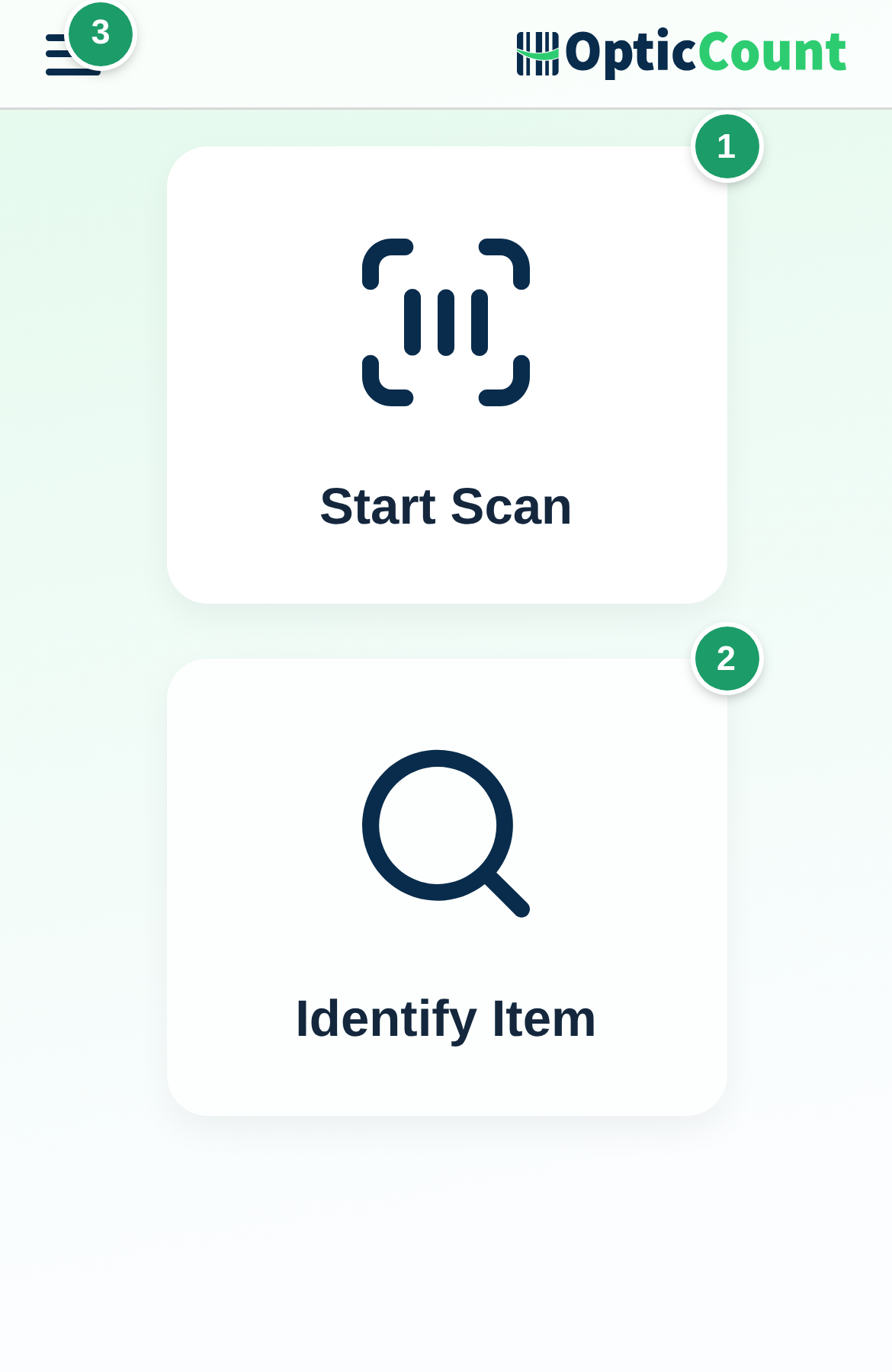
- On the main menu, click Start Scan.
- If the business has more than one branch, choose one in the Select Store for Count dialog and click Start Count. With a single branch the page opens directly.
- Scan an item – with the camera, a Bluetooth scanner, or by typing a barcode or name in the item identifier field. The item appears in the scan list with its quantity.
- Scan the same item again. The quantity updates on the same row; no duplicate row is created.
- Optional: tap a row to edit the quantity or delete the scan.
Every scan is saved to the cloud immediately. There is no "save" button. For the full explanation of the count page, its modes and settings, see The count page and Inventory counts – the full module.
Start small: count one shelf or one box, open Recent Counts and export a summary. That way you see the whole path before counting a full warehouse.
Getting started checklist
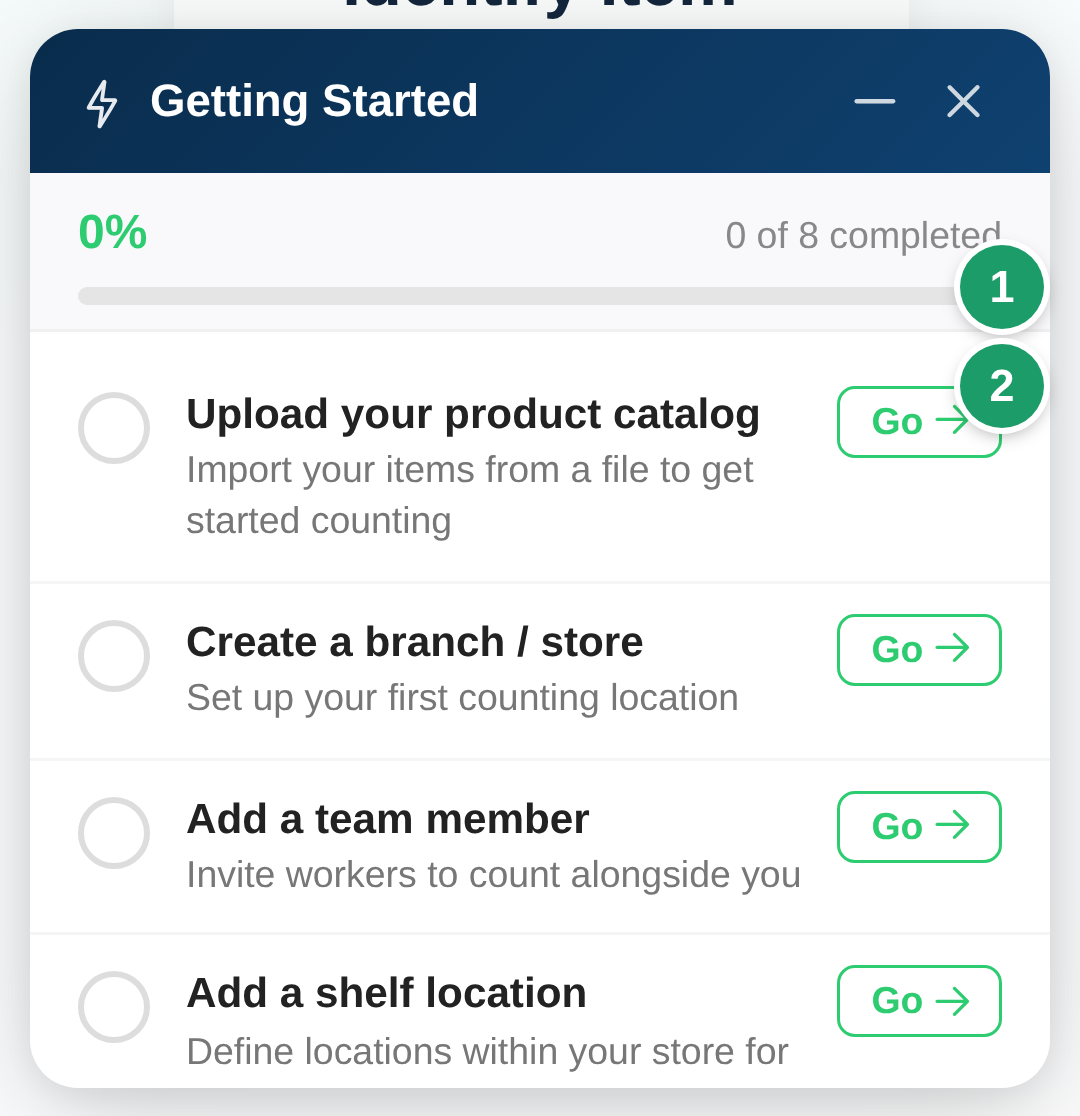
After registration a floating Getting started checklist button appears. It opens the Getting Started list, and the app marks a step done when you actually do it. The steps depend on your role:
| Role | Steps |
|---|---|
| Primary User | Upload your product catalog · Create a branch / store · Add a team member · Add a shelf location · Perform your first scan · Export a counts summary · View the overview dashboard · Ask the AI assistant a question |
| Sub-Manager | Add a shelf location · Perform your first scan · Export a counts summary · View the overview dashboard · Ask the AI assistant a question |
| Employee | Perform your first scan · Scan an unknown item · Edit a count quantity · Ask the AI assistant a question |
Click Go next to a step to jump to the right screen. You can minimize or dismiss the list; to bring it back, click your profile image and choose Show Onboarding Guide.
What do you want to do next
| Task | Where to start | Full page |
|---|---|---|
| Count inventory and export to the ERP | Main menu → Start Scan | Inventory counts |
| Pick an order | Management → Orders → Start Collection | Order picking |
| Receive goods from a supplier | Management → Goods Receiving → New Receipt or Receive from Document | Goods receiving |
| Lend or take back equipment | Management → Borrowers → Start Loan / Start Return | Equipment loans |
| Issue a returns document | Management → Returns → New Return | Returns & documents |
| Look up an item without counting | Main menu → Identify Item | Item identification |
Picking, receiving, returns and loans are paid modules. A module that was not purchased shows a lock in the sidebar and, instead of the screen, opens an unlock dialog named after the module (for example Unlock Order picking) with a View plans & unlock button. See License & purchases.
Checklist for a new business
Go through this list before your first big count:
- [ ] Branches – every store or warehouse you count separately has a branch in Branches.
- [ ] Catalog – the catalog was uploaded from a file or pulled from the ERP in Catalog. Check that items have barcodes.
- [ ] Users – every employee has their own user with access to the right branches in Users. A new branch is blocked for employees until you grant access.
- [ ] Integration – if you export to an ERP, the export format or connection is set up in Integrations.
- [ ] Count settings – review Personalization settings. For most businesses, turning on the duplicate-scan warning and autocomplete is enough.
- [ ] Locations – if you count by shelf or area, define them in Locations.
Common problems
- If the scanner enters nothing → click the item identifier field so the cursor is in it, and check the keyboard is in English. See Barcode scanner.
- If Oops, item not in catalog appears → the catalog was not uploaded, or the barcode is not in it. See FAQ – scanner and barcodes.
- If the internet drops mid-count → keep scanning. Scans are queued on the device, and the app retries sending them every few seconds until the connection returns. The status at the top of the count page shows when everything is saved.
- If a module shows a lock → it is not part of your license. See License & purchases.
Related pages
- The main menu – get to know the three buttons and the sidebar
- The count page – scan, edit quantities and work with locations
- Modules at a glance – choose the right module for the job
- Users – add employees and grant permissions
- FAQ – solve first-day problems